Isolate Chrome “Aw, Snap! / Out of Memory” errors by testing load and extensions
What to do first
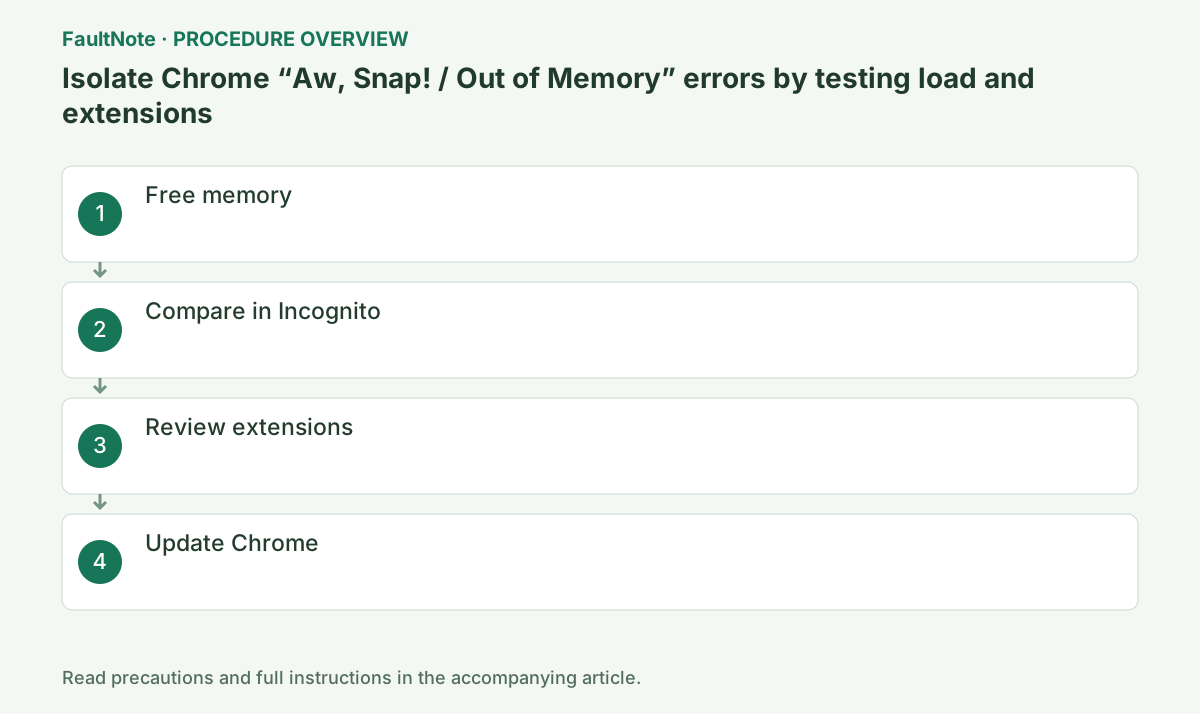
Close all but the affected tab to free memory, then narrow the cause through Incognito, extensions, and updates.
This is a general troubleshooting guide, not an announcement of a current outage.
Affected products and symptoms
- Product
- Google Chrome for computer
- Versions and conditions
- Chrome for Windows/macOS (general procedure)
- Error codes and identifiers
- Aw, Snap!Out of Memory
Symptoms
- A page crashes because memory is exhausted, or a tab cannot load
Causes and conditions
Many tabs, apps, downloads, or extensions may consume enough memory to prevent the page from loading.
Before you start
- Save data entered in forms and important tabs
- Check Chrome Sync
- Record whether the same page opens in another browser
Precautions
- Deleting cache and cookies may sign you out of sites
- An Out of Memory message alone does not establish faulty RAM
Tools and official pages used in this guide
Review the official update procedure from the About Chrome page.
Step-by-step instructions
Open the same URL as the only tab and perform the action that failed. If it works, separately check whether the original tab set reproduces the fault. Save forms and edited documents before closing tabs.
For example, if only a large-image edit fails, successful ordinary browsing is insufficient. Record the behavior with smaller data and the original size separately to help assess the site workload.
If only larger input fails, record approximate image dimensions, size, or row count without publishing private data. Verify that reduced input completes the required work and produces a complete result. A reloaded tab is not completed processing. Include results with other apps closed to help the operator assess workload conditions.
Check before continuingFor example, if only a large-image edit fails, successful ordinary browsing is insufficient. Record the behavior with smaller data and the original size separately to help assess the site workload.
Close every tab except the failing one, stop other apps and downloads, and reload.
Use the three-dot menu at the upper right to open the stated pages. Reproduce with the same URL, Chrome profile, zoom level, and video position. Keep the effect of closing tabs and apps separate from the effect of changing settings.
Record the additional code, URL, and preceding action before reducing tabs. Editing, video, and large tables are different workloads. Save work before pausing downloads or apps. Success after both closing tabs and restarting does not separate those effects; restore the usual tab count in a later comparison and vary conditions individually.
Open Menu > New Incognito window and load the same URL. If it opens, consider cache or extensions.
Improvement in Incognito points to an extension or stored data. Because deleting cookies signs you out, limit deletion to the affected site and confirm that you can sign in again first.
Load equivalent content in Incognito. A lightweight signed-out page succeeding does not establish regular-profile corruption. Note unavailable equivalent authentication or actions and extensions permitted in Incognito. If it helps, investigate regular-mode extensions or site data; if it does not, there is no reason to erase regular data solely for this comparison.
Observe overall memory use in Windows Task Manager and record the change after closing other heavy apps. Aw, Snap! alone does not prove an out-of-memory condition; retain any additional error code.
If failures coincide with high memory use, compare the same action with fewer tabs and apps. Establish whether lowering the workload changes reproduction before purchasing additional memory.
Check before continuingIf failures coincide with high memory use, compare the same action with fewer tabs and apps. Establish whether lowering the workload changes reproduction before purchasing additional memory.
Open Menu > Extensions > Manage extensions, remove unnecessary extensions, then disable the remaining ones one at a time and test.
Use the switches on Manage extensions rather than editing chrome://extensions directly. Test one at a time, restore unrelated items, and record each name and result.
Save input and reopen the same URL after extension changes instead of comparing only an existing tab state. If disabling all helps, test the action after each restoration. Password or ad-blocking changes can alter login and content. Confirm improvement returns when disabling the candidate, send its name and version to its vendor, and restore unrelated items.
Open the three-dot menu > Help > About Google Chrome and wait for the automatic check. If an update is downloaded, select Relaunch. Confirm Chrome is up to date at chrome://settings/help, then open only the original tab and retest.
After changing the GPU switch under Settings > System, select Relaunch. Restore the switch if the same page does not improve; if it does, install an official GPU-driver update and retest with acceleration enabled.
When resuming the usual workload, arrange regular saves for important input. Back or reload after a crash may not restore unsent content. Check completion notices and item lists before resubmission. Open downloaded results to validate them. Reduced-load success differs from processing the full original dataset; retain the workaround conditions.
Open Help > About Google Chrome, allow updates to complete, and save work before any required relaunch. Record the installed version afterward and repeat the original action. Do not overwrite a managed installation with another installer. A newer version with the same fault is not recovery; retain workload, extension, and site comparisons for escalation.
Official links for this step
- Update Google Chrome
Review the official update procedure from the About Chrome page.
Check before continuingDecision: open the three-dot menu > Help > About Google Chrome, wait for the update check, relaunch if updated, confirm Chrome is up to date at chrome://settings/help, and retest only the original tab. If changing the GPU switch, relaunch and restore it when ineffective.
- Update Google Chrome
If other sites work but the same URL repeatedly crashes, provide its operator with the URL, action, additional code, and Chrome version. Share only a minimal example without personal information.
Verify the required action with both a single tab and your normal tab set. If only the single-tab test succeeds, document a reduced-load workaround rather than claiming a confirmed cause or permanent fix.
Include the URL, button, approximate input size, and time to failure in a report. Prefer a small anonymous reproducer to account data or original files. Include other-browser results. Memory observations alone do not establish a site defect or insufficient PC capacity. Finish by testing the required tab set and documenting any limits of the workaround.
Check before continuingVerify the required action with both a single tab and your normal tab set. If only the single-tab test succeeds, document a reduced-load workaround rather than claiming a confirmed cause or permanent fix.
Check the result
- The same page opens after reducing load
- Reproduction differs before and after disabling a particular extension
If the problem continues
- Restart the PC and compare the effect of background apps
- If another browser also fails, investigate the site or network
Scope of this guide
Troubleshooting guide — Google's official page-crash diagnostic procedure; it does not by itself establish hardware failure.
Frequently asked questions
Should I delete all browsing data first?
First compare in an Incognito window. If needed, target only cookies and cache afterward.
Does every Aw, Snap! error mean insufficient memory?
No. It indicates a page-loading failure and needs the additional code and comparisons. Check reduced load, other browsers, and other sites.
Official sources and dates
Source publication or resolution date: Not specified. Sources checked: 2026-10-13. The check date is not the date the problem first occurred. Interface labels can vary between versions and display languages.