AMD Software Error 184: unsupported operating system
What to do first
Check winver and System type, finish Windows updates, then select the matching OS package on AMD's product page.
This is a general troubleshooting guide, not an announcement of a current outage.
Affected products and symptoms
- Product
- AMD Software: Adrenalin Edition
- Versions and conditions
- Windows; AMD Software Installer (no specific release)
- Error codes and identifiers
- Error 184GPU-KB184
Symptoms
- The installer exits with Unsupported Operating System
- Setup cannot continue even though the GPU appears to be supported
Causes and conditions
The current Windows version, edition, architecture or build does not meet the OS requirements of the selected AMD Software package.
Before you start
- Save the Error 184 screen
- Record the GPU model
- Save open files and prepare for a restart after Windows Update
Precautions
- Do not use compatibility mode to disguise an unsupported operating system
- Before updating the OS, check business-app compatibility and organization policy
Tools and official pages used in this guide
Select the GPU and use only a package whose download listing explicitly includes your Windows version.
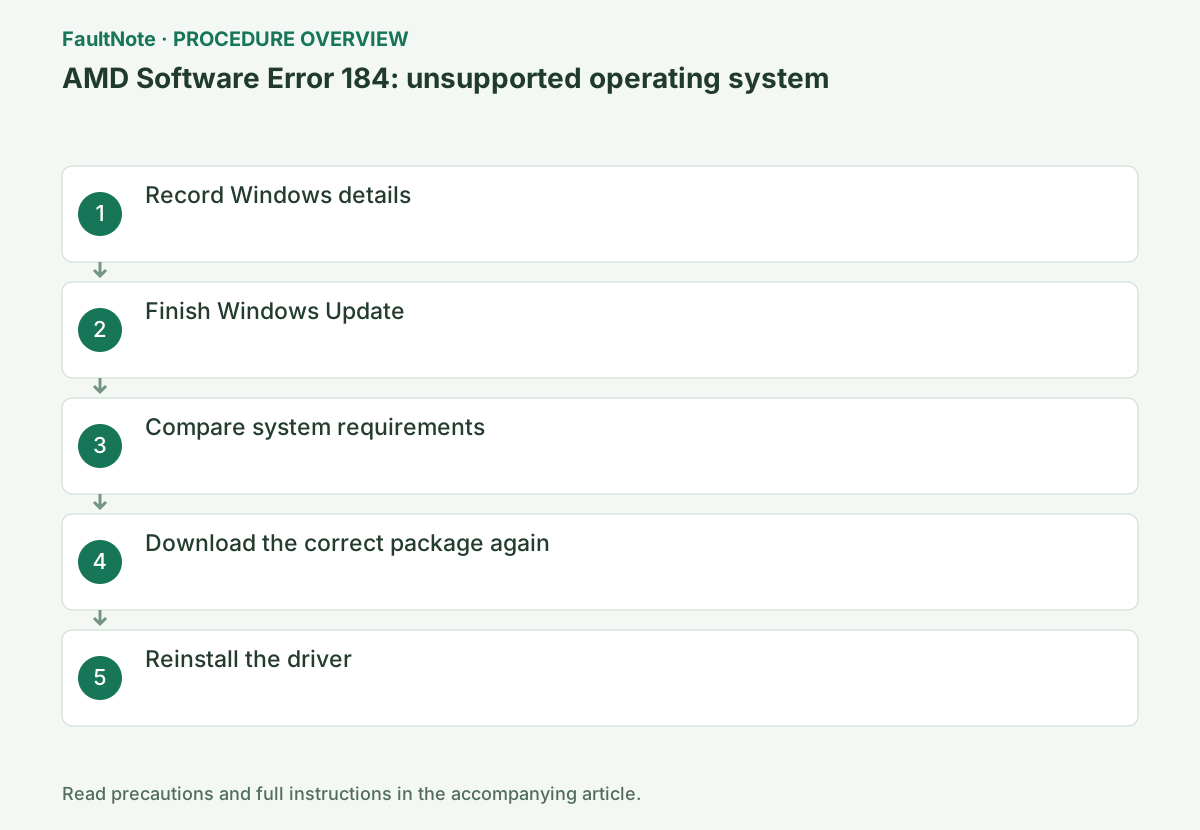
Step-by-step instructions
Press Win + R, run winver and record the Windows version and OS build. Also check System type under Settings → System → About.
If the installer is running in compatibility mode, disable it in the file's Properties → Compatibility tab.
Check the displayed code, AMD Software version and GPU name, and save screenshots or notes together. If the code differs, stop this procedure and use the official article for that code.
Run winver to record the Windows version and OS build. Check System > About for system type, then compare OS, architecture and GPU support with the download page. A filename containing Windows is not sufficient evidence of compatibility.
A newer package can drop an older OS even for the same GPU. Look for an official package for that OS first. Compatibility mode or edited INF files are not substitutes for a supported driver.
Open Settings → Windows Update → Check for updates and install available important updates. If a restart is required, restart and check again until no updates remain pending.
On a manufacturer-built PC, check the support page for the exact PC model before selecting AMD's generic package. Switchable graphics, integrated GPUs and handheld PCs may require OEM drivers; record the current version and keep a recovery package.
If the OS selection is wrong, select the correct distribution. If the OS matches but the required build does not, check application and OEM support before updating Windows. If the GPU itself is absent from supported products, investigate product compatibility instead of only updating the OS. Put all three conditions in one note.
Examples include running a Windows 11 package on Windows 10, an old build of the correct OS, or an OEM-specific GPU. These are comparison examples, not predictions that they always produce 184. Compare the actual code with the package requirements to isolate the item that needs changing.
Select the GPU in AMD Drivers and Support and compare the listed OS with your Windows installation. Read System Requirements in the package's release notes too.
Do not proceed with a package for a different product family, an unsupported older Windows version or an unsupported 32-bit OS.
During setup, close games, recording tools, GPU monitoring tools and other installers. Wait for completion or a specific new error code. Do not turn off the PC if the display flickers briefly.
Official links for this step
- AMD Drivers and Support
Select the GPU and use only a package whose download listing explicitly includes your Windows version.
Check before continuingThe official AMD Drivers and Support page or signed download opens, and its product, OS and version requirements match this PC.
- AMD Drivers and Support
Download the newest compatible release from the matching OS section. Distinguish previously downloaded files for other operating systems so that you do not run the wrong one.
After restarting, open Device Manager → Display adapters → your GPU → Properties → Driver and check the provider and version. If the result is wrong, save Install.log and the last outcome instead of repeatedly retrying.
Close open apps and run the newly downloaded installer. Restart after completion and check the version under Settings → System in AMD Software.
Finally, open the gear icon → System in AMD Software and check the GPU name and Software & Driver versions. Retry the original game, display or installation operation once under the same conditions; undo the change if new symptoms appear.
Check before continuingExpected result: close apps, run the new installer, restart and check the version in AMD Software → Settings → System. Check the GPU and Software & Driver versions under the gear icon → System. Retry the original game, display or installation operation once under the same conditions, and undo the change if new symptoms appear.
After Windows Update, finish the restart and record the new build before retrying a matching package. If both GPU and OS are supported but 184 remains, include the executable filename and download URL in the support request.
Before changing OS for a driver, check OEM OS support and application requirements. Treat a major OS change as separate work with a backup, rather than combining it with repeated installer attempts.
Check before continuingAfter Windows Update, finish the restart and record the new build before retrying a matching package. If both GPU and OS are supported but 184 remains, include the executable filename and download URL in the support request.
Work or school devices may have managed OS and driver distribution. If you cannot change OS requirements, send winver details, PC model, package URL and the error to the administrator. Compatibility mode or forced INF application does not establish manufacturer support.
If the old OS must remain, find an official package supporting both it and the GPU. If none exists, separate preserving the working configuration from reviewing application requirements. Installing an older compatible package does not improve OS support status or prove new-game compatibility.
Check the result
- The installer finishes without Error 184
- The OS on AMD's download page matches winver
- After restarting, the GPU is recognized without a warning
If the problem continues
- If no package supports the current OS, look for an older compatible release for the GPU or the PC manufacturer's driver
- If OS updates are restricted on a managed PC, report Error 184 and the build number to the administrator
Scope of this guide
Troubleshooting guide — Update Windows to a supported state, then download a package matching the GPU and OS from AMD Drivers and Support.
Frequently asked questions
How does this differ from Error 182?
Error 182 refers to the GPU product class; Error 184 means the OS is outside the package's supported range.
Will running the same file again fix it?
Without an OS update or a compatible replacement package, the same compatibility check is likely to fail again.
Will the newest Windows always allow installation?
No. A supported OS does not make an unsupported GPU compatible. Check GPU, OS and system architecture against the same package.
Can administrator privileges resolve an unsupported OS?
Privileges and OS support are separate. Administrator execution does not change package OS or GPU requirements. Identify the requirement mismatch first.
Official sources and dates
Source publication or resolution date: Not specified. Sources checked: 2026-10-13. The check date is not the date the problem first occurred. Interface labels can vary between versions and display languages.
Related troubleshooting guides
AMD Radeon / Adrenalin errors and troubleshooting →
- Smart Access Memory becomes disabled after installing Adrenalin 26.8.1
- AMD Software Error 182: graphics driver installation stops
- AMD Software Error 195: cannot access required web resources
- Clean and reinstall the graphics driver with AMD Cleanup Utility
AMD, Intel and NVIDIA driver installation errors →