AMD Software Error 195: cannot access required web resources
What to do first
Confirm the failure to reach AMD servers, then narrow it down using the current tool, official full package and a later retry.
This is a general troubleshooting guide, not an announcement of a current outage.
Affected products and symptoms
- Product
- AMD Software Installer / Auto-Detect and Install Tool
- Versions and conditions
- Windows; AMD online installer (no specific release)
- Error codes and identifiers
- Error 195GPU-KB195
Symptoms
- Installation stops because required web resources cannot be accessed
- The auto-detect tool cannot retrieve information from AMD servers
Causes and conditions
Communication between the installer and AMD servers fails because of an outdated tool, firewall settings, a security product's false positive or temporary AMD server maintenance.
Before you start
- Save the Error 195 screen and time of occurrence
- Record the GPU model and Windows version
- On an organization network, identify who manages the proxy and connection restrictions
Precautions
- Do not make disabling the entire security product a default step
- Do not download drivers from third-party mirrors
Tools and official pages used in this guide
Download the current signed Auto-Detect package for Windows.
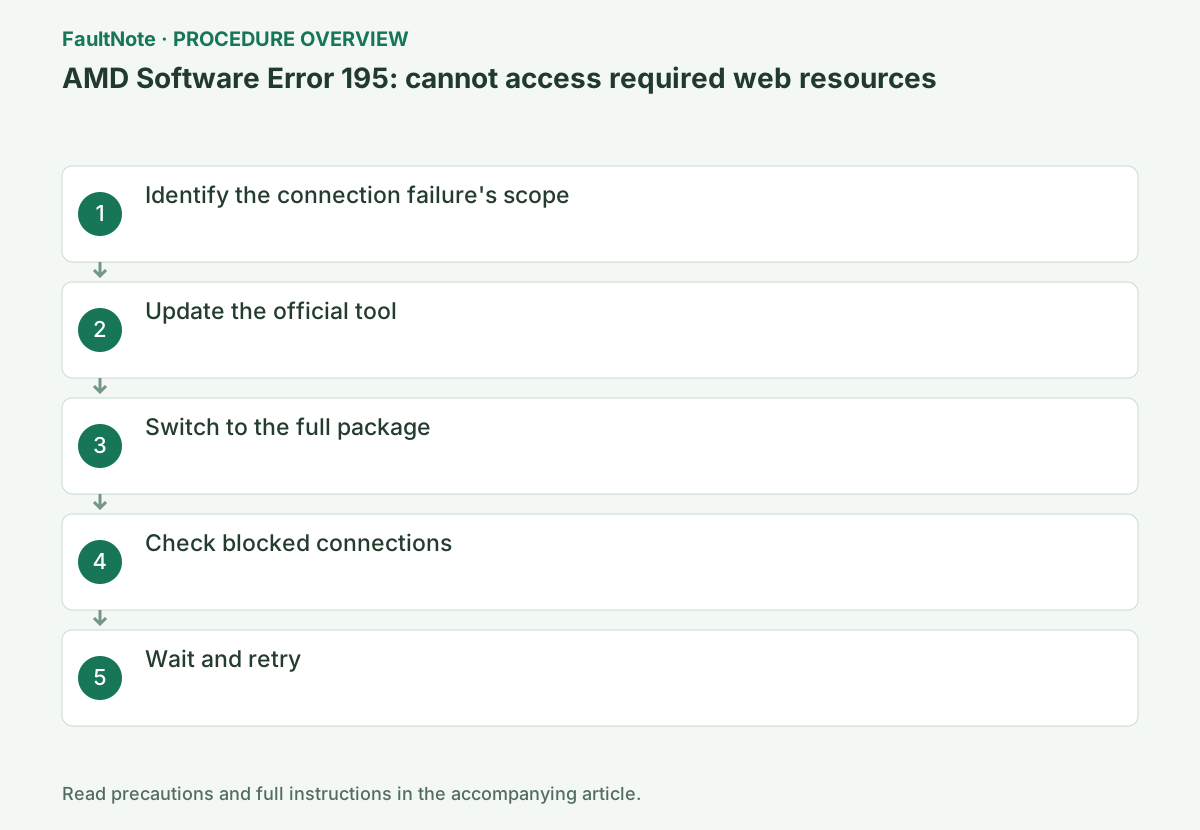
Step-by-step instructions
Check whether AMD Drivers and Support opens in a browser. If it does not, try another site to distinguish a general connection problem from a failure specific to AMD.
If using a VPN or organization proxy, do not disable it without authorization. Record its configuration name and the time of failure for the administrator.
Check the displayed code, AMD Software version and GPU name, and save screenshots or notes together. If the code differs, stop this procedure and use the official article for that code.
Check the AMD download page and try downloading the matching full package. A page that opens while downloads fail differs from a full package that downloads while only auto-detection fails. Record the failure time and network.
Record VPN, proxy and managed-network restrictions. Ask the administrator to review the failed URL rather than changing managed protection settings. AMD lists server maintenance as a possible cause; that is not evidence of a current outage.
Download the latest Auto-Detect and Install Tool from AMD Drivers and Support and run the new file instead of an older copy. Verify that the digital signature publisher is Advanced Micro Devices, Inc.
On a manufacturer-built PC, check the support page for the exact PC model before selecting AMD's generic package. Switchable graphics, integrated GPUs and handheld PCs may require OEM drivers; record the current version and keep a recovery package.
Official links for this step
- AMD Auto-Detect and Install Tool
Download the current signed Auto-Detect package for Windows.
Check before continuingThe official AMD Auto-Detect and Install Tool page or signed download opens, and its product, OS and version requirements match this PC.
- AMD Auto-Detect and Install Tool
Record whether the official page opens, the full package saves, auto-detection proceeds and what installation code follows. If only full-package download succeeds, try that package. If both page and download fail, inspect connectivity before reinstalling the installer. Success on another network is evidence of a route difference, not proof of router failure.
If security logs show blocking, match time and URL to this attempt. An unrelated alert is not a reason to stop protection. Tell the administrator which operation fails. Checking an official download in a browser does not require removing the graphics driver.
If auto-detection fails, manually choose the GPU model and OS on the same official site and download the latest full AMD Software Package.
If even the full-package download fails, investigate the connection path or temporary server conditions first.
During setup, close games, recording tools, GPU monitoring tools and other installers. Wait for completion or a specific new error code. Do not turn off the PC if the display flickers briefly.
Look in security-product and firewall logs for blocked AMD Installer connections. Update the product and definitions. For managed rules, ask the administrator to allow the required AMD server connections.
After restarting, open Device Manager → Display adapters → your GPU → Properties → Driver and check the provider and version. If the result is wrong, save Install.log and the last outcome instead of repeatedly retrying.
If no blocked connection is recorded and AMD maintenance is possible, wait and retry with the official full package or latest tool. If failures continue, attach Install.log when contacting AMD Customer Care.
Finally, open the gear icon → System in AMD Software and check the GPU name and Software & Driver versions. Retry the original game, display or installation operation once under the same conditions; undo the change if new symptoms appear.
Check before continuingExpected result: if there is no blocked-connection record and AMD maintenance is possible, wait and retry the official full package or latest tool. Send Install.log to AMD Customer Care if failures continue. Check GPU and Software & Driver versions under the AMD Software gear icon → System, retry the original operation once, and undo the change if new symptoms appear.
If the full package downloads, try that supported package and check whether 195 returns. If a different code appears, investigate that code separately. Restored connectivity and completed driver installation are distinct results.
If the route repeatedly fails, wait or compare downloading on another permitted network. Restore any protection changes and retain Install.log and the network comparison.
Check before continuingIf the full package downloads, try that supported package and check whether 195 returns. If a different code appears, investigate that code separately. Restored connectivity and completed driver installation are distinct results.
For a temporary network or protection change, record the old value, start time and restoration point. Restore it after checking, whether setup succeeds or fails. Match the downloaded package to GPU and OS; a successful download does not prove compatibility. Reconsider downloads redirected to unofficial redistribution sites.
If 195 becomes 1603 or another code, save the new log rather than stacking more connectivity changes. If setup succeeds, restart and verify the driver version. If different networks fail alike, report time, tool version, full-package result and Install.log to AMD. Do not present this comparison as proof of an AMD outage or recovery.
Check the result
- The full package downloads completely from AMD's official site
- Setup starts and completes without Error 195 returning
- No new blocked connection appears in the firewall log
If the problem continues
- Compare access to the official site using another trusted network
- Contact AMD Customer Care with C:\Program Files\AMD\CIM\Log\Install.log attached
Scope of this guide
Troubleshooting guide — Use AMD's current official tool or the full package for the GPU. If necessary, ask the administrator to check AMD connection permissions in the managed firewall.
Frequently asked questions
Can Error 195 occur even if the internet works?
Yes. General internet access can work while connections to AMD fail because of a rule or temporary service interruption.
How does the full package differ from auto-detection?
You select the GPU and OS manually before downloading, reducing the web retrieval needed during installation.
Does opening the AMD website rule out Error 195?
No. Browser and installer traffic can use different routes or permissions. Check package download and installation separately.
Does the full package always eliminate every internet requirement?
It can reduce auto-detection download dependencies, but does not guarantee every feature or environment is offline. Check actual setup results and codes.
Official sources and dates
Source publication or resolution date: Not specified. Sources checked: 2026-10-13. The check date is not the date the problem first occurred. Interface labels can vary between versions and display languages.
Related troubleshooting guides
AMD Radeon / Adrenalin errors and troubleshooting →
- Smart Access Memory becomes disabled after installing Adrenalin 26.8.1
- AMD Software Error 182: graphics driver installation stops
- AMD Software Error 184: unsupported operating system
- Clean and reinstall the graphics driver with AMD Cleanup Utility
AMD, Intel and NVIDIA driver installation errors →