Still on Windows 10: choosing between ESU, an in-place Windows 11 upgrade and a new PC, from two published dates
Windows 10 support ended on 14 October 2025. Microsoft answers "No" to the question of whether the PC stops working, but security updates stop arriving. From there the options are three: (A) upgrade an eligible PC to Windows 11 at no cost, (B) enrol in consumer ESU and receive critical and important updates until 12 October 2027, or (C) buy a replacement. This guide sets out the Windows 11 minimum system requirements (TPM 2.0, Secure Boot capable firmware, DirectX 12 / WDDM 2.0 and the rest), the ESU eligibility rules, the three enrolment routes with the cost Microsoft states for each, the cases where consumer ESU is not offered, and what to check before buying a used machine. Every date is written out, because the article's own premise expires on 12 October 2027.
Published · Updated · FaultNote editorial policy
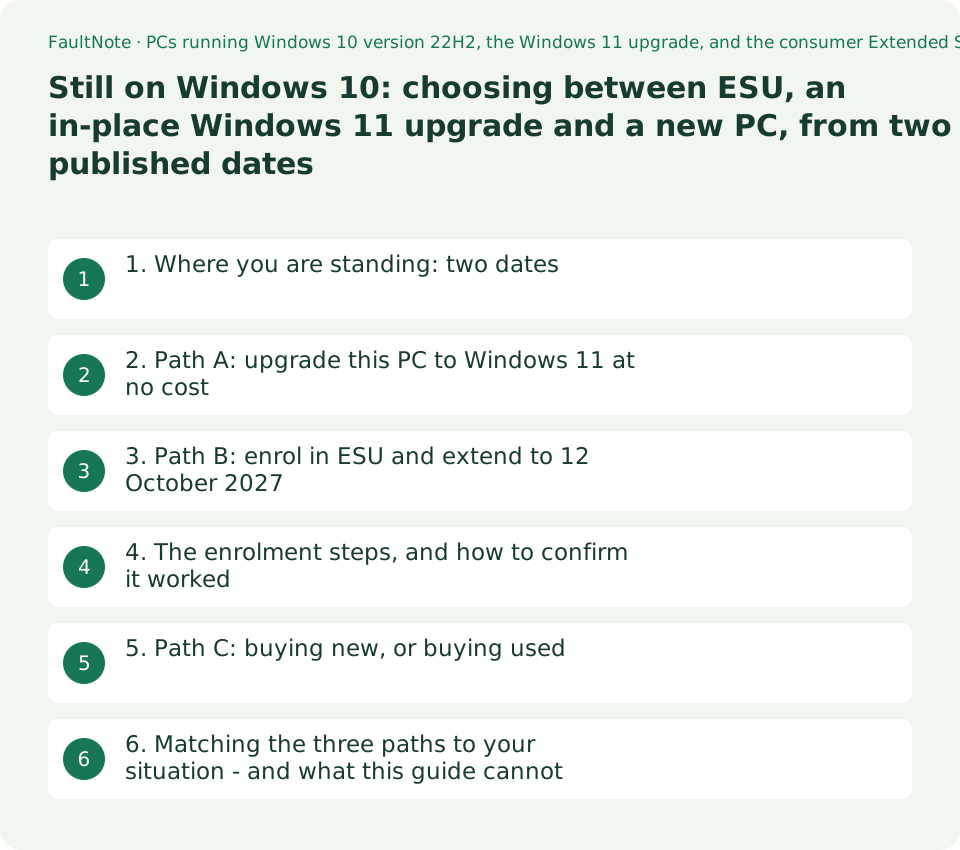
Who this guide is for and what to prepare
- Anyone whose Windows 10 PC still works and who needs to know how long that can continue
- Anyone who wants the exact ESU enrolment routes, costs and deadline
- Anyone deciding whether their current PC can take Windows 11 or should be replaced
- Anyone about to buy a used or refurbished PC and needing to check the Windows 11 requirements first
What you need
- Check the current edition and version in Settings > System > About (or run winver) - ESU eligibility is version 22H2
- Make sure you can sign in with a Microsoft account; every enrolment route, including the free one, requires it
- Decide first how many more years you want this machine to last - that is what decides whether a bridge to 12 October 2027 is enough
1. Where you are standing: two dates
The first date is 14 October 2025. Microsoft: "Windows 10 has reached the end of support on October 14, 2025. At this point technical assistance, feature updates and security updates is no longer provided."
The second is 12 October 2027. On the consumer ESU programme, Microsoft writes: "You can enroll in ESU any time until the program ends on October 12, 2027" and "If you're already enrolled, your coverage will automatically continue through that date-no action needed."
Whether the machine keeps working is answered directly: "No. Support for Windows 10 is discontinued, but the software will continue to function. However, after October 14, 2025, your computer running Windows 10 will no longer receive security updates. In addition, Microsoft customer service will no longer be available to provide Windows 10 technical support." The decision is therefore not about whether the PC runs, but about whether it keeps receiving updates.
On this guide's publication date, 20 September 2026, roughly 13 months of ESU runway remain. That is arithmetic against the published date, not a figure Microsoft states.
2. Path A: upgrade this PC to Windows 11 at no cost
Microsoft states the condition for the free upgrade: "It's free. But only Windows 10 PCs that are running Windows 10, version 22H2 and meet the minimum hardware specifications will be able to upgrade." The way to check is "Start > Settings > Update & Security > Windows Update and select Check for updates."
The specifications page carries a looser-sounding statement of its own: "Your device must be running Windows 10, version 2004 or later, to upgrade." The two live on different pages and are not equally strict. This guide treats the stricter one - version 22H2 - as the practical condition for the free-upgrade path, and notes the difference rather than silently picking one.
The table below is the minimum system requirement list from Microsoft's specifications page. The figures and the wording are Microsoft's.
The PC Health Check app has a stated blind spot: "Note that this app does not check for graphics card or display, as most compatible devices will meet those requirements listed below." Its verdict is therefore not a check of everything.
Scroll horizontally to see the full table →
| Item | Windows 11 minimum requirement (Microsoft's wording) | Where to check it |
|---|---|---|
| Processor | 1 gigahertz (GHz) or faster with 2 or more cores on a compatible 64-bit processor or System on a Chip (SoC) | Settings > System > About, plus Microsoft's compatible-processor lists |
| RAM | 4 gigabytes (GB) | Settings > System > About |
| Storage | 64 GB or larger storage device | Drive properties in File Explorer |
| System firmware | UEFI, Secure Boot capable | msinfo32: BIOS Mode and Secure Boot State |
| TPM | Trusted Platform Module (TPM) version 2.0 | tpm.msc |
| Graphics card | Compatible with DirectX 12 or later with WDDM 2.0 driver | dxdiag (PC Health Check does not check this) |
| Display | High definition (720p) display that is greater than 9" diagonally, 8 bits per colour channel | As above - also outside PC Health Check's scope |
3. Path B: enrol in ESU and extend to 12 October 2027
Eligibility: "Devices need to be running Windows 10, version 22H2 Home, Professional, Pro Education, or Workstations edition." Anything older has to be updated to 22H2 before enrolment is possible.
There are three enrolment routes, with the costs Microsoft states: "At no additional cost if you are syncing your PC Settings", "Redeem 1,000 Microsoft Rewards points", and "One-time purchase of $30 USD or local currency equivalent plus applicable tax." Microsoft's Japanese edition of the page repeats the same USD figure rather than printing a local price, so this guide does not convert it; check the actual charge at the checkout screen.
Every route requires signing in to a Microsoft account, including the free one, and "The Microsoft account used to sign in to the device must be an administrator account." One licence goes a long way: "You can use your existing ESU license for up to 10 devices."
What arrives is narrow. ESU provides "access to critical and important security updates as defined by the Microsoft Security Response Center (MSRC)", and "ESU enrollment does not provide other types of fixes, feature improvements, or product enhancements. It also does not come with technical support."
Some devices are excluded. Microsoft states that consumer ESU "can't be used in commercial scenarios" and that enrolment will not be offered for "Devices joined to an Active Directory domain or Microsoft Entra and/or enrolled in a Mobile Device Management (MDM) solution" - while adding that Microsoft Entra registered devices can use the consumer programme. Microsoft also says enrolment options and timing "may vary by region, such as in the European Economic Area (EEA)", while updates are applied consistently.
Enrolling does not close off the upgrade: "Yes! Enrolling in ESU does not prevent you from upgrading your PC to Windows 11 if it meets the hardware eligibility requirements."
Scroll horizontally to see the full table →
| Enrolment route | Cost as Microsoft states it | Notes | Coverage ends |
|---|---|---|---|
| Syncing your PC Settings (Windows Backup) | At no additional cost | A Microsoft account is still required, and it must be an administrator account | 12 October 2027 |
| Redeem Microsoft Rewards points | 1,000 points | "Rewards orders are final and are not eligible for return or exchange" | 12 October 2027 |
| One-time purchase | $30 USD or local currency equivalent plus applicable tax | "Refunds follow our policy for digital purchases for your country" | 12 October 2027 |
4. The enrolment steps, and how to confirm it worked
Microsoft's documented route: "Go to Settings > Update & Security > Windows Update. If your device meets the prerequisites, you'll see a link to enroll in ESU." Then: "Once you select Enroll now you'll start the ESU enrollment. If you are signed into Windows with a local account, you will be prompted to sign into your Microsoft account."
If you are already backing up your PC settings, you get a prompt to enrol the device. If you are not, you choose between starting that backup, redeeming Rewards points, or making the one-time purchase.
For the second and later machines, go to the same Windows Update screen, select Enroll now, and choose Add device if you are already signed in with the same Microsoft account. Each additional PC must meet the eligibility requirements on its own.
To confirm: "You can check your enrollment status anytime by navigating to Settings > Update & Security > Windows Update. If you purchased ESU, you will also be able to see your order in your Order History." Microsoft also notes that once any user on a PC enrols, the other users on that same PC are covered too.
These are Microsoft's documented paths. This site has not reproduced the enrolment screens on hardware, so if the wording on your build differs, follow Microsoft's page rather than this description.
5. Path C: buying new, or buying used
If you are replacing the machine, the requirement table above is the shopping checklist. On a used or refurbished listing, three of those items are usually absent from the description and invisible in the photographs: whether the CPU appears on Microsoft's compatible-processor list, whether TPM 2.0 is present and enabled, and whether the firmware is UEFI with Secure Boot capability. Those are the three questions to put to the seller.
There is also a setup condition: "Windows 11 Pro for personal use and Windows 11 Home require internet connectivity and a Microsoft account during initial device setup." Starting first-run setup without a connection and an account will stop you.
The edition question (Home or Pro) and the memory question (16 GB or 32 GB) each have their own guide on this site, and are not repeated here. For a laptop, whether the memory is soldered and how many M.2 slots exist is covered by the laptop upgradeability guide.
Office matters too. Microsoft states that "Support for Microsoft 365 Apps on Windows 10 will end on October 14, 2025, when Windows 10 reaches end of support", and that "Office 2024 and Office 2021 (including Office LTSC versions) will continue to run on Windows 10 but will no longer be supported."
6. Matching the three paths to your situation - and what this guide cannot decide
The table maps situations to paths. It is built from published conditions and dates, and deliberately contains no value-for-money verdict.
What this guide cannot answer is whether ESU or a replacement is the better buy. That depends on how much life is left in the hardware and how the machine is used, and no published figure settles it. Microsoft's own framing is "If you need more time to move to Windows 11" and "If you need more time before moving to a Copilot+ PC or other new Windows 11 device" - a bridge, not a destination.
Unofficial methods of installing Windows 11 on hardware that does not meet the requirements are out of scope here. This site documents Microsoft's published paths only.
And the premise of this article expires on 12 October 2027. The ESU conditions, costs and dates are as observed on Microsoft's pages on 20 September 2026.
Scroll horizontally to see the full table →
| Your situation | Paths available | First thing to do |
|---|---|---|
| Running a version older than 22H2 | Neither the free upgrade nor ESU applies as published | Update to 22H2 through Windows Update |
| On 22H2 and meeting the minimum requirements | Free upgrade to Windows 11 (A) | Windows Update > Check for updates to see whether the upgrade is offered |
| On 22H2, but TPM or Secure Boot is only switched off in firmware | Re-check the firmware, then (A); (B) in the meantime | Follow the PC maker's documentation; Microsoft links a page for each of these two requirements |
| On 22H2 with a CPU that is not on the compatible list | ESU (B), or replacement (C) | Enrol in ESU to use the remaining time while you plan the replacement |
| A PC joined to a work domain or managed by MDM | Consumer ESU enrolment is not offered | Ask the organisation's IT contact; the commercial programme is a separate one |
| Buying new or looking at a used machine | (C) | Check the CPU list, TPM 2.0 and Secure Boot capability, and have a connection and a Microsoft account ready for setup |
Limitations and requirements
- Everything here was read on Microsoft's pages on 20 September 2026. Consumer ESU is published as ending on 12 October 2027, after which this article's premise no longer holds.
- The cost Microsoft publishes is "$30 USD or local currency equivalent plus applicable tax". The Japanese edition of the page repeats the same USD figure, so no converted price is printed here.
- Unofficial ways of installing Windows 11 on hardware that does not meet the requirements - registry changes, modified installers - are not described. Only Microsoft's published paths are.
- PC Health Check's verdict is not complete: Microsoft states the app does not check the graphics card or the display.
- Consumer ESU cannot be used in commercial scenarios and is not offered for domain-joined or MDM-enrolled devices. Check before assuming a work-issued PC qualifies.
Frequently asked questions
Is a Windows 10 PC unusable now that support has ended?
No. Microsoft answers the question "Will my Windows 10 computer stop working?" with "No. Support for Windows 10 is discontinued, but the software will continue to function." What changes is that from 14 October 2025 the machine no longer receives security updates and Microsoft customer service no longer provides Windows 10 technical support. Keeping updates flowing is what ESU or a move to Windows 11 is for.
Can I enrol in ESU for free?
One of the three routes Microsoft lists is "At no additional cost if you are syncing your PC Settings". The others are redeeming 1,000 Microsoft Rewards points, or a one-time purchase of $30 USD or local currency equivalent plus applicable tax. All three require signing in to a Microsoft account, and Microsoft states that the account used must be an administrator account on that device.
If I enrol in ESU, do I give up the Windows 11 upgrade?
No. Microsoft's FAQ says: "Enrolling in ESU does not prevent you from upgrading your PC to Windows 11 if it meets the hardware eligibility requirements." ESU is a time-limited bridge, not a trade.
We have several PCs at home. Do we pay per machine?
Microsoft states: "You can use your existing ESU license for up to 10 devices." For each additional PC, go to Settings > Update & Security > Windows Update, select Enroll now, and choose Add device when already signed in with the same Microsoft account. Each of those PCs must meet the eligibility requirements - version 22H2 and the rest - on its own.
PC Health Check says my PC does not meet the requirements. Do I have to replace it?
Not immediately. First, TPM and Secure Boot are sometimes present in hardware but switched off in firmware; Microsoft links a page for each of those two requirements describing how a PC "might be able to meet" it. If the firmware check does not change the verdict, the practical route is to enrol in ESU, use the time up to 12 October 2027, and plan the replacement inside that window.
Sources and verification date
Sources checked: . These sources support the specifications, procedures or prices discussed here. Check each source for applicable conditions and current information.
- Microsoft: Windows 10 support has ended on October 14, 2025 (the end date, the three options, whether the PC keeps working, the free-upgrade condition, Office status. Observed 2026-09-20) ↗
- Microsoft: Windows 11 specifications, features and computer requirements (minimum requirements, the PC Health Check scope note, setup requirements. Observed 2026-09-20) ↗
- Microsoft: Extended Security Updates for Windows 10 (eligibility, the three enrolment routes and their costs, 10 devices, exclusions, enrolment steps. Observed 2026-09-20) ↗
- Microsoft: the Japanese edition of the Extended Security Updates page (source of the Japanese wording quoted in the Japanese version of this guide. Observed 2026-09-20) ↗
Related practical guides
- Back Up Files with Windows 11 File History and Test a Restore
- Move Files to a New Windows PC with an External Drive
- Copy Large Folders with Robocopy: Preview, Resume and Check Results
- Save selected PDF pages with Microsoft Print to PDF
- DDR4 vs. DDR5: Choose for a New Build, Reused RAM and Upgrade Cost
- Windows 11 Home vs Pro: When Is the Upgrade Worth It?