Search a PDF in Firefox and distinguish printed page numbers
Find candidates with PDF search, read surrounding conditions and confirm the passage. Distinguish image pages from searchable text and record edition plus both page numbering systems.
Published · Updated · FaultNote editorial policy
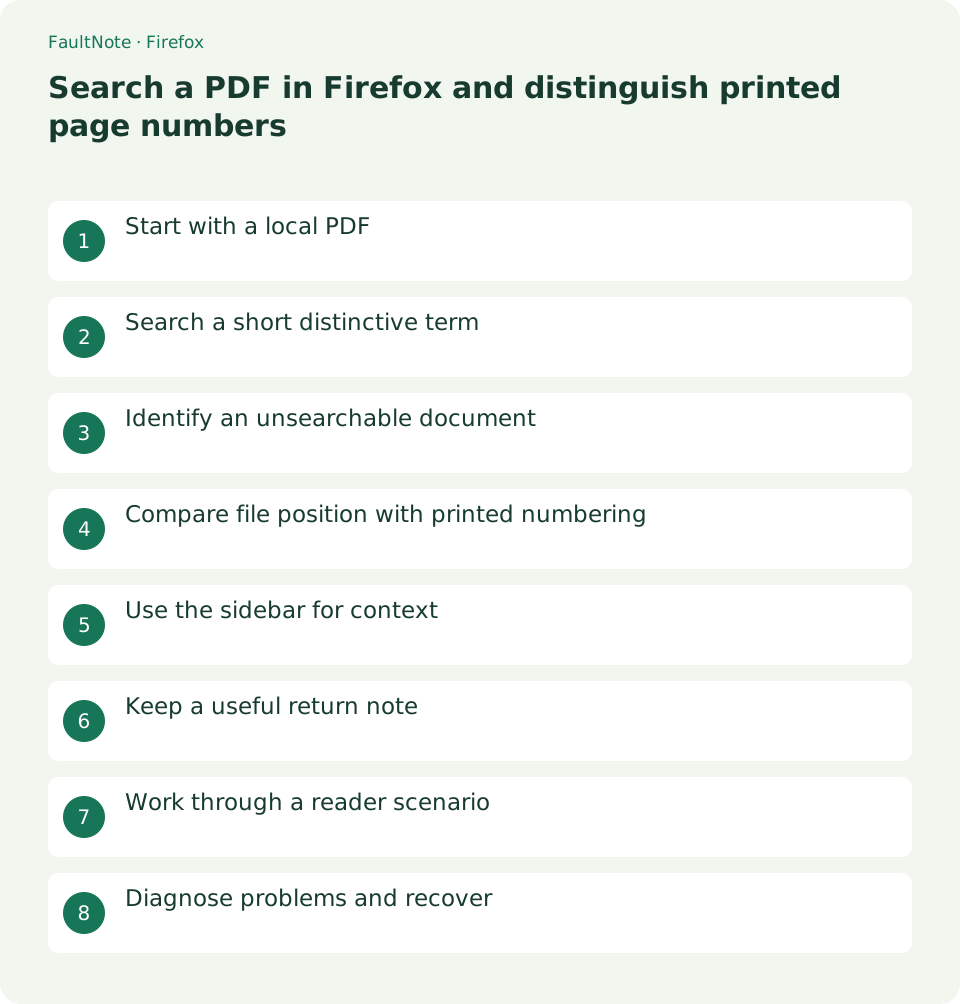
Who this guide is for and what to prepare
- People reading books or reference documents on a PC
- Readers who want to verify display and persistence separately
What you need
- Prepare a document you are entitled to use and keep an original plus a working copy
- Check the application version and document format
Start with a local PDF
Open an existing local PDF in Firefox. If using an online edition, save a local copy and note its title and edition. Confirm you are viewing the PDF itself rather than a webpage describing it.
Do not identify the latest edition from a download timestamp alone. Compare the cover edition and publisher information. A local copy provides a stable reference during connection loss and later rereading. Check usage conditions before sharing and identify the file by cover and location, not just its tab title.
Search a short distinctive term
Open the search field using the magnifying glass and search a distinctive term. Try a product or section name instead of relying on an entire sentence. Read the surrounding passage and check whether the match is body text or only a contents entry.
Match the terminology used by the document. Try a full name when an abbreviation fails, or a section term when product matches are too numerous. Long phrases can be affected by line breaks, so start with a distinctive short term. Inspect further matches and distinguish definitions, exceptions and appendices.
- Check title and edition on the cover
- Open PDF search with the magnifying glass
- Enter a short distinctive term
- Inspect another match and select the substantive explanation
- Compare page input with printed numbering
- Record the heading and numbers, then test returning
Identify an unsearchable document
If a visible short word cannot be found and text cannot be selected, the page may contain only an image. Test selection on another page before repeatedly changing the query. Check whether the publisher offers an OCR or text-based edition.
Drag a short text selection and paste it into a note. Incorrect pasted text can indicate a text-layer problem rather than an image-only document. Some PDFs mix image and text pages. Compare the failing page with one that searches correctly to determine whether the limitation is local or document-wide.
Compare file position with printed numbering
Covers and preliminary pages can shift the page field relative to numbering printed on the page. If file page 12 is printed page 8, record both. Offsets can change between editions, so also note the section heading.
Roman-numbered front matter and separately numbered appendices mean one offset may not apply throughout. Check both numbers on the target page and give a heading as well, for example "printed page 8, file page 12, setup requirements." Removing a cover is unnecessary merely to communicate a location.
Scroll horizontally to see the full table →
| Observed result | What to check | Next action |
|---|---|---|
| Visible word not found | Selection and pasted text | Compare another page |
| Too many matches | Contents versus body | Use a distinctive section term |
| Printed number differs | Cover and front matter | Record both numbering systems |
| Empty outline | Whether chapter links exist | Use search and thumbnails |
Use the sidebar for context
Use sidebar thumbnails to browse page appearance and the document outline to jump between chapters. If there is no outline, combine thumbnails with page input. Inspect nearby pages after a search to catch qualifications or notes.
Thumbnails help find a diagram by appearance but are too small for interpreting text. Open a candidate and read it in the main view. Verify that an outline link actually reaches its expected heading; absence of an outline alone does not imply corruption. Combine search, thumbnails and page input as appropriate.
Keep a useful return note
Record the query, heading, file page and printed page. A URL alone may not return to the same explanation after an online edition changes. Keeping the local edition alongside the note makes later checks easier.
Use the recorded location once before finishing. If a query leads to another match, add a heading or figure number. When an online edition changes, retain the old edition identity and recheck conditions in the new one. Review the preceding heading and following notes before using a short match as evidence.
Work through a reader scenario
To find operating temperature in a manual, move past a contents match to the specification table. Read the applicable model and notes before using a value. If file page 12 is printed page 8, record both and the heading.
If search fails, test selection and pasting. Compare a searchable page to identify a local image or text-layer limitation. Locate the table using thumbnails and check for a publisher text edition if needed. Choose navigation available in this file without claiming OCR has been performed.
Diagnose problems and recover
For zero results, try a short visible word, then selection and pasting. A working text page suggests a localized issue. For an entirely image-based file, use visual contents or thumbnails rather than repeating search. Treat OCR or export as a separate process preserving the source.
For excessive matches, filter by headings and substantive explanations. Product names repeated in headers are poor queries; try a condition or table title. Numbering offsets may change in appendices, so compare both numbers on the actual target page.
Limitations and requirements
- Display adjustments do not improve source image resolution or repair PDF reading order.
- Menu names and available features can differ by installed version; compare the official documentation with your screen.
Frequently asked questions
Is the page field wrong?
File position including the cover differs from printed numbering. Verify the heading and record both numbers.
Is the first search result enough?
It may be a contents entry or exception. Read the body and neighboring notes to verify relevance.
Why is visible text not searchable?
Possible causes include image pages or a faulty text layer. Test selection and pasting and compare another page.
Should I delete the cover to fix numbering?
Not for navigation notes. Record printed and file numbers together with the heading.
Sources and verification date
Sources checked: . These sources support the specifications, procedures or prices discussed here. Check each source for applicable conditions and current information.