Batch rename files with sequential numbers using PowerRename
Use PowerRename, included in the free Microsoft PowerToys for Windows 10/11. Check the list before and after the change, and for example, replace IMG_ with trip- and add consecutive numbers.
Published · Updated · FaultNote editorial policy
Who this guide is for and what to prepare
- People who want to organize a large number of photos and document names at once
What you need
- Copy only the target to the working folder
- Install PowerToys from Microsoft official and enable PowerRename
Plan a photo sequence starting at 001
To create trip_001 onward, test on copied photos. Retain original names if they contain dates or camera identifiers. Check the intended ordering and read old/new name pairs in the preview; correct numbering with the wrong order is still an incorrect result.
Inspect beginning, middle and end for consistent prefix and padding. When using regex, ensure it matches the intended name portion. Keep extensions unchanged and exclude accidentally selected folders.
After applying, check the file count and open several images. Other projects may reference original names and lose their links. Recover from copies or the name mapping, then decide how those references should be updated before processing the original asset folder.
Check for existing destination names before renaming. Do not casually rerun numbering over a mixture of processed and unprocessed files; restart from copies or isolate the intended targets.
Distinguish capture dates from file creation and modification times when naming photos. Keep originals and avoid treating a date in a renamed filename as proof of capture metadata.
- Prepare copied files and record original names
- Compare ordering and old/new preview pairs
- Review extensions and folder inclusion
- Check file counts and application references
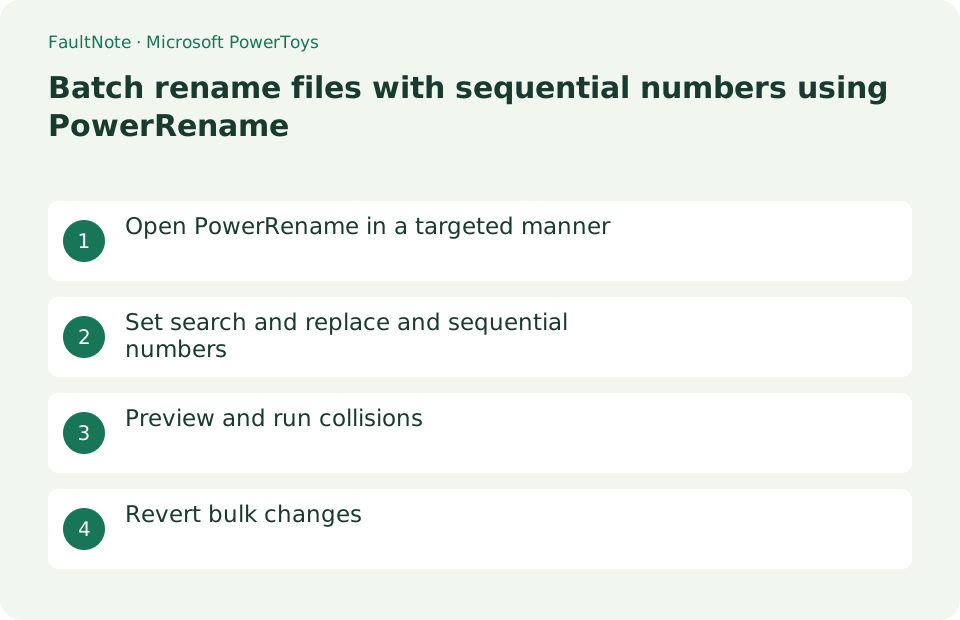
Open PowerRename in a targeted manner
In Explorer, select only the target file, such as IMG_1001.jpg, and right-click > select [Rename with PowerRename]. In Windows 11, it may be located under [Check more options]. If you don't want to include a folder, exclude it from the list.
- Open working copy
- Select multiple targets only
- Open PowerRename
Set search and replace and sequential numbers
Enter "IMG_" in "Search string" and "trip-" in "Replace string". If you need sequential numbers, enable the enumeration option and apply it only to file names. If you include the extension as a replacement target, .jpg may be corrupted.
- Enter search string
- Enter replacement string
- Specify only the file name and sequential numbers
Preview and run collisions
Check all columns to make sure that the new name column is in the intended format, such as trip-1001.jpg, and that there are no conflicts with the same name or empty names. Uncheck the problematic row and press [Apply]. Check the number and extension of the file in Explorer and confirm that it can be opened.
- See all new names
- exclude conflict lines
- Apply and open file
Revert bulk changes
If it is immediately after, use the same Explorer to undo the name change using Ctrl+Z. PowerRename itself also supports undoing after completion, but once a file has been moved it may not be possible to undo it, so it will not be moved until it is confirmed. Enable regular expressions only when necessary.
- Press Ctrl+Z if necessary
- Check if the original name has been reverted
- Narrow the conditions and rerun
Check numbering order and extensions in the preview
If numbering should follow capture order, inspect the file order before applying it. Filename and capture time are not necessarily equivalent. Check the first, middle and last preview entries against the intended sequence.
Limit changes to the name portion when extensions should remain intact. Renaming .jpg to .png does not convert the image. Filter mixed files by type and count the intended targets before opening PowerRename.
- Inspect the target ordering
- Check numbering at three preview positions
- Verify extensions and target count
Test the counter on a small copy
Where enumeration is enabled, counter patterns such as ${start=1} and ${padding=3} control the start and zero padding. If the intended sequence begins at 001, verify the first results are 001, 002 and 003.
Do not apply a preview with collisions or unexpectedly unchanged files. Correct the search and replacement on a few copies first, then inspect the renamed files in Explorer. Retain original names when another application references those assets.
- Test counter start and padding on a few copies
- Check for output-name collisions
- Inspect the actual renamed files
Choose the next action from the result
Scroll horizontally to see the full table →
| State | Interpretation | Next check |
|---|---|---|
| Numbers are correct but order is wrong | Input order differs from intent | Compare old names in preview |
| Some names remain unchanged | Search condition does not match | Test against those original names |
| Images disappear from a project | Old-name references broke | Restore names or update references |
Limitations and requirements
- With shared sync folders, name changes are synced to other devices as well.
- If you change the extension, you may not be able to open the file.
Frequently asked questions
PowerRename is missing from right click.
Make sure the PowerRename setting in PowerToys is enabled, and also opens Check More Options on Windows 11.
There are files with the same name.
Either enable sequential numbering or leave part of the original name to change the preview so that each file is unique.
Does changing an extension convert an image?
No. Use an image application for format conversion. Keep extensions intact during this rename.
How should I prepare for recovery?
Retain copies and an old/new name mapping. Test assets referenced by other applications on copies before renaming originals.
Sources and verification date
Sources checked: . These sources support the specifications, procedures or prices discussed here. Check each source for applicable conditions and current information.
Related practical guides
- PowerToys for Windows: Essential Productivity Tools
- Add sequential numbers to file names with Bulk Rename Utility
- Extract Split Downloads: Recognize Volumes and Keep the Complete Set
- Everything: Search Windows File Names Instantly
- 7-Zip: Create an Encrypted 7z Archive
- ZIP vs 7z: Compatibility, Compression, and Encryption