7-Zip: Create an Encrypted 7z Archive
Compress multiple files and set AES-256 encryption and file-name encryption to securely transfer them. This guide covers installation, practical steps, limitations, and how to stop using the app.
Published · Updated · FaultNote editorial policy
Who this guide is for and what to prepare
- First-time users of 7-Zip
- People who want to check the storage location and safety of data while reducing manual work
What you need
- Check the processing target and storage location, and preserve the original data in another location
- Check the official distribution source, supported OS, and required permissions
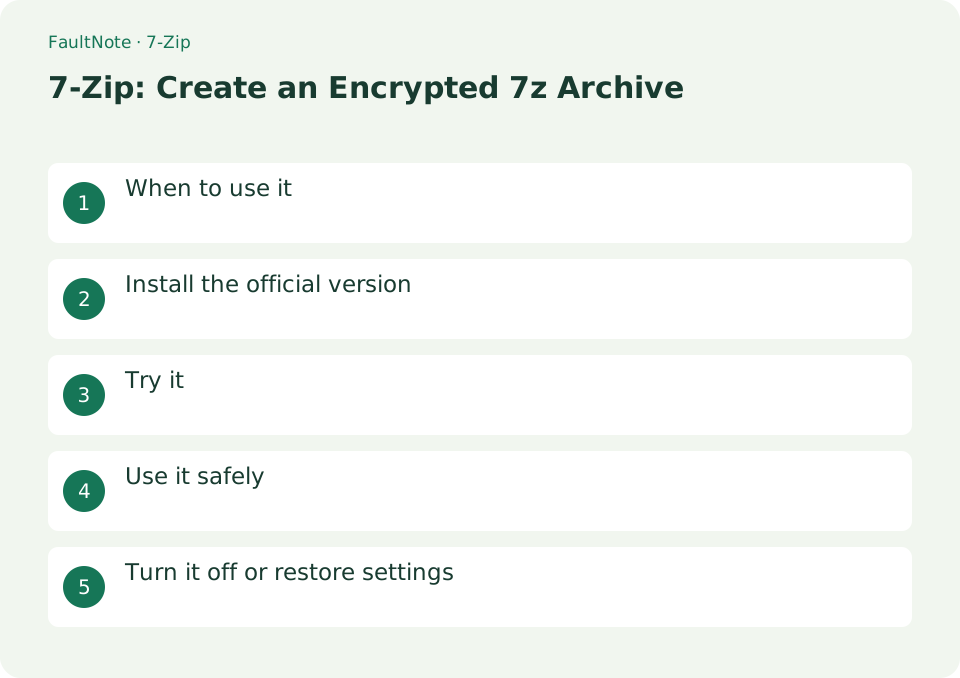
When to use it
Compress multiple files and set AES-256 encryption and file-name encryption to securely transfer them.
Install the official version
- Select the Windows version that matches your CPU at 7-zip.org, and after installation, right-click on the target and check the 7-Zip menu.
Choose the receiving workflow
Separate personal storage from delivery. For a 7z archive, check header encryption if filenames must be hidden. ZIP and 7z offer different options; renaming an extension does not reproduce their protection. Test a harmless small file with the recipient first.
Encrypt three PDFs
Hide contents and names, using a separate output folder. Verify recipient support and check ZIP protection separately. Original PDFs remain unprotected.
- Copy only intended documents and record their original location.
- Open Add to archive, choose 7z and check destination, avoiding accidental addition to an existing archive.
- Set Encryption and Encrypt file names, checking archive format if the option is absent.
- Reopen, check filename visibility and extract into an empty folder to inspect all PDFs.
- Send archive and password separately and retain originals until receipt and extraction.
Try it
First, check the format that the recipient can open. Even if you use AES-256 in ZIP format, you may not be able to open it with just the built-in extraction tools, so please check the compatible software.
- Right-click the target and open [7-Zip] → [Add to archive]
- Select 7z or ZIP as the archive format and choose the destination
- When encrypting, specify the password and method. If you want to use file-name encryption, select 7z format.
- Select [OK] to create the archive
- Extract to another folder and open all files
Verify extraction
Extract into a new folder and check password prompts, filename visibility and content. The Test command checks archive integrity; it does not prove compatibility with the recipient application. Retain originals until verification and receipt are complete.
Manage the password
Send the password through a separate channel. Store it securely rather than expecting password recovery. If extraction fails, check the archive format and receiving application before creating another copy.
Scroll horizontally to see the full table →
| Observation | Decision and next action |
|---|---|
| Names are visible | Check format and header encryption and verify a new archive. |
| Test succeeds | Integrity success does not prove receiving-software compatibility or correct content. |
| Recipient cannot open it | Check compatibility before weakening passwords. |
| Matching files exist | Use an empty folder instead of overwriting existing documents. |
Use it safely
There is no recovery function in case the password is lost. Don't send the password in the same email, and check the recipient's format.
Turn it off or restore settings
Compression is an operation that creates a new archive file, so the original file remains separately. When the archive is no longer needed, check the original documents that can be extracted and opened, and then organize the archive only. Even if you close 7-Zip, the 7z or ZIP you created will not be automatically deleted.
Limitations and requirements
- There is no recovery function in case the password is lost. Don't send passwords in the same email, and check the recipient's format as well.
- Check the current specifications in the official documentation and reconfirm on-screen what you want to delete or overwrite.
Frequently asked questions
How do you choose between ZIP and 7z?
ZIP is easy to open in many environments, and 7z requires compatible software on the receiving side as well. With 7z, you can choose to encrypt file names, but the same settings cannot be used with ZIP.
What if you forget your encryption passphrase?
7-Zip does not have a password reset feature. Store the necessary original documents separately and prepare a management method to remember them before encrypting them.
Are original PDFs protected?
Only the archive is protected; inspect shared locations for exposed originals.
How do I change the password?
Create and verify a new archive; previously sent copies remain, so identify the replacement version.
Sources and verification date
Sources checked: . These sources support the specifications, procedures or prices discussed here. Check each source for applicable conditions and current information.
Related practical guides
- Diagnose Garbled ZIP Filenames Without Changing the Original
- Check Purchased ZIP and 7z Downloads Before Extraction
- Everything: Search Windows File Names Instantly
- ZIP vs 7z: Compatibility, Compression, and Encryption
- Windows Search vs Everything: Content Search and File-name Search
- Windows 11: Create and Safely Extract ZIP Files with Built-in Tools