Add sequential numbers to file names with Bulk Rename Utility
Decide on the display order of the files, specify the starting value and number of digits in the Numbering field, check the New Name column, and then change them all at once.
Published · Updated · FaultNote editorial policy
Who this guide is for and what to prepare
- People who want to add regular sequential numbers to photos and deliverables
- People who want to preview and change a large number of Windows file names
What you need
- Back up the target folder
- Write down the intended naming rule and sort order before making changes
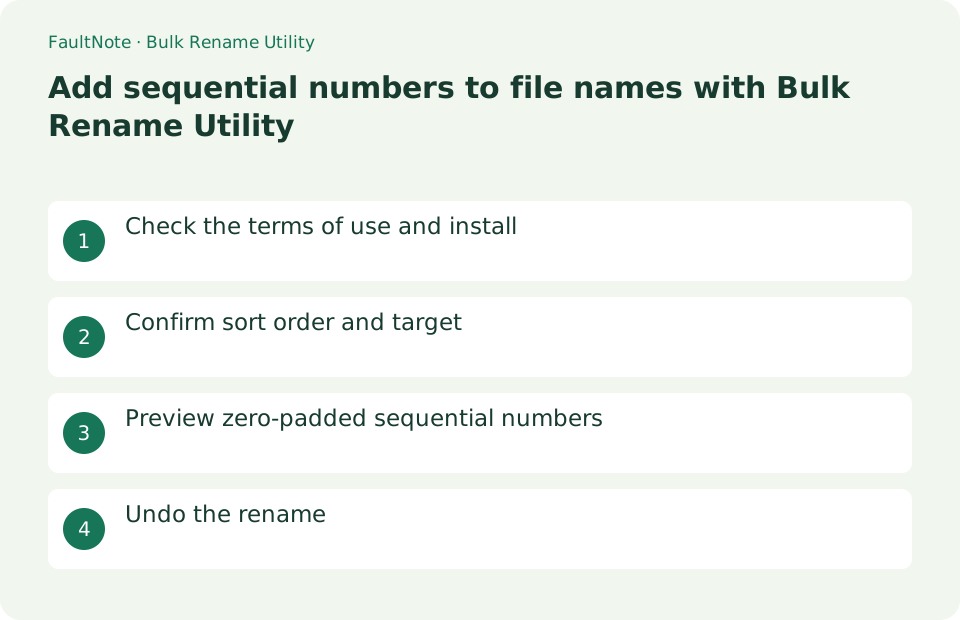
Check the terms of use and install
Bulk Rename Utility is for Windows. It is free for personal, private, non-commercial use at home, but use in businesses, commercial environments, commercial purposes, and government agencies requires a commercial license for each computer on which it is installed. When dealing with work files, do not assume that it is a free version, but check the official license before purchasing. Distributions and manuals are obtained from bulkrenameutility.co.uk.
Number ten images in the intended order
Choose the intended order rather than assuming names equal capture order. Work on copies and preserve original names. Extension renaming does not convert image formats.
- Copy ten images and preserve originals and their intended order.
- Sort, select only targets and inspect all rows for unwanted items.
- Set Remove, prefix trip_ and Suffix numbering with Start 1, Incr 1, Pad 3.
- Inspect every New Name for order, extensions and collisions before Rename.
- Verify count and sample content and inspect Undo or backup before more renaming.
Confirm sort order and target
Open the working copy folder in the folder tree on the left. Click the Name or Modified column in the list at the top right and arrange the numbers in the order you want. Sequential number processing proceeds in the order in which they are displayed, so if there are files with the same name or the same time, check each one to make sure they are in the expected order. Select only the files you want to change and avoid including folders by mistake.
Preview zero-padded sequential numbers
To replace each existing basename completely, set [Name (2)] > [Mode] to [Remove], then enter a prefix such as "travel_" under [Add (7)]. Under [Numbering (10)], set [Mode] to [Suffix], [Start] to 1, [Incr.] to 1, and [Pad] to 3. The preview should resemble "travel_001". Leave the extensions unchanged, inspect the entire [New Name] column for duplicates and unintended targets, then select [Rename].
- Select targets in the desired order
- Setting Name, Add, Numbering
- Check the New Name column from beginning to end
- Press [Rename] to check the number of items.
Choose the next action from the result
Scroll horizontally to see the full table →
| Result or symptom | Decision and next action |
|---|---|
| Ten results correct | Inspect content order as well as numbering. |
| Numbers reversed | Fix sorting before execution or stop and recover afterward. |
| Name collisions | Inspect targets and existing names, checking every preview. |
| Extensions change | Restore Extension settings; renaming is not format conversion. |
Undo the rename
Immediately after renaming, [Actions] > [Undo Rename] may restore the previous names, but undo may no longer be available after the app closes or another operation runs. Keep a backup and a record of the original names before starting. If the numbering order is wrong, avoid further rename operations; inspect the undo target or restore the backup. Changing an extension can make a file unusable, so leave the [Extension] controls untouched when adding sequence numbers.
Limitations and requirements
- Commercial, company, and government use requires a commercial license for each computer.
- Sequential numbers are processed in display order, so check the sort order and New Name column before Rename.
Frequently asked questions
Can I use the free version on my work PC?
No. The official terms require a commercial license for each computer used in a business or commercial environment, for a commercial purpose, or by a government organization.
How to align digits like 001, 002?
In the Numbering column, set Start to 1, Incr to 1, and Pad to 3. The processing order is the display order of the list, so check the New Name column and order before renaming.
Is modification-time order the capture order?
Modification and capture timestamps can differ; verify order against content or records.
Does Undo remain available after closing?
Do not assume permanent Undo; retain copies and original names and stop further edits after errors.
Sources and verification date
Sources checked: . These sources support the specifications, procedures or prices discussed here. Check each source for applicable conditions and current information.
Related practical guides
- Batch rename files with sequential numbers using PowerRename
- Diagnose Garbled ZIP Filenames Without Changing the Original
- Extract Split Downloads: Recognize Volumes and Keep the Complete Set
- Everything: Search Windows File Names Instantly
- 7-Zip: Create an Encrypted 7z Archive
- ZIP vs 7z: Compatibility, Compression, and Encryption