Everything: Search Windows File Names Instantly
Instantly focus on names and paths rather than file contents, and combine them with extensions, modification dates, and folder conditions. This guide covers installation, practical steps, limitations, and how to stop using the app.
Published · Updated · FaultNote editorial policy
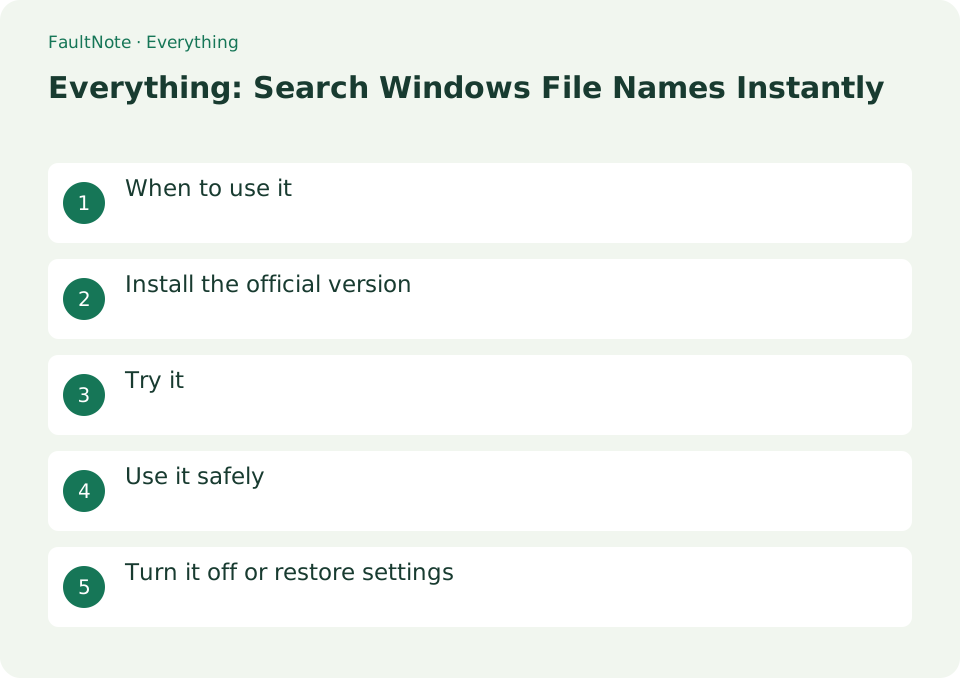
Who this guide is for and what to prepare
- First-time users of Everything
- People who want to check the storage location and safety of data while reducing manual work
What you need
- Check the processing target and storage location, and preserve the original data in another location
- Check the official distribution source, supported OS, and required permissions
When to use it
Instantly focus on names and paths rather than file contents, and combine them with extensions, modification dates, and folder conditions.
Install the official version
Select Installer or Portable from the voidtools official website and check the initial index creation and NTFS volume target.
- Select Installer or Portable from voidtools official website and check initial index creation and NTFS volume target
Build a small search
Start with invoice, then try invoice *.pdf. A space combines conditions. Add one condition at a time so you can identify why results disappear. Quote literal names containing spaces or operators. Filename results do not establish whether a word appears inside a document.
Select one invoice from scattered copies
Assume invoices exist in Downloads, project folders and backups. Select the approved version, rather than deleting all other hits. Client names or project numbers help when filenames do not contain invoice. Confirm content and location.
- Start with invoice and add conditions individually so an empty result has an identifiable cause.
- Try invoice *.pdf and inspect names and paths. Spaces combine conditions; check quoting for literal spaces.
- Classify locations and preserve same-named candidates, using dates to select content comparisons.
- Check month, client and amount inside the PDF; compare approval records rather than relying on dates alone.
- Record the selected path and reopen the attachment to ensure version consistency.
Try it
Enter part of the file name in the search field. Narrow down the extensions by adding ext:pdf etc. Right-click the result and select [Open path] to check the actual result. Use the content: phrase only when searching for the main text. Check the target in [Tools] → [Options] → [Index].
- Enter part of the file name in the search field
- Narrow down the extensions by adding ext:pdf etc.
- Right-click the result and select [Open path] to check the entity.
- Use content: phrase only when searching the main text
- Check the target in [Tools] → [Options] → [Index]
Check the candidate
Compare paths and modification dates before opening same-named invoices. Open the containing folder to identify the client and year. Multiple search hits do not prove duplicate content; distinguish working copies from archives before moving anything.
If nothing appears
Clear the query and check filters and path matching. Check whether the drive is indexed; network shares may require folder indexing. The current online syntax page includes 1.5 requirements, so also consult Search Syntax in your installed version.
Scroll horizontally to see the full table →
| Observation | Decision and next action |
|---|---|
| One match | Check content and location; one hit does not prove currency. |
| Several names match | Distinguish archive and working paths; identical names do not justify deletion. |
| A condition removes all hits | Remove the last condition and check extension, quoting and matching settings. |
| A drive is missing | Check connection and indexing and inspect Explorer before inferring deletion. |
Use it safely
By default, it is not content search. Set indexing methods and permissions separately for network shares and non-NTFS areas.
Turn it off or restore settings
Search results for Everything are references to actual files. If you delete it from the results list, the original file will also be targeted, so if you are just searching, just open/open the path. If you want to stop it from being resident, exit from the menu in the notification area.
Limitations and requirements
- By default, it is not content search. Set indexing method and permissions separately for network shares and non-NTFS areas.
- Check the current specifications in the official documentation and reconfirm on-screen what you want to delete or overwrite.
Frequently asked questions
Can you search file contents at the same speed?
Normal file name search and content: text search are processed differently. The file contents must be read, so narrow down the folders and extensions before expanding to many files.
I don't see new files
Remove any extensions or folder conditions left in the search field and check the index target. External drives and shared folders are treated differently than standard NTFS indexes.
Can I delete from results?
Check shared requirements and application ownership, preserving uncertain candidates before cleanup.
What if I do not know the name?
Use client, project, extension or folder clues; use content search if only text is known.
Sources and verification date
Sources checked: . These sources support the specifications, procedures or prices discussed here. Check each source for applicable conditions and current information.
Related practical guides
- Windows Search vs Everything: Content Search and File-name Search
- 7-Zip: Create an Encrypted 7z Archive
- ZIP vs 7z: Compatibility, Compression, and Encryption
- Windows 11: Create and Safely Extract ZIP Files with Built-in Tools
- Batch rename files with sequential numbers using PowerRename
- Create an encrypted archive with PeaZip