Game opens on another monitor or off-screen: recover the window and verify its destination
If the game is present on the taskbar but invisible, first recover a normal window onto a visible display. Treat window placement and fullscreen output selection separately, and inspect Windows layout and supported game settings before deleting configuration files.
Published · Updated · FaultNote editorial policy
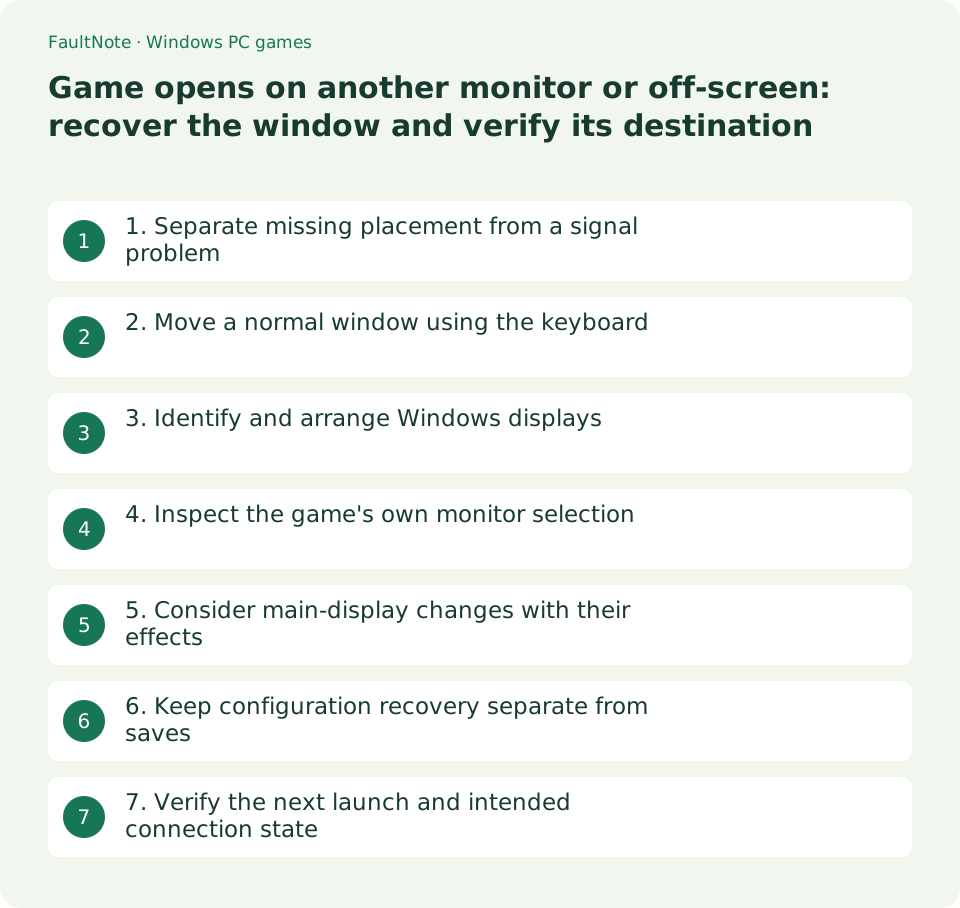
Who this guide is for and what to prepare
- People losing a game after unplugging a monitor
- People wanting consistent launch placement
What you need
- Record connected monitors and the prior arrangement
- Preserve saves and record display settings before changing them
1. Separate missing placement from a signal problem
If Windows and other windows are visible but the game is not, investigate placement or output selection. A monitor with no signal or absent from Settings is a separate connection issue. Check the taskbar or Alt+Tab and whether audio continues.
Do not repeatedly press save or confirm while blind. Select the game and attempt display recovery only. Know whether it supports safe pausing, and keep recovery distinct from restarting after a crash or redoing saves.
2. Move a normal window using the keyboard
Select the game with Alt+Tab and try Windows+Shift+Left or Right to move a normal window between displays. Exclusive fullscreen or custom windows may not support this. Check focus and inspect the result one attempt at a time.
Once visible, save as needed and drag the title bar into view if supported. Adjust an oversized window through the game's settings. If the shortcut fails, do not assume success and operate unseen confirmations.
3. Identify and arrange Windows displays
In Settings, System, Display, use Identify to match numbers with physical screens and check the arrangement. Display 1 is not necessarily your desired gaming monitor or a GPU connector number.
Inspect Remember window locations based on monitor connection under Multiple displays. It is not a guarantee of a game's fullscreen destination. Record previous layout and checkbox values and consider other windows too.
- Confirm the game exists and select it, while checking that other Windows content is visible.
- Try one normal-window movement at a time, then save and inspect game output settings once visible.
- Match display numbers with physical screens and record layout, memory setting and any primary-display trial.
- Exit and relaunch to verify placement; preserve exact files and saves before any documented configuration reset.
4. Inspect the game's own monitor selection
If the game offers Monitor, Display or Output selection, compare its names or order while the confirmation remains visible. Its enumeration may differ from Windows. Look for game-specific selection before changing the system's main display.
If windowed placement is correct but fullscreen moves elsewhere, inspect fullscreen output selection separately. Use Alt+Enter only where the game documents support, rather than promising it across all titles.
5. Consider main-display changes with their effects
If the developer states that launch follows the main display, consider selecting the intended display and making it primary in Windows. Record the previous primary monitor and close the game before this isolated trial.
Primary-display changes affect other applications and daily layout. Do not indiscriminately change them on a shared PC or during remote work. Prefer a supported per-game destination where available, and restore the prior primary if unhelpful.
6. Keep configuration recovery separate from saves
If the developer documents resetting a position-setting file, close the game and copy that exact file first. Settings and progress may share a file; names do not prove separation. Do not delete all AppData or the game folder.
Reset only the documented setting and verify visibility. If unsuccessful, restore the preserved configuration through the supported method. Ask with layout, launch mode and version when the target is unknown; do not guess registry deletions.
7. Verify the next launch and intended connection state
After moving a two-screen game to the right display, exit normally and relaunch. Check placement and fullscreen output. Returning to the old display calls for distinguishing temporary Windows movement from saved game settings. This is a verification plan, not a universal guarantee.
For a portable PC, preserve progress and close the game before changing to the intended connection arrangement. Do not unplug displays mid-play as a test. Record layout, primary display, game output and results, verifying both recovery and future placement.
After changing monitors, reidentify physical displays instead of relying only on old numbers. Record model and desk position, compare any game-provided name, and separate cabling changes from game settings to identify when the destination changed.
Scroll horizontally to see the full table →
| Observation | Next action |
|---|---|
| Window movement restores visibility | Verify placement after normal exit and relaunch |
| Only windowed mode is correct | Inspect fullscreen output separately |
| All apps or the display itself are absent | Investigate connection and detection |
| Relaunch returns to the old display | Compare saved game settings and Windows layout |
Limitations and requirements
- Do not blindly confirm invisible dialogs or test disconnection and forced exit during important play.
- Do not bulk-delete AppData or saves to recover settings; preserve and target documented files only.
Frequently asked questions
Does Windows+Shift+Arrow work in fullscreen?
It is a normal-window movement method. Exclusive fullscreen behavior varies; consult the game's supported mode and output settings.
Should I force monitor 1?
Match numbers with physical displays first. A game may enumerate differently, so a number alone is insufficient.
Is seeing the window enough?
It verifies immediate recovery. Also relaunch normally and check the intended connection arrangement and display mode.
Sources and verification date
Sources checked: . These sources support the specifications, procedures or prices discussed here. Check each source for applicable conditions and current information.
Related practical guides
- Find a game save location with Process Monitor: observe a short write and confirm candidates
- Game cannot save: match protection history with a controlled-folder block
- Preserve non-cloud game saves: copy after exit and verify restoration
- Garbled text in an older Japanese game: inspect legacy system locale and UTF-8 settings
- Movement with the stick untouched: compare gamepad input and dead zones
- First launch of a ZIP-distributed indie game