Preserve non-cloud game saves: copy after exit and verify restoration
Copying game files alone may not preserve progress. Copy the developer-documented save unit after normal exit. Before restoration, preserve the current saves too and retain older snapshots until loading is verified.
Published · Updated · FaultNote editorial policy
Who this guide is for and what to prepare
- People playing titles without cloud sync
- People preserving progress before an update
What you need
- Read the developer's save-location and compatibility guidance
- Prepare a distinct dated destination with sufficient space
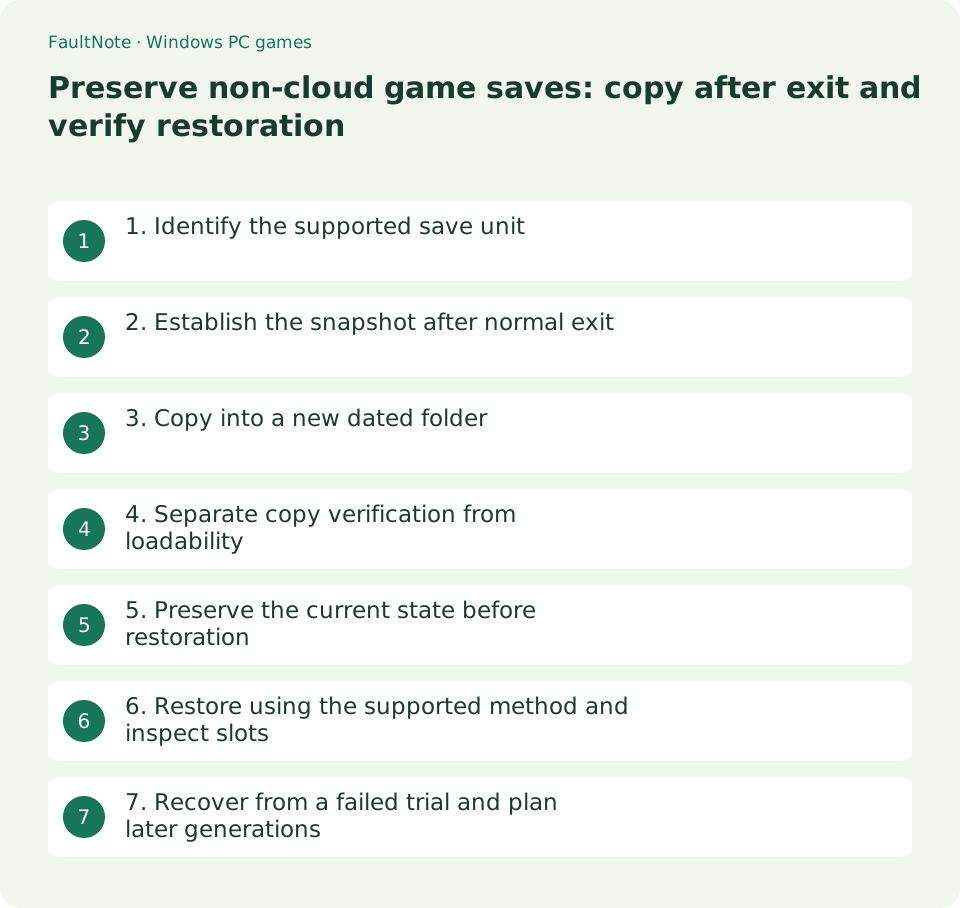
1. Identify the supported save unit
Consult the Readme or FAQ. Saves may live beside the game, in a user folder or in a profile-specific location. Verify guidance for your version and account rather than guessing a directory.
Slot data, indexes, settings and overall progress may be separate. Follow the developer's documented copy unit. If the location is unknown, ask rather than guessing broad registry exports or restoration.
2. Establish the snapshot after normal exit
Wait for in-game save completion and exit normally through the menu. Allow related processes to finish their writes. Copying while running can mix new slot data with an older companion file.
Confirm the game has exited using Task Manager if needed; do not force-terminate just to create a snapshot. If normal exit is impossible, label a captured copy provisional rather than calling it verified and consistent.
3. Copy into a new dated folder
Create a fresh destination such as GameName-20261013-2215 and record version, save time and original path. Copy rather than move, and do not overwrite an earlier generation. Include time when multiple snapshots matter in one day.
Do not call a copy complete after errors, insufficient space or unreadable files. Keep the previous verified generation instead of promoting a partial copy. A separate medium is useful for drive-failure protection, but first define scope and completion.
- Identify the supported location and companion files before copying.
- Wait for saving and normal exit, then copy into a fresh dated destination.
- Verify completion and layout, optionally compare hashes, and separate equality from loading.
- Preserve current saves again before a compatible-version restoration test and retain both copies.
4. Separate copy verification from loadability
Compare relative layout, file count and sizes. For an important file, compare SHA256 values as in the example below. Matching hashes establish matching content, not that the game can load the save.
Timestamps alone do not establish content equality. If another process writes during comparison, the state can change. Investigate mismatches and capture a new generation under closed-process conditions; keep originals.
Get-FileHash -LiteralPath "D:\GameSave\slot01.dat" -Algorithm SHA256
Get-FileHash -LiteralPath "E:\SaveSnapshots\GameName-20261013-2215\slot01.dat" -Algorithm SHA2565. Preserve the current state before restoration
Before restoring an older snapshot, close the game and copy the current state into another dated folder. Even failed progress may be worth returning to. Keep the snapshot original untouched and use a working copy.
Verify version and profile compatibility. A save written by a newer release may not load in an older one. Matching filenames are not proof; restore only under supported compatibility conditions.
6. Restore using the supported method and inspect slots
Restore the documented unit through the developer's method. Check that you have not accidentally nested save inside another save folder. Do not combine arbitrary files from different generations; use one consistent snapshot.
Understand autosaving before the test. Inspect slot list, progress location and other identifying details and record what actually loads. Reaching the title screen alone does not establish restoration success.
7. Recover from a failed trial and plan later generations
If loading fails, close the game and check version, profile, hierarchy and copy completion. Preserve post-trial state if needed and restore the current-state copy using the supported method. Do not repeatedly overwrite the sole remaining copy.
Create generations at meaningful points such as before an update or PC migration. Remove old copies only after verifying newer ones. Record closed-process copy completion and successful supported-version loading separately.
For another PC, check whether saves are tied to an account or device even on the same release. File copying is not guaranteed portable. A single-slot test may involve shared progress files. Distinguish verified and unverified snapshots and retain the tested version and date.
Scroll horizontally to see the full table →
| Observation | Next action |
|---|---|
| Files copied | Loading remains unverified |
| Hashes match | Content matches; compatibility is separate |
| Slots and progress match | Record the restoration-check date |
| Loading fails or hierarchy differs | Close, preserve current state and reassess |
Limitations and requirements
- Restoration can overwrite current progress; copy the current closed-game state first.
- Keep snapshot originals separate from working copies and do not mix unverified versions or profiles.
Frequently asked questions
Is copying the game folder enough?
Not if saves live elsewhere. Confirm the developer's location and distinguish game files from progress.
Is a successful live copy reliable?
It does not prove consistency between files. Prefer normal-exit snapshots and label emergency live copies provisional.
Do matching hashes prove restoration?
They prove matching file content. Separately verify version, profile, companion files and in-game loading.
Sources and verification date
Sources checked: . These sources support the specifications, procedures or prices discussed here. Check each source for applicable conditions and current information.
Related practical guides
- Find a game save location with Process Monitor: observe a short write and confirm candidates
- Game cannot save: match protection history with a controlled-folder block
- Game opens on another monitor or off-screen: recover the window and verify its destination
- Back up and restore Steam game files while protecting saves separately
- Garbled text in an older Japanese game: inspect legacy system locale and UTF-8 settings
- Movement with the stick untouched: compare gamepad input and dead zones