Garbled text in an older Japanese game: inspect legacy system locale and UTF-8 settings
The system locale mainly affects legacy non-Unicode code-page behavior and is separate from Windows display language. Consider changes only for a relevant older title with documented requirements, recording system-wide impact and rollback before a restart.
Published · Updated · FaultNote editorial policy
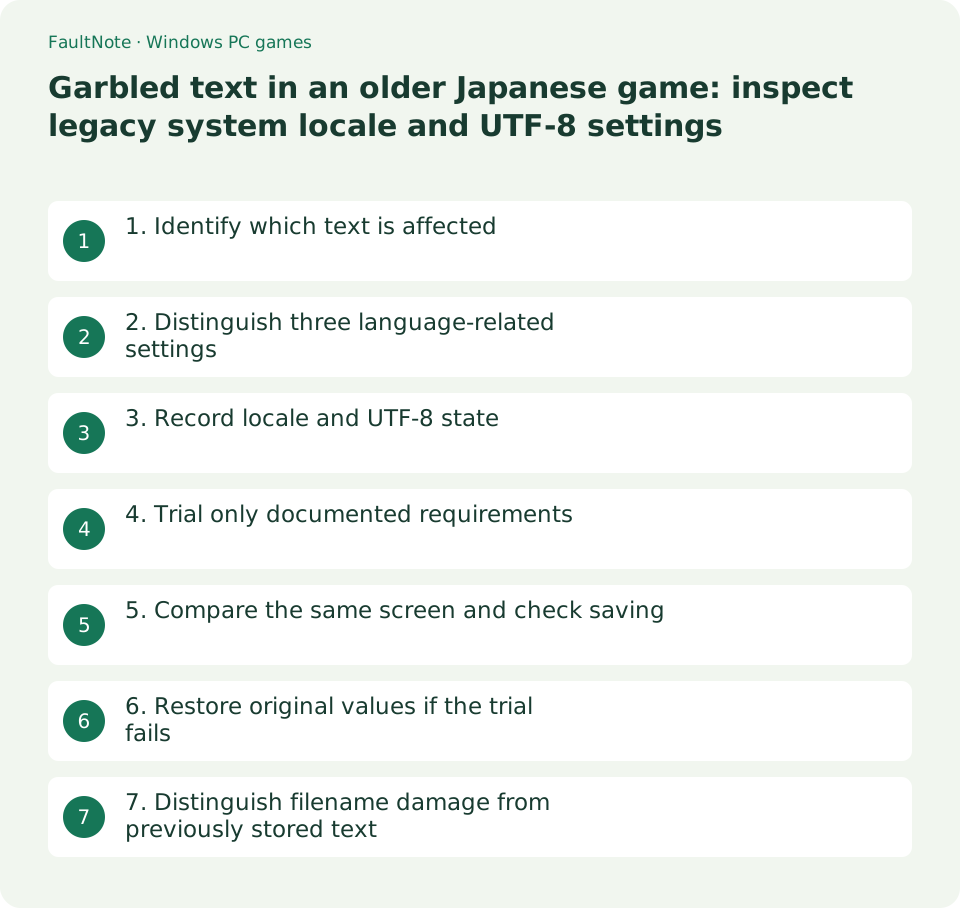
Who this guide is for and what to prepare
- People seeing garbled Japanese only in older titles
- People checking UTF-8 settings and compatibility
What you need
- Check supported OS, Japanese-environment requirements and save location
- Record locale and UTF-8 state and plan a restart window
1. Identify which text is affected
Determine whether dialogue, menus, extracted filenames or only the Readme are affected. Garbled archive filenames may be an extraction issue. Small text and offset clicks are different from character decoding problems.
Normal modern Unicode apps alongside one affected older title are grounds to investigate legacy requirements, not proof of a cause. Record version and OS and inspect the developer's font or missing-file guidance too.
2. Distinguish three language-related settings
Display language affects Windows interface language; regional format concerns dates and numbers. System locale affects default code pages and legacy font behavior for non-Unicode applications. Do not change all three merely because a game is Japanese.
The command below only reads the current system locale. Record it and the GUI state. It does not fix the game. On a shared PC, consider other older applications that may rely on the same setting.
Get-WinSystemLocale3. Record locale and UTF-8 state
Open Administrative language settings from Time & language, Language & region, and inspect Change system locale. Search for the administrative entry if navigation differs. Record Language for non-Unicode programs and the beta UTF-8 checkbox before changes.
UTF-8 is a modern encoding, not the same as the legacy code page an old game may expect. Treat locale selection and the UTF-8 checkbox as separate values, following documented requirements rather than enabling UTF-8 as a universal cure.
- Separate affected text, filenames and display-size symptoms and check developer requirements.
- Record locale and beta UTF-8 state, copy saves, finish work and plan a restart.
- Trial documented requirements only, restart and compare the same screen without simultaneous changes.
- Verify saving and normal apps; restore recorded values and restart if unhelpful.
4. Trial only documented requirements
When the developer documents a Japanese legacy environment requirement, compare the current state with the required locale and UTF-8 state. Windows needs administrative permission and a restart for the system change; this is not advice to run the game as administrator.
Copy saves first, finish other work and restart normally. Consult administrators on managed PCs. Do not also re-extract or patch the game during the same comparison; keep the changed condition identifiable.
5. Compare the same screen and check saving
After restart, confirm the active setting and display the same title, dialogue and menu as before. Record fixed and still-affected text separately rather than declaring improvement from an unrelated scene.
With prior progress preserved, check normal saving, exit and loading too. Readable text alone does not establish complete compatibility. Inspect everyday behavior in other older or differently localized applications when relevant.
6. Restore original values if the trial fails
If there is no benefit, another app is affected or the trial is over, restore both original locale and UTF-8 state and restart. Do not restore one while forgetting the other. If regional format was also changed, restore its recorded values.
Confirm with the command and GUI and open normal applications. Give the developer version, OS, original and trial states and affected screens. Do not use executable-manifest editing or third-party locale injection as a universal next step.
7. Distinguish filename damage from previously stored text
An older non-Unicode title requiring a Japanese environment is a candidate for checking code-page conditions. Garbled extracted filenames with missing assets instead call for archive investigation. These are not guaranteed to share one fix.
User-entered text already saved incorrectly may not recover merely by restoring display settings. Retain original saves and consult the developer using copies. Keep baseline screens, preservation date, trial values and post-restart results together.
Scroll horizontally to see the full table →
| Observation | Next action |
|---|---|
| Only an older title has garbled text | Compare legacy requirements and current values |
| Only extracted filenames are garbled | Inspect archive decoding and extraction |
| Small text or offset clicks | Investigate DPI and display separately |
| No benefit or another app affected | Restore original locale and UTF-8 state |
Limitations and requirements
- This is a system-wide setting; record original values and consider other non-Unicode applications.
- A settings change does not guarantee recovery of already damaged saved text or filenames.
Frequently asked questions
Must I change Windows display language too?
Check the title's requirements. Display language and system locale are distinct, and Microsoft notes compatibility implications of combinations. Do not indiscriminately change everything.
Will enabling UTF-8 fix Japanese?
Not necessarily. A legacy title may expect a different code page. Compare its documentation with the current state.
Does the change apply immediately?
System-locale changes take effect after restart. Save work first and verify values again after rollback and restart.
Sources and verification date
Sources checked: . These sources support the specifications, procedures or prices discussed here. Check each source for applicable conditions and current information.
Related practical guides
- Find a game save location with Process Monitor: observe a short write and confirm candidates
- Game cannot save: match protection history with a controlled-folder block
- Preserve non-cloud game saves: copy after exit and verify restoration
- Movement with the stick untouched: compare gamepad input and dead zones
- Game opens on another monitor or off-screen: recover the window and verify its destination
- First launch of a ZIP-distributed indie game