Movement with the stick untouched: compare gamepad input and dead zones
A dead zone ignores small readings near center. Enlarging it may suppress unwanted movement while making fine control harder. Observe input behavior and distinguish game thresholds from controller problems before deciding.
Published · Updated · FaultNote editorial policy
Who this guide is for and what to prepare
- People seeing movement or camera drift with untouched sticks
- People comparing sensitivity and dead-zone behavior
What you need
- Record controller model, connection and game input settings
- Use a menu or practice area where testing will not alter important progress
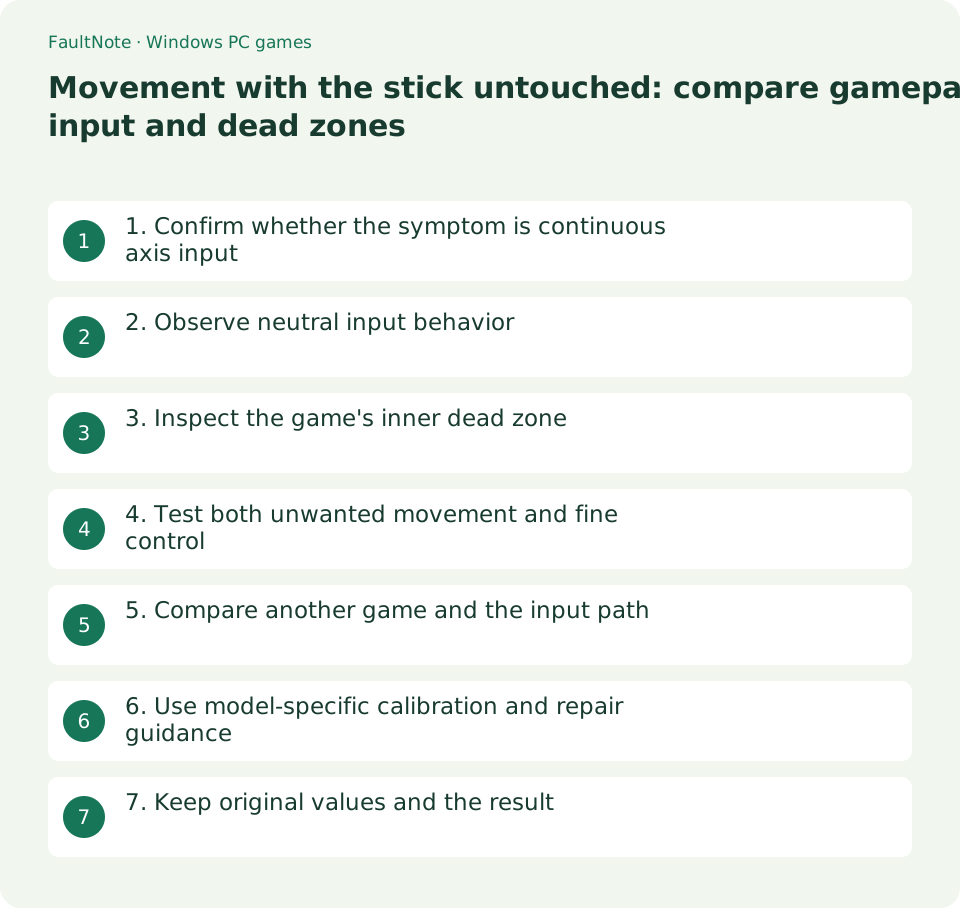
1. Confirm whether the symptom is continuous axis input
Separate slow walking, continuously rotating view and directional menu movement. A single button press skipping two entries is a double-input issue. Also account for held keyboard keys or mouse input and record what is actually untouched.
Use a safe paused or practice scene, move each stick once and release naturally. Compare true hands-off behavior rather than holding it at center. Do not hit, forcefully rotate or push the controller as a diagnostic step.
2. Observe neutral input behavior
Use the manufacturer's input test or a Windows Game Controllers test page where available. Win+R, joy.cpl can expose properties for listed devices, but not every model offers identical views or precision.
Move and release in each direction and note recentering, a large directional offset or hands-off fluctuation. The view may already reflect driver processing; do not assume raw sensor data. Observe before changing calibration.
3. Inspect the game's inner dead zone
Look for an inner dead zone or minimum-input setting. Microsoft's XInput documentation describes ignoring unwanted readings near center. Names and scales vary by game; there is no universal optimal percentage.
Record the original value and increase it by one modest step in the same scene. Do not simultaneously change sensitivity, response curve or outer dead zone. Distinguish activation threshold from movement speed once activated.
- Observe both sticks after release in a safe scene and distinguish continuous axis input from double buttons.
- Inspect center, release behavior and fluctuation where a test exists without inventing unavailable values.
- Change only one inner-zone step and assess both stability and fine control.
- Compare other apps and model guidance, restore unhelpful changes and seek repair advice for persistent symptoms.
4. Test both unwanted movement and fine control
After confirming hands-off stability, test slow walking, fine aiming and direction reversals. Suppressing drift at the cost of necessary fine control is not an overall improvement. Evaluate the actions you actually need.
A modest change that stops camera drift while preserving slow aim is a provisional setting candidate for that game. A very wide zone that produces coarse jumps calls for controller investigation. This is decision reasoning, not a measured repair result.
5. Compare another game and the input path
Compare the same axis in another supported game or manufacturer test. An offset in several apps supports investigating the controller, but tests sharing one translation layer are not fully independent. Record connection and profile.
Inspect existing anti-dead-zone or similar profile settings if present. Amplifying small inputs alongside a game's ignore threshold complicates interpretation. Preserve profiles and change one layer at a time rather than resetting everything.
Test displays can use different scales and already processed values. Compare recentering and direction consistently instead of treating numbers as interchangeable. A game may ignore a small fluctuation while another input layer amplifies it; record the layer involved.
6. Use model-specific calibration and repair guidance
Where official calibration exists for the model, check its scope. Xbox describes calibration for some minor response inconsistencies, not a guarantee against all wear-related drift. Do not promise one calibration menu for every controller.
Large offsets, axes that do not return and persistent cross-app symptoms warrant repair or replacement advice with purchase and symptom records. Do not extend this settings check into disassembly, chemical injection or unofficial firmware.
7. Keep original values and the result
Restore trial dead zones and profiles when unhelpful. A default reset without recorded values can also remove useful mappings. Verify menu controls, both sticks and relevant triggers after reverting.
Provide model, connection, neutral observations, other-app results and original/trial settings. Specify the axis and direction. Distinguish suppressing a symptom through settings from restoring hardware condition.
Scroll horizontally to see the full table →
| Observation | Next action |
|---|---|
| Modest change stops drift and preserves fine control | Record a provisional per-game setting |
| Only a very wide zone stops movement | Reassess usability and controller condition |
| Same offset across apps | Check model-specific calibration or repair |
| One button skips two items | Investigate double input instead |
Limitations and requirements
- Suppressing a symptom with a dead zone does not repair worn components.
- Do not use disassembly, chemicals or unofficial firmware as universal fixes; consult model-specific support.
Frequently asked questions
Is lower sensitivity equivalent?
Sensitivity affects response magnitude; the inner dead zone concerns activation near center. Check the game's definitions and compare separately.
Should I maximize the dead zone?
That can remove useful fine input. Evaluate both drift and control; a need for extreme values warrants investigation.
Will calibration always fix it?
No. Check supported model and symptoms; persistent wear or faults may need repair or replacement.
Sources and verification date
Sources checked: . These sources support the specifications, procedures or prices discussed here. Check each source for applicable conditions and current information.
Related practical guides
- Find a game save location with Process Monitor: observe a short write and confirm candidates
- Game cannot save: match protection history with a controlled-folder block
- Preserve non-cloud game saves: copy after exit and verify restoration
- Garbled text in an older Japanese game: inspect legacy system locale and UTF-8 settings
- Game opens on another monitor or off-screen: recover the window and verify its destination
- First launch of a ZIP-distributed indie game