Check SSD and HDD health: Windows reliability counters and decision limits
Health telemetry is evidence, not a guarantee against failure. Missing values are not zero. Interpret readings with model, symptoms and changes over time, and prioritize preserving needed data when reads are already unstable.
Published · Updated · FaultNote editorial policy
Who this guide is for and what to prepare
- People checking possible failure signs
- People experiencing trouble despite a healthy label
What you need
- Record the model, connection method and symptom times
- Identify important data and stop unnecessary writes
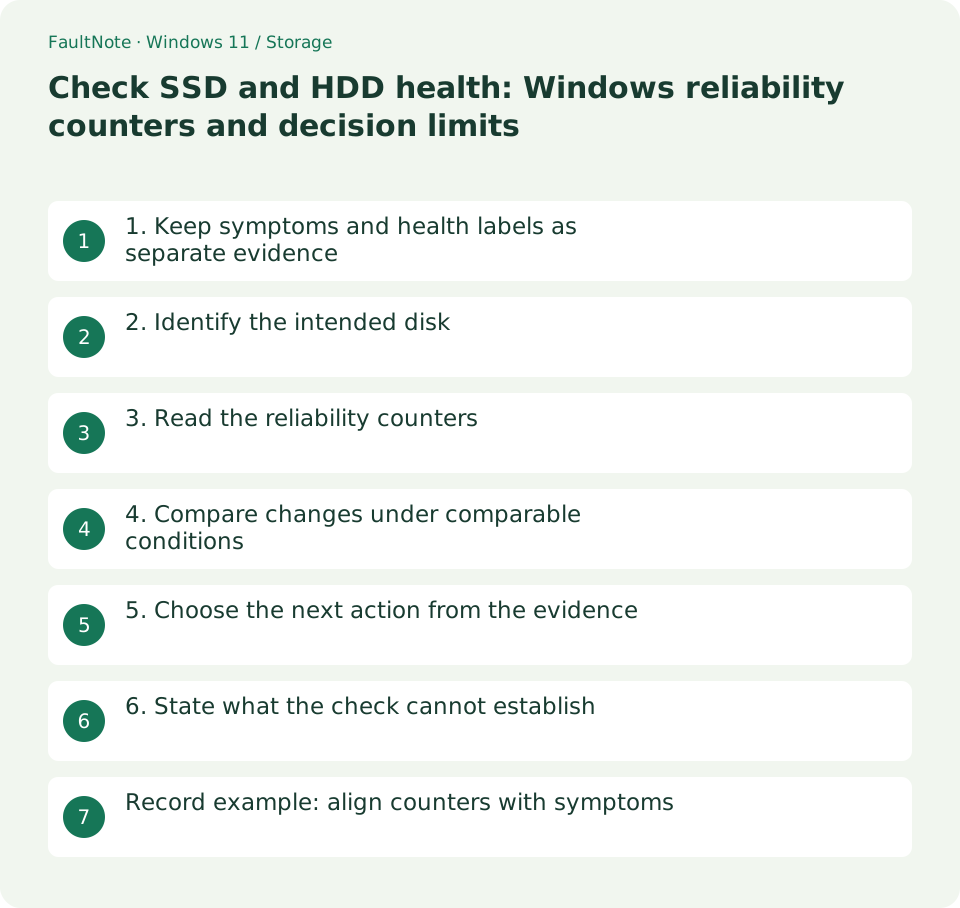
1. Keep symptoms and health labels as separate evidence
A healthy label does not dismiss repeated unreadable files, errors at the same location or disappearing connections. Conversely, a single slow task does not establish end of life. Record when, during which task and with which message trouble occurred.
When unusual mechanical sounds or stalled reads affect the only copy of important data, avoid repeated retries and stress tests. Decide first whether preservation while readable or specialist assistance is appropriate for the data's value.
Scroll horizontally to see the full table →
| Situation or purpose | Next action | Check |
|---|---|---|
| Healthy label and no symptoms | Record over time | No future-failure guarantee |
| Blank or unsupported | Unavailable telemetry | Do not interpret as zero |
| Increasing errors or unreadable needed files | Preserve and seek replacement advice | Limit writes |
| USB-only instability | Inspect the connection path | Telemetry alone is not causality |
2. Identify the intended disk
List physical disks in an administrator PowerShell window and match FriendlyName, SerialNumber and Size. An enclosure-only name may indicate that the connection exposes limited information.
Reidentify the disk each session rather than reusing an old number blindly. With multiple same-size SSDs, record model and serial together. Redact identifying details when sharing records publicly if needed.
Get-PhysicalDisk | Select-Object FriendlyName,SerialNumber,Size,HealthStatus,OperationalStatus3. Read the reliability counters
The command below displays available counters. Microsoft documents temperature, errors, wear and time-in-use information. Match each DeviceId with the disk list and retain the actual returned results.
A blank field, unsupported query or access error is not a normal zero. If an enclosure or driver does not expose readings, check the manufacturer's tool and connection requirements. Do not invent replacement numbers.
Get-PhysicalDisk | Get-StorageReliabilityCounter | Format-List DeviceId,Temperature,TemperatureMax,Wear,PowerOnHours,ReadErrorsUncorrected,WriteErrorsUncorrected- Keep model, purchase date, connection, symptoms and timestamps with counter output.
- Match DeviceId and distinguish obtained readings from missing fields.
- Compare the same disk and connection later, recording room and workload differences.
- For failed reads, assess data needs before continuing tests; replacement and recovery have different goals.
4. Compare changes under comparable conditions
Compare temperature, error increases and symptoms on the same drive before and after a relevant task. Different room temperatures or copy workloads make simplistic temperature comparisons unreliable. Record time, connection and workload alongside values.
Attribute meanings and thresholds differ between models. Do not borrow another drive's threshold. A wear reading and a warranty TBW condition are not necessarily interchangeable; check the exact model's documentation.
5. Choose the next action from the evidence
Increasing read errors or unreadable important files call for stopping writes and prioritizing preservation and replacement advice. For temperature alone, inspect the model's operating limits and installation. USB-specific trouble also implicates enclosure, cable or power.
If telemetry looks normal but symptoms repeat, include both facts in support requests. Neither a healthy label nor one counter should dictate the whole conclusion. Purchase date, symptoms and logs provide useful warranty evidence.
6. State what the check cannot establish
This is a telemetry check, not an all-address read-and-write test. It cannot predict a failure date, prove every file correct or certify an enclosure's stability. Passing diagnostics should not make one disk the sole home of important data.
Before using manufacturer diagnostics, distinguish a short read-oriented check from operations that erase or heavily exercise the disk. A diagnostic name alone does not describe its scope; understand it before testing the only original during a failure.
Record example: align counters with symptoms
Store model, connection, time, counter output, workload and error message together. A vague recollection of working in the morning and failing at night does not identify a disk change. Record enclosure changes too.
If ordinary browsing works but large transfers disconnect, investigate power and connection alongside telemetry. Multiple drives failing through one enclosure differs from one drive failing everywhere; these are investigation branches, not proof of a specific cause.
Use collected evidence to choose the next action rather than repeatedly generating failures. Once needed-file reads fail, limit lengthy testing and seek replacement or recovery advice. Do not calculate lifespan from a value whose meaning is unclear.
Separate diagnostic certainty from operational tolerance. Repeated disconnects may justify changing the connection or drive even before causality is proven. Missing telemetry alone calls for checking support. Evaluate usable behavior alongside numbers.
Limitations and requirements
- Available health telemetry is not a complete file-integrity check.
- Do not escalate writes or stress tests on unstable media before choosing a preservation approach.
Frequently asked questions
Do blank counters mean failure?
Not necessarily. The device or connection may not expose them. Distinguish blanks from zero and check official-tool support.
Does healthy status rule out replacement?
No. Consider recurring symptoms, increasing errors and practical disruption as well.
Is there one replacement-temperature threshold?
This guide does not set a universal threshold. Check the model's operating conditions and the relationship between temperature, errors and symptoms.
Sources and verification date
Sources checked: . These sources support the specifications, procedures or prices discussed here. Check each source for applicable conditions and current information.
Related practical guides
- Why a 1 TB SSD shows about 931 GB: reconcile bytes and partitions
- Set up a new empty secondary SSD: GPT initialization and volume creation
- Before extending C: check unallocated-space location and separate disks
- Use a separate SSD through a folder: plan and remove a Windows mount point
- Can NTFS compression free space? Trial a folder, revert and decide on expansion
- Quick removal or better performance: choose an external-drive operating policy