Use a separate SSD through a folder: plan and remove a Windows mount point
A folder mount point is an entrance to another volume, not an increase in C: capacity. Keep the original drive letter while verifying folder access and only adopt the path once its operational implications are clear.
Published · Updated · FaultNote editorial policy
Who this guide is for and what to prepare
- People needing a stable folder path to another SSD
- People planning storage without additional drive letters
What you need
- Use a data volume rather than a Windows or application boot location
- Prepare a new empty folder and record existing access paths
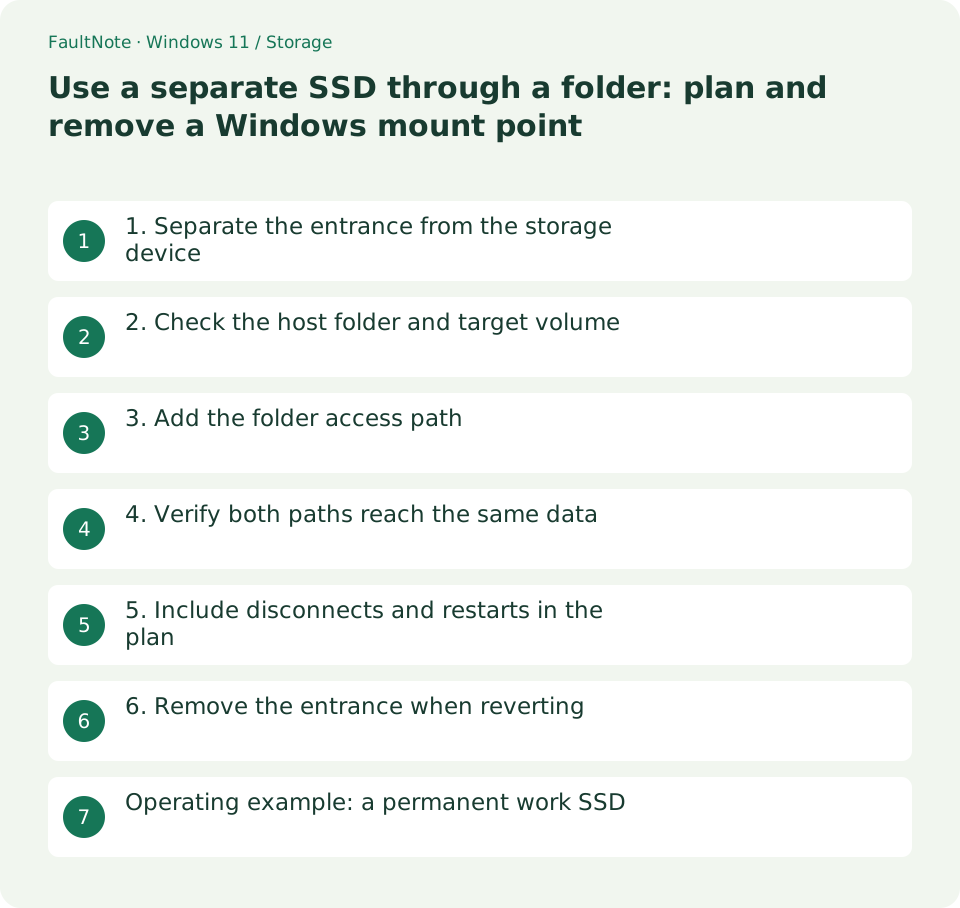
1. Separate the entrance from the storage device
Consider C:\Volumes\Work as an entrance to data on another SSD. Files below that entrance belong to the mounted volume; the C: prefix does not mean their bytes occupy C:. Record the actual storage device.
Keeping both D: and the folder path can provide two ways to reach the same data, not two copies. Decide which entrance your workflow uses so file-management tools do not unnecessarily count or process the same content twice.
Scroll horizontally to see the full table →
| Situation or purpose | Next action | Check |
|---|---|---|
| Permanent data SSD | Folder entrance candidate | Verify access after startup |
| Frequently removed external disk | Add availability checks | Do not start work while absent |
| Host folder contains files | Create a new empty entrance | Avoid an existing populated location |
| Need to revert | Verify letter access and remove only the path | Do not delete contents |
2. Check the host folder and target volume
Microsoft requires an empty folder on NTFS or ReFS and an NTFS or ReFS target volume, configured with administrator permissions. A continuously connected data SSD makes path availability easier to manage than a frequently unplugged drive.
Create a dedicated entrance instead of using an existing photo folder. Confirm that it is empty, give it a meaningful purpose-based name, and record the target volume's drive letter and label.
3. Add the folder access path
Select the target data volume in Disk Management, open Change Drive Letter and Paths, choose Add, and select Mount in the following empty NTFS folder. Browse to your prepared entrance. Retain the existing letter at this stage.
Check that you selected the volume the entrance should expose, not the C: volume hosting the folder. When labels are ambiguous, compare disk number and capacity before adding the path.
- Open a representative file through the original letter before changing access paths.
- Verify the same test file through both entrances before registering the folder in applications.
- Choose one routine entrance and check scanning settings for duplicate traversal.
- Restore application references and verify letter access before removing the folder path.
4. Verify both paths reach the same data
Create an expendable file through the original letter and open it through the folder. Rename it through one path and check that the other reflects the change. This verifies the entrance; do not experiment on valuable files.
Also verify saving and reopening in the application that will use the path. Some applications assume drive letters or apply their own location rules, so visibility in File Explorer alone does not prove application support.
5. Include disconnects and restarts in the plan
For an external target, prevent applications from attempting work there while it is absent. Check availability after restarting before starting a large task. A path that hides the physical connection needs an explicit availability check.
Inspect free space on the target volume rather than assuming C: free space describes the separate SSD. Keep the entrance path, target label and original letter together in your operational notes.
6. Remove the entrance when reverting
Confirm access through the original letter and close relevant applications. Remove only the added folder path from Disk Management's path list. Removing an access path is different from deleting or formatting the volume.
Reopen a file through the original letter and update application save paths. Deleting content inside a mounted folder can delete files on the separate SSD. Keep removal of the entrance distinct from deletion of its contents.
Operating example: a permanent work SSD
With C:\Volumes\Work assigned to a permanent media SSD, check availability before work and register that path in the application. If D: remains, use one entrance routinely and keep the other for verification; they are not duplicated storage.
Tell other users of a shared PC that the path belongs to another disk. Consistent entrance and volume names help prevent mistaken availability and capacity assumptions.
When retiring the arrangement, restore application paths, verify letter-based access and then remove the entrance. Do not delete its contents as a way to remove the mount point.
Describe capacity and location in terms of the target volume, not merely the entrance. State both the C: folder path and the actual SSD label so maintenance and replacement use the same mapping.
Limitations and requirements
- Deleting content inside a mounted folder affects files on the target volume.
- Folder visibility alone does not establish application support; verify real saving and reopening.
Frequently asked questions
Will C: show a larger capacity?
No. You add an entrance to another volume rather than extending C: itself.
Must I remove the drive letter?
No. Keep it during verification and make clear that both paths access the same underlying data.
Does removing the entrance erase files?
Removing an access path is separate from deleting volume content. Verify letter-based access first, then remove only the intended path.
Sources and verification date
Sources checked: . These sources support the specifications, procedures or prices discussed here. Check each source for applicable conditions and current information.
Related practical guides
- Can NTFS compression free space? Trial a folder, revert and decide on expansion
- Set up a new empty secondary SSD: GPT initialization and volume creation
- Before extending C: check unallocated-space location and separate disks
- Why a 1 TB SSD shows about 931 GB: reconcile bytes and partitions
- Check SSD and HDD health: Windows reliability counters and decision limits
- Before running CHKDSK: choose inspection, repair or a surface check