Quick removal or better performance: choose an external-drive operating policy
A frequently carried drive and a permanent working drive have different removal habits. Better performance requires safe removal. With either policy, avoid disconnecting during a transfer and verify that saving has finished.
Published · Updated · FaultNote editorial policy
Who this guide is for and what to prepare
- People carrying an external SSD daily
- People considering caching on a permanent external drive
What you need
- Identify the target label and drive letter
- Record the current policy and finish active writes
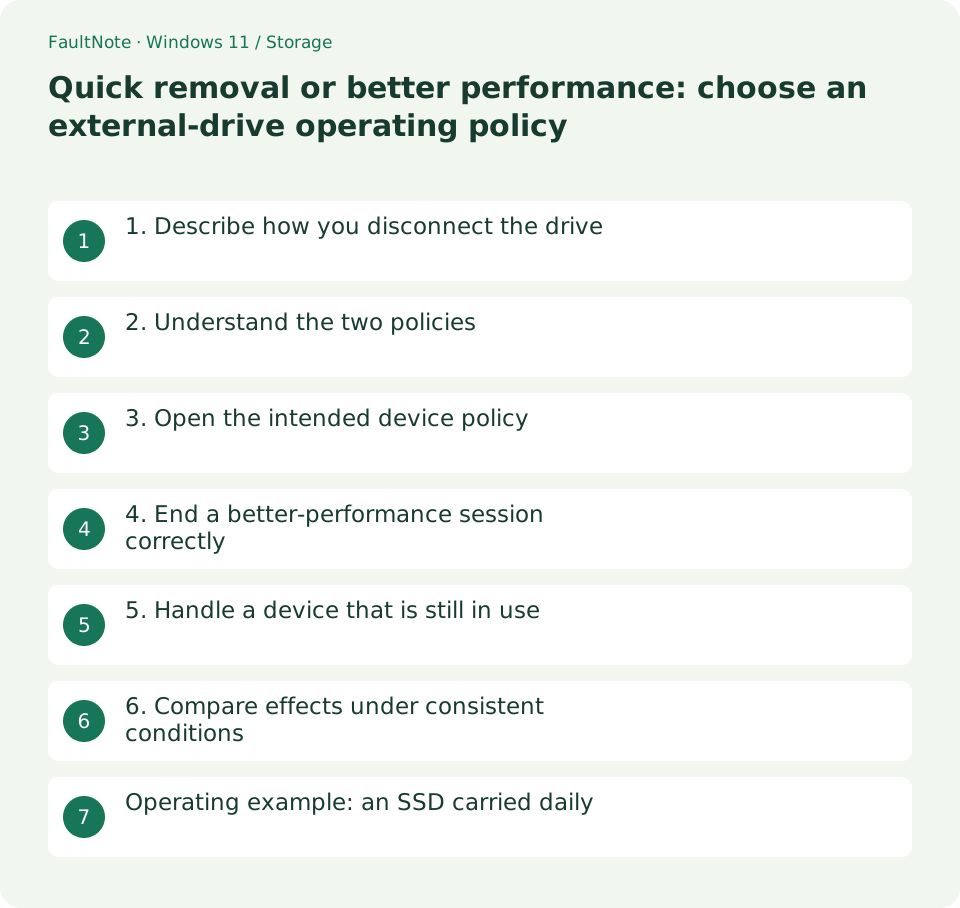
1. Describe how you disconnect the drive
Frequent moves between meetings or PCs call for a workflow tolerant of forgetting an eject step. A permanent desktop drive with a reliable shutdown routine may be a candidate for better performance. Do not choose solely from the attractive setting name.
Neither policy should become a reason to unplug during a save. Build a sequence of finishing application saves, completing transfers and removing the device, rather than treating a cache toggle as the whole workflow.
Scroll horizontally to see the full table →
| Situation or purpose | Next action | Check |
|---|---|---|
| Frequent disconnection | Consider quick removal first | Finish active writes |
| Permanent use with reliable ejection | Better performance can be trialed | Measure your workload |
| Device busy | Review applications and writes | Do not force a disconnect |
| Move to another PC | Check its policy | Do not assume identical settings |
2. Understand the two policies
Microsoft describes quick removal as keeping the device ready for removal without Windows disk-write caching. Better performance permits caching and requires safe removal to finish outstanding operations.
Quick removal is the default on current Windows versions, but inspect the actual device instead of assuming defaults still apply. Previously changed devices or different ports warrant checking. This description is not a measured performance comparison.
3. Open the intended device policy
In Disk Management, open properties for the physical device in the lower pane and look for Policies. If tabs are arranged differently, select the target drive through Hardware and open its properties. Match the manufacturer and label before changing anything.
Record the original screen. Enabling write caching is distinct from disabling write-cache buffer flushing; this guide does not recommend the latter. Its power-loss implications require a separate assessment.
- Record identity and finish copy or synchronization writers before changing policy.
- Keep file set and port consistent; do not mix first saves with overwrite trials.
- Eject after writers finish and verify the notification identifies the actual device you will unplug.
- Recheck settings and representative files after reconnection; restore the old policy if unsuitable.
4. End a better-performance session correctly
Close saving applications, confirm transfers have completed and eject the intended device through the notification area. Disconnect after Windows reports it is safe. If unplugging an entire hub, check other storage devices on it too.
Applications, downloads or working files on the external disk may keep accessing it even when the desktop appears idle. On a PC where writers are unclear, establish a reliable removal routine before changing policy.
5. Handle a device that is still in use
Close transfers, editors, players, save dialogs and windows showing the target folder, then retry. A failed eject request does not automatically mean a defective disk; an application may still hold files open.
If removal remains blocked and you must move the disk, save work and consider a normal shutdown completed before disconnection. Holding the power button to force off during a transfer is not that alternative.
6. Compare effects under consistent conditions
Compare the same device, port, cable and file set while recording task duration. If results are close, prioritize the removal workflow you can maintain. Use files representative of your own work rather than assuming small-file and large-video workloads behave alike.
If there is no useful improvement, restore the previous policy and check it after reconnecting. A USB speed shortfall or transfer disconnect can have other causes, so do not attribute every outcome to this setting.
Operating example: an SSD carried daily
For a drive moving between home and another PC daily, inspect its policy on each PC. A change on one PC does not establish settings on another. Use the same close-save-eject routine at both locations.
Before unplugging a whole hub, complete storage removal first. Give multiple drives distinct purpose-based labels and resolve an ambiguous eject notification before disconnecting.
After a change, record the policy and port, check them next session, and reopen a representative file after reconnection. That verifies a save, not the integrity of every file.
On a shared PC, communicate removal procedure before changing policy. Another user may follow an old routine. Record who manages settings, which device label to eject and how to finish a busy session.
Limitations and requirements
- Better performance requires safe removal before disconnecting.
- Disabling buffer flushing is a separate decision from enabling ordinary caching.
Frequently asked questions
Can I unplug during a transfer with quick removal?
Avoid it. Finishing an active save is separate from the cache policy.
Will better performance always be faster?
No guaranteed gain applies to every drive or workload. Compare your own task under consistent conditions.
Should I inspect each PC?
Yes. The same device is not proof of identical policy on another PC; verify its removal routine there too.
Sources and verification date
Sources checked: . These sources support the specifications, procedures or prices discussed here. Check each source for applicable conditions and current information.
Related practical guides
- External SSD vs HDD for backups: capacity, speed and portability
- Set up a new empty secondary SSD: GPT initialization and volume creation
- Before extending C: check unallocated-space location and separate disks
- Use a separate SSD through a folder: plan and remove a Windows mount point
- Why a 1 TB SSD shows about 931 GB: reconcile bytes and partitions
- Check SSD and HDD health: Windows reliability counters and decision limits