Before extending C: check unallocated-space location and separate disks
Free space inside a volume is different from unallocated space available for extension. Check the same physical disk and the space immediately to the right; do not casually delete a recovery partition.
Published · Updated · FaultNote editorial policy
Who this guide is for and what to prepare
- People expanding C: after migration to a larger SSD
- People considering another SSD to enlarge C:
What you need
- Record the complete lower-pane disk layout
- Preserve required data and recovery options before changing layout
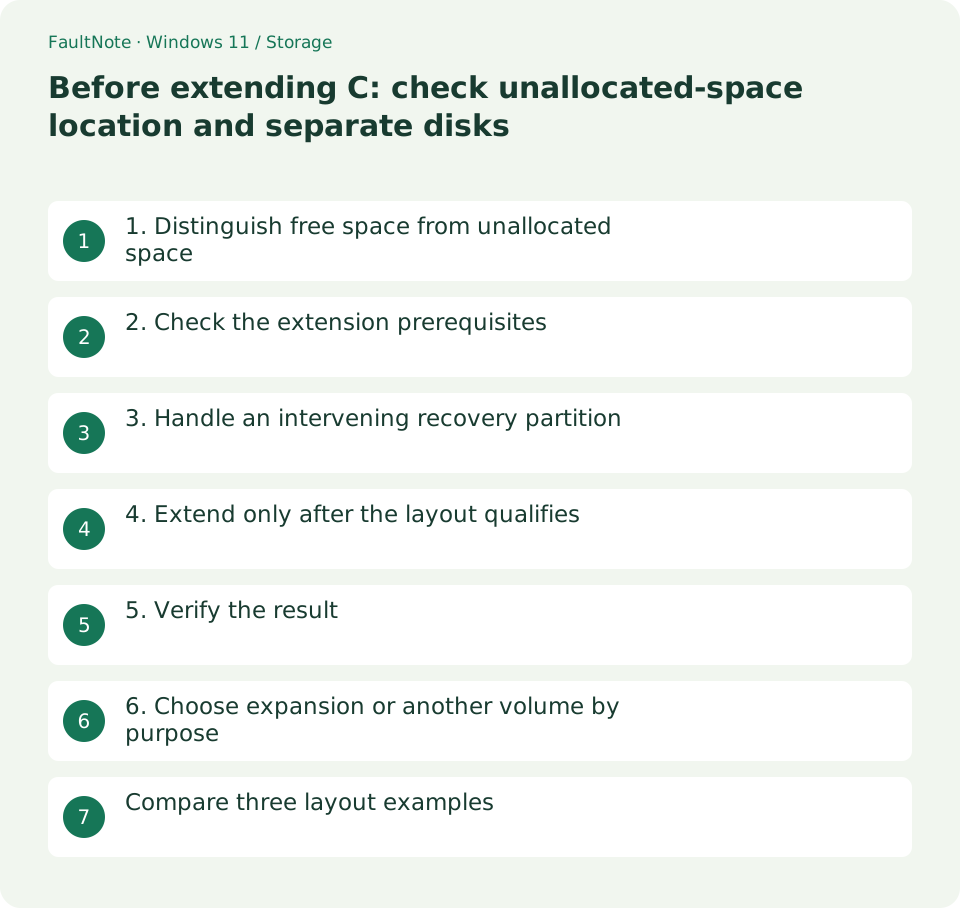
1. Distinguish free space from unallocated space
An empty 200 GB inside D: still belongs to D:. It is not unallocated space that can simply be added to C:. Read the position of black unallocated bars and existing volumes in Disk Management.
As a planning example, C: followed by 100 GB unallocated space is an extension candidate. C:, then D:, then 100 GB unallocated space has an intervening volume. Write down disk numbers and order instead of comparing capacity alone.
Scroll horizontally to see the full table →
| Situation or purpose | Next action | Check |
|---|---|---|
| Adjacent unallocated space on the same disk | Check NTFS/ReFS and permissions | Extension candidate |
| Recovery or D: intervenes | Record layout and reassess | Not directly extendable |
| Unallocated space on another SSD | Consider a separate save location | Does not directly enlarge C: |
| Free space inside D: | Distinguish from unallocated space | Do not infer from free-space totals |
2. Check the extension prerequisites
Microsoft documents adjacent unallocated space on the same disk, an NTFS or ReFS volume, and administrator permissions as prerequisites. If these conditions are missing, Extend Volume may be unavailable.
Installing another SSD does not place its space beside C:. This guide concerns ordinary basic disks; changing to dynamic disks or storage pools to combine capacity requires a separate design.
3. Handle an intervening recovery partition
A layout of C:, Recovery, then unallocated space contains an obstruction regardless of how small the recovery partition is. Identify its purpose before considering any deletion; recovery facilities may depend on it.
Moving partitions with another tool requires understanding what moves and how to recover if it fails. If you only need more working storage, consider a separate data volume in the unallocated space and redirect suitable data there.
- Capture disk labels as well as volume order so the physical disk remains identifiable.
- Compare the planned addition with the wizard limit and any space you intend to retain.
- Recheck volume and disk identity before committing; cancel unexpected conversions or disk additions.
- Verify the changed volume, neighboring areas and representative files after completion.
4. Extend only after the layout qualifies
Open Extend Volume on the intended volume and check the amount being added. Decide beforehand whether to use all space or leave some for another purpose. If the wizard requests unexpected conversion or another disk, stop and reassess before committing.
For a plan to add part of an available area, compare the confirmation with that plan. Wizard units and advertised drive capacities may differ; do not enter a rounded marketing number without checking the displayed limit.
5. Verify the result
Check that the intended volume grew and the planned unallocated area shrank. Compare capacity in File Explorer and open existing files. Continued access matters as much as a larger number.
Keep before-and-after views and the date. If an error occurs, record the stage rather than trying more deletion or formatting. Repeated layout changes make an unfinished operation harder to diagnose.
6. Choose expansion or another volume by purpose
Separate a shortage on C: itself from a shortage of space for large working files. A data volume on another SSD may solve the latter without changing the system-disk layout. Relocating applications should follow their supported procedures.
If the operating system and installed applications need a larger C:, plan migration to a larger SSD separately. Decide what belongs where, then prepare capacity and recovery options rather than searching only for an enabled menu.
Compare three layout examples
Disk 0 with C: followed by unallocated space differs from Disk 0 with C:, Recovery and unallocated space despite identical totals. The former is an extension candidate; the latter needs another layout decision or a separate volume.
Disk 0 containing C: and Disk 1 containing unallocated space describes a separate save-location opportunity. Creating it will not redirect applications that still save to C:; use supported application settings.
Leaving the layout alone can be a valid decision. Compare the gained space with disruption and write down the affected areas and recovery plan before committing.
Evaluate disruption as well as gained space when recovery facilities may be affected. Compare a separate save location, a larger system SSD and keeping the layout. State whether the shortage concerns OS updates or working files.
Limitations and requirements
- Small recovery, EFI and OEM partitions are not necessarily disposable.
- Partition movement or conversion needs a separate migration plan.
Frequently asked questions
Does shrinking D: let me extend C:?
Check where the unallocated space appears. If D: remains between C: and that space, C: cannot directly use it.
Can I add another SSD's free space?
An ordinary basic-volume extension uses adjacent space on the same disk. Consider the other SSD as a separate save location.
What should I record before extension?
Record disk numbers, layout, target capacity, added amount and recovery options so wizard choices can be compared with the plan.
Sources and verification date
Sources checked: . These sources support the specifications, procedures or prices discussed here. Check each source for applicable conditions and current information.
Related practical guides
- Set up a new empty secondary SSD: GPT initialization and volume creation
- Use a separate SSD through a folder: plan and remove a Windows mount point
- Why a 1 TB SSD shows about 931 GB: reconcile bytes and partitions
- Check SSD and HDD health: Windows reliability counters and decision limits
- Can NTFS compression free space? Trial a folder, revert and decide on expansion
- Quick removal or better performance: choose an external-drive operating policy