Set up a new empty secondary SSD: GPT initialization and volume creation
A new empty secondary disk may need initialization and a volume before it becomes a save location. Identify the disk, prepare it, then verify a saved file. This procedure is not a recovery method for a previously used disk.
Published · Updated · FaultNote editorial policy
Who this guide is for and what to prepare
- People adding a brand-new internal SSD
- People preparing a new empty enclosure
What you need
- Confirm that the disk is new and contains no existing data
- Disconnect unrelated external disks and record model and capacity
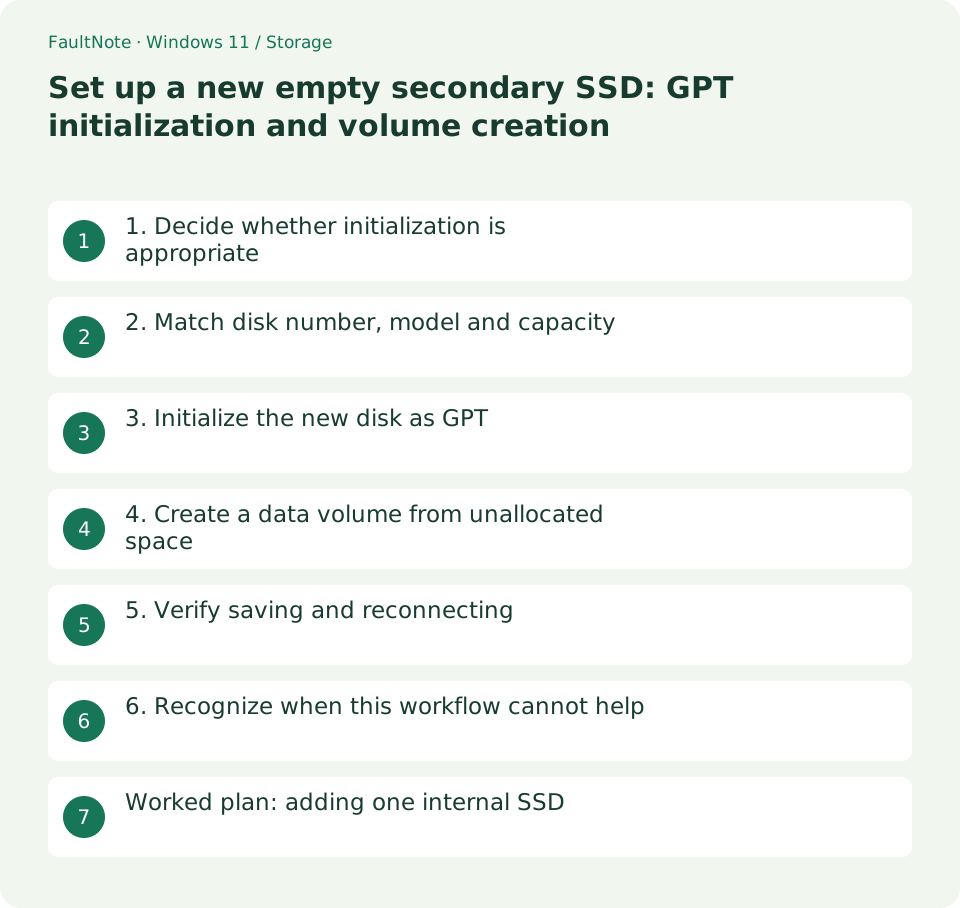
1. Decide whether initialization is appropriate
Use this workflow only for a new empty disk. If a previously readable drive suddenly appears unknown or uninitialized, cancel the prompt. The same screen can represent either normal provisioning or a failed drive.
Do not treat a used disk, an SSD removed from an old PC, or a borrowed HDD as empty. If you cannot rule out valuable files, stop and preserve the disk rather than preparing it as new.
Scroll horizontally to see the full table →
| Situation or purpose | Next action | Check |
|---|---|---|
| New, empty and uninitialized | Identify and provision GPT | Model and size match |
| Previously used, suddenly uninitialized | Stop and preserve | Record last successful access |
| Already has a healthy volume | Check format and intended use | Avoid unnecessary formatting |
| Physical disk absent | Check connection and compatibility | Never substitute another disk |
2. Match disk number, model and capacity
Open Disk Management as administrator and identify the physical disk in the lower pane. Do not select a disk solely from a C: or D: volume label. Disk numbers vary between PCs; a new SSD is not necessarily disk 1.
The following command only lists disks. Match its model and size with the physical label. If an enclosure hides the model, compare the list before and after connecting it with unrelated external drives disconnected.
Get-Disk | Select-Object Number,FriendlyName,SerialNumber,Size,PartitionStyle,OperationalStatus3. Initialize the new disk as GPT
After positively identifying the disk, right-click its disk label and choose Initialize Disk. GPT is the normal choice for a modern Windows data disk; Microsoft documents it as the default and as supporting volumes above 2 TB.
If the drive is intended for an older appliance, check that appliance first. A recorder or television may prepare disks itself. Its manual should determine the workflow, rather than assuming Windows preparation is useful.
- Verify disk identity before opening the operation and do not trust a preselected checkbox alone.
- Unallocated space after initialization means a data volume still needs creation; confirm status before continuing.
- Use an expendable test file and check the full save path so the dialog has not reverted to C:.
- Record purpose and label, avoiding indistinguishable New Volume labels across multiple disks.
4. Create a data volume from unallocated space
Right-click the unallocated space and create a New Simple Volume. Unless you have a clear reason to separate workloads, one volume using the default size is easier to manage. Choose an unused letter, a recognizable label and an appropriate file system.
NTFS is a candidate for Windows-only data. If you will share the disk with a Mac or appliance, check its supported formats first. Reconfirm disk identity and capacity before accepting the format operation.
5. Verify saving and reconnecting
Check the label and capacity in File Explorer, save an expendable text file and reopen it. For an external disk, safely eject and reconnect before reopening the file. This verifies setup, not full-surface reliability or endurance.
Record setup date, model and label before moving important files. If large transfers later fail, investigate connection, power and drive condition rather than repeatedly formatting the disk.
6. Recognize when this workflow cannot help
If neither Disk Management nor Get-Disk lists the disk, volume creation cannot solve the problem. Check interface compatibility, enclosure support, connections and firmware detection. Never initialize a different visible disk as an experiment.
If initialization fails, save the message and contact the manufacturer with the model and connection details. A healthy status after preparation does not mean old files were recovered; provisioning and recovery are separate outcomes.
Worked plan: adding one internal SSD
Consider a PC with a 1 TB system SSD and a new 2 TB SSD. After installation and startup, identify the new device by model and capacity, leave existing system partitions alone and create a data volume on the new disk. This is a planning example, not a tested PC configuration.
If identification becomes uncertain, stop before confirming initialization. Record the complete layout, purchased model and connection, then resume only after resolving identity.
Completion means a file saves to the intended volume and can be read again. Verify after reconnection or a normal restart as appropriate before adopting the disk as a daily save location.
If a new external SSD already appears in File Explorer, inspect its label and format for the intended use. Do not assume it needs changing. Decide cross-platform requirements before adding data to avoid a later migration.
Limitations and requirements
- Do not use this new-disk procedure when a previously used disk becomes uninitialized.
- Do not copy example disk numbers without identification; enumeration can change.
Frequently asked questions
Can a new SSD already be ready to use?
Yes. Some products already contain a volume. Check its format and intended use instead of unnecessarily initializing it again.
Does GPT make the SSD faster?
GPT describes partition organization. It is not a transfer-speed tuning setting.
What if Initialize Disk is unavailable?
The disk may already be prepared or use a different device workflow. Check status and manufacturer instructions rather than deleting volumes to expose a button.
Sources and verification date
Sources checked: . These sources support the specifications, procedures or prices discussed here. Check each source for applicable conditions and current information.
Related practical guides
- Before extending C: check unallocated-space location and separate disks
- Use a separate SSD through a folder: plan and remove a Windows mount point
- Why a 1 TB SSD shows about 931 GB: reconcile bytes and partitions
- Check SSD and HDD health: Windows reliability counters and decision limits
- Can NTFS compression free space? Trial a folder, revert and decide on expansion
- M.2, NVMe and SATA SSDs: check compatibility before upgrading