Why a 1 TB SSD shows about 931 GB: reconcile bytes and partitions
Advertised capacity and Windows displays can use different unit bases. Compare bytes first, then partitions and used space. A smaller-looking number alone is not a reason to initialize or delete anything.
Published · Updated · FaultNote editorial policy
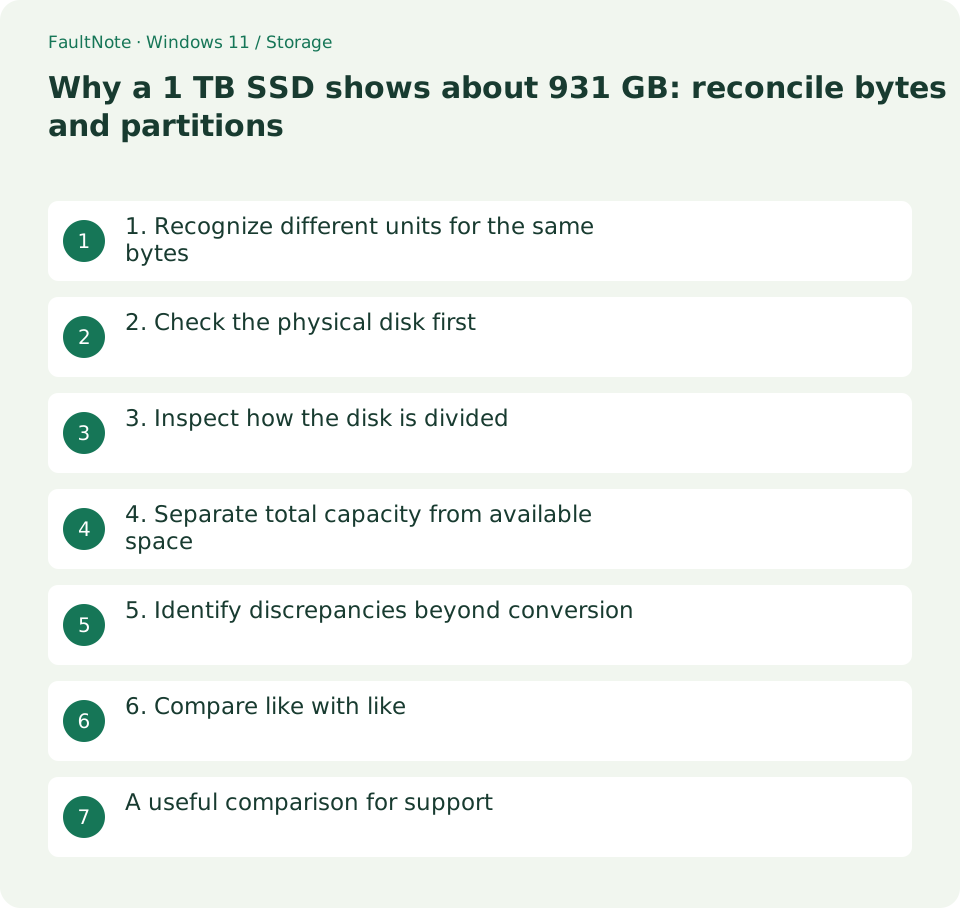
Who this guide is for and what to prepare
- People comparing a drive label with Windows
- People seeing only part of a disk after migration
What you need
- Find the exact purchased model and advertised capacity
- Record physical-disk and volume sizes separately
1. Recognize different units for the same bytes
Manufacturers normally mean 1,000,000,000,000 bytes by 1 TB. Dividing that by 1024 cubed gives about 931.3 GiB. A Windows screen may label a binary-based figure GB, so a value around 931 does not by itself indicate missing storage.
For 2 TB, the same calculation gives about 1862.6 GiB or 1.819 TiB. These are conversion examples, not measurements of a formatted product. File-system overhead is a separate consideration.
Scroll horizontally to see the full table →
| Situation or purpose | Next action | Check |
|---|---|---|
| 1 TB versus about 931 GiB | Unit conversion | Usually no repair |
| Large disk, small volume | Partition layout | Inspect unallocated-space position |
| Correct total, little free space | Used storage | Inspect consumption |
| Physical capacity far too small | Product, target or connection discrepancy | Compare model and receipt |
2. Check the physical disk first
The following read-only listing reports Size in bytes for comparison with the label. Exact byte counts can differ slightly between products, so compare magnitude and approximate capacity rather than requiring an exact rounded 1 TB number.
Match the model as well so you do not compare another SSD in the PC. If an enclosure hides it, use purchase records and the connection layout to identify the device instead of assuming a drive letter identifies the physical disk.
Get-Disk | Select-Object Number,FriendlyName,Size,PartitionStyle3. Inspect how the disk is divided
Even when the physical disk has the expected size, C: or D: may occupy only part of it. Inspect unallocated space, other volumes and recovery areas. A migration from a smaller SSD may retain the old volume size.
That is a layout issue rather than unit conversion. Identify what each area contains before choosing extension or a separate data volume. Do not delete unfamiliar partitions simply to make a capacity total look right.
- Convert advertised capacity to approximate bytes before comparing physical Size.
- If the disk size matches, inspect all partitions on that same disk number.
- Read total, used and free volume space together, keeping usage distinct from unit conversion.
- For unexplained discrepancies, compare exact model, physical label, purchased capacity and Windows bytes.
4. Separate total capacity from available space
Capacity is the total volume size; free space is what remains available. Windows, applications, games and recovery data consume space. A new PC having less free space than its advertised disk size is different from receiving a smaller disk.
Inspect used and free space in the volume properties. For an upgrade decision, available headroom matters more than the headline total. Write current shortage and expected additions separately to estimate what you need.
5. Identify discrepancies beyond conversion
A 2 TB product appearing as roughly 500 GB at the physical-disk level cannot be explained by decimal versus binary units. Check model mismatch, the wrong disk and connection-device limitations. Keep the receipt, label and displayed evidence for the seller or manufacturer.
If earlier files corrupt after more writes or usable storage is far below the reported capacity, a plausible headline number is not enough. Stop adding valuable data and determine whether an empty-media capacity test is appropriate; do not run a destructive test over existing files.
6. Compare like with like
Compare advertised TB with advertised TB when shopping, and bytes or equivalent displays when checking Windows. Treating 1 TB and 931 GiB as different product capacities distorts cost-per-capacity calculations. Include units in notes.
For support, record model, physical Size, volume capacity and free space. A unit difference needs no repair; a layout difference needs planning; a model or usable-capacity mismatch needs purchase and connection investigation.
A useful comparison for support
A 1 TB product with roughly a trillion physical bytes, a 931 GiB volume and 700 GiB free calls for separating units from used space. Comparing only free space with the label produces a misleading shortage claim.
A 2 TB disk with an old 500 GB volume and a large unallocated area instead calls for layout investigation. Making that space usable does not guarantee it stays free as data grows.
For support, compare order details with the model label and provide a privacy-conscious layout view plus physical bytes. When the evidence is a save error, share the amount and message without exposing private filenames.
Keep physical capacity separate from the OS-accessible volume size. Record management, recovery and other volumes by purpose. Separate purchase-unit comparisons from later free-space tracking to avoid unnecessary operations.
Limitations and requirements
- Do not initialize, format or delete partitions just to match marketing units.
- Capacity-write tests can be destructive; do not use an unfamiliar test over needed files.
Frequently asked questions
Will formatting make Windows show 1 TB?
Formatting does not change the unit basis. Do not format merely to match the label.
Must every 1 TB product show exactly 931 GB?
No. It is an approximate conversion; actual bytes, partition layout and overhead affect the display.
Is changing free space a unit difference?
Day-to-day changes in the same display call for checking usage. A unit difference describes the same bytes differently.
Sources and verification date
Sources checked: . These sources support the specifications, procedures or prices discussed here. Check each source for applicable conditions and current information.
Related practical guides
- Check SSD and HDD health: Windows reliability counters and decision limits
- Can NTFS compression free space? Trial a folder, revert and decide on expansion
- Set up a new empty secondary SSD: GPT initialization and volume creation
- Before extending C: check unallocated-space location and separate disks
- Use a separate SSD through a folder: plan and remove a Windows mount point
- Quick removal or better performance: choose an external-drive operating policy