Can NTFS compression free space? Trial a folder, revert and decide on expansion
Space savings depend on the data. Trial an expendable copy while preserving originals, check the saved space and normal workload, and reserve decompression headroom before deciding whether compression is enough.
Published · Updated · FaultNote editorial policy
Who this guide is for and what to prepare
- People reducing storage use without deleting data
- People comparing compression with a larger SSD
What you need
- Confirm the target volume uses NTFS
- Prepare a representative copy and decompression headroom
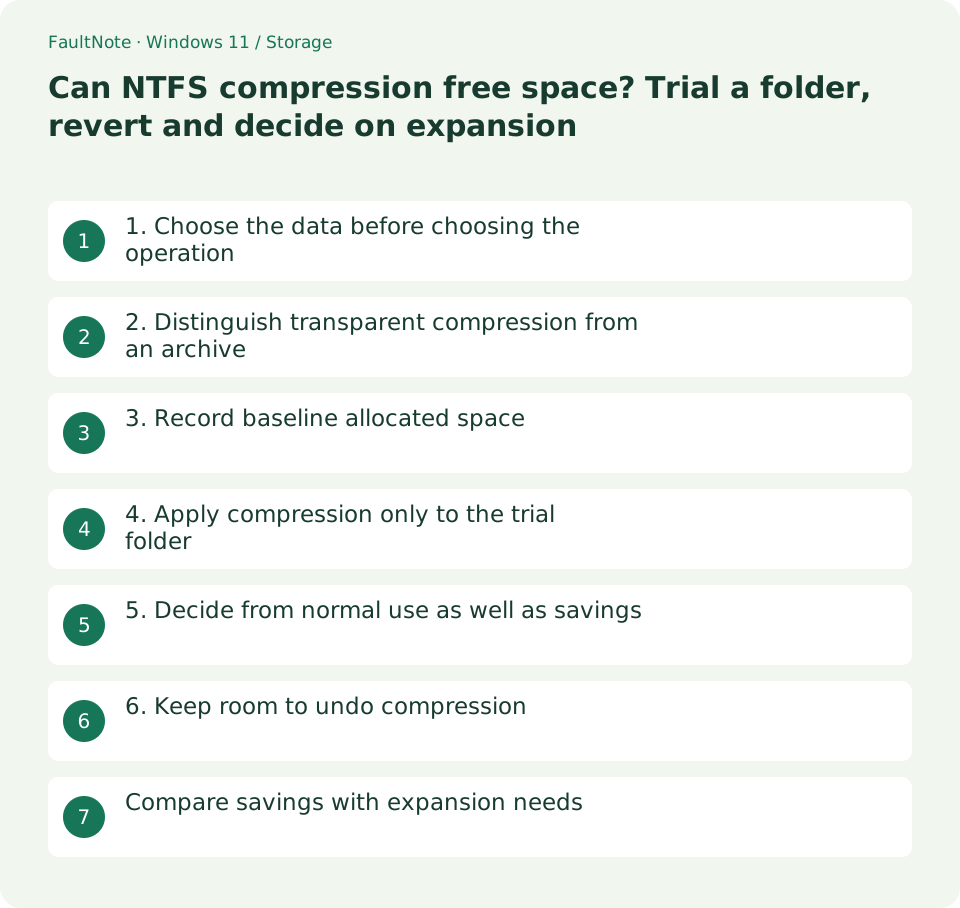
1. Choose the data before choosing the operation
Text and repetitive data have different savings potential from already compressed media. Large files are not necessarily good candidates. Avoid applying this trial to the entire OS or an active database; prepare a small representative copy of normal data.
Define whether the goal is temporary headroom or a long-term reduction. If you need substantial capacity and mainly keep incompressible material, be ready to choose expansion rather than forcing compression to meet the target.
Scroll horizontally to see the full table →
| Situation or purpose | Next action | Check |
|---|---|---|
| Repetitive text | Trial possible savings | Measure a representative copy |
| Already compressed material | Savings may be small | Do not overestimate headroom |
| Frequently modified data | Check workload duration too | Verify saving and reopening |
| No decompression headroom | Replan capacity first | Avoid mass decompression on a full disk |
2. Distinguish transparent compression from an archive
NTFS file compression is lossless and transparent: applications receive decompressed content. It is different from making a distribution archive such as ZIP, and files ordinarily retain their names and paths. The setting is not a generic feature for other file systems.
Transparent access does not imply zero workload cost. For frequently updated data, check normal save and processing behavior. Follow any application-specific storage requirements before attempting compression.
3. Record baseline allocated space
Record Size and Size on disk from the representative folder's properties. The first describes content length and the second concerns allocated storage. Compare the same files before and after compression.
Adding files during the trial invalidates that comparison. Use a copy without incoming updates, and record volume free space plus the duration of a relevant read or save task.
- Use only copies, prevent updates during comparison and record baseline allocation and free space.
- Review folder scope before applying compression and record any failed files.
- Open, save and reopen representative files in the normal application, not just File Explorer.
- Undo on the same trial path with adequate headroom, then choose routine compression or expansion.
4. Apply compression only to the trial folder
Use the folder's Advanced properties to enable compression and review the scope. The command example targets only E:\CompressionTrial. Do not replace it with a disk root without deliberately changing and assessing the operation.
/c compresses and /s applies within the specified folder tree. Do not add an ignore-errors option to conceal failures. Review failed files and messages, then reopen properties and record allocated-space and free-space changes.
compact /c /s:"E:\CompressionTrial"5. Decide from normal use as well as savings
Open representative files in the normal application and, when editing matters, save and reopen them. Stop the trial if savings are small, waiting increases or application requirements remain unclear. Do not extrapolate an unverified ratio uniformly to unrelated files.
For example, reducing a trial copy from 10 GB to 9.8 GB would not meet a 50 GB headroom need. That is an illustrative decision, not a measured result. Compare actual savings with your required space and expected growth.
6. Keep room to undo compression
Undo through the compression checkbox or compact /u. Decompression can increase occupied space, so do not fill the disk while relying on compressed allocation. Target the trial path and reopen files after completion.
Decompression is separate from deletion. If choosing a larger disk, confirm destination capacity and supported format. For ongoing use, track what consumes the gained headroom and update the capacity plan before space runs out again.
compact /u /s:"E:\CompressionTrial"Compare savings with expansion needs
If you need 30 GB of headroom, decide from measured free-space gains. Concurrent downloads or updates can obscure them, so record both folder allocation and volume free space before and after.
A one-time 10 GB saving may not last when material grows every month. Compare savings and growth in consistent units without assuming an unmeasured compression ratio will solve future capacity needs.
Leave room to return to the uncompressed allocation. Avoid planning to decompress every folder at once on an almost-full disk. If the trial does not meet the goal, choose expansion or a different save location instead of adding complexity.
Record concurrent updates or downloads during the trial. A folder can shrink while volume free space falls because another process writes data. Separate trial allocation from whole-PC usage and avoid applying its ratio to unrelated files.
Limitations and requirements
- Do not indiscriminately extend a trial to the whole OS, application-managed storage or an active database.
- Decompression can increase allocation; retain enough headroom to revert.
Frequently asked questions
Does quality decrease?
NTFS compression is lossless, not media re-encoding at lower quality. Still verify that individual files open correctly.
How much space will I save?
It depends on content. Measure the representative copy and compare savings with the space you actually need.
What if decompression lacks space?
Stop additional writes and plan sufficient headroom before retrying. Do not casually delete originals simply to undo compression.
Sources and verification date
Sources checked: . These sources support the specifications, procedures or prices discussed here. Check each source for applicable conditions and current information.
Related practical guides
- Use a separate SSD through a folder: plan and remove a Windows mount point
- Why a 1 TB SSD shows about 931 GB: reconcile bytes and partitions
- Set up a new empty secondary SSD: GPT initialization and volume creation
- Before extending C: check unallocated-space location and separate disks
- Check SSD and HDD health: Windows reliability counters and decision limits
- Quick removal or better performance: choose an external-drive operating policy