Before running CHKDSK: choose inspection, repair or a surface check
CHKDSK checks and repairs a file system; it does not fix failing hardware. Do not treat /r as a universal first step. Identify symptoms and the volume, preserve required data, then choose the smallest appropriate operation.
Published · Updated · FaultNote editorial policy
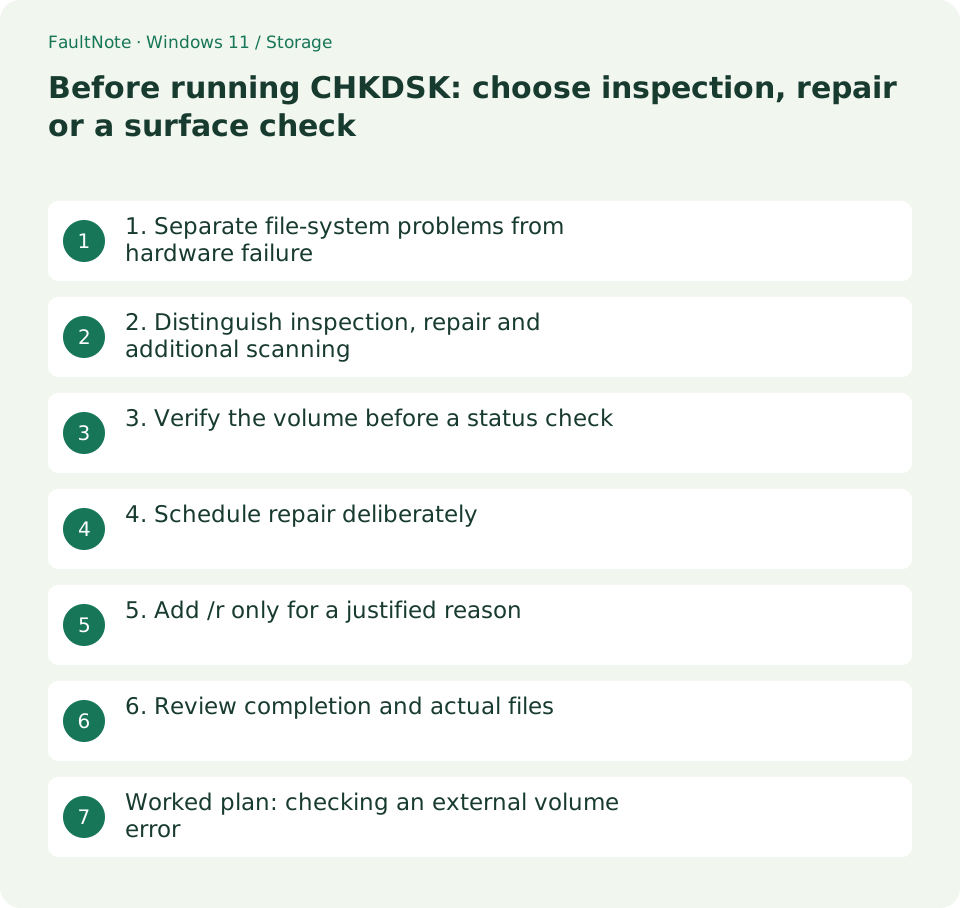
Who this guide is for and what to prepare
- People advised to check a disk
- People choosing between inspection and repair
What you need
- Verify drive letter, label and file system
- Preserve needed files and plan available maintenance time
1. Separate file-system problems from hardware failure
Metadata damage after a disconnect and a physically unreadable disk require different decisions. With unusual sounds, repeated disappearance or failed reads of the only original, preservation or specialist advice should precede lengthy testing.
Write down the purpose before running the command: inspect file-system status, repair identified logical errors, or investigate unreadable areas. Those goals call for different options.
Scroll horizontally to see the full table →
| Situation or purpose | Next action | Check |
|---|---|---|
| Inspect status | No flags | Active volumes may produce misleading errors |
| Online NTFS scan | /scan | Do not assume strictly read-only |
| Repair logical errors | /f | Plan locking or restart |
| Investigate unreadable areas | /r | Includes /f and adds time |
2. Distinguish inspection, repair and additional scanning
Without flags, CHKDSK reports status; /f repairs errors. The NTFS-only /scan runs online and should not be assumed strictly read-only. /r checks bad sectors, attempts readable-data recovery and includes /f.
/x forces a dismount if needed and invalidates open handles. Combining /f, /r and /x without understanding them broadens the operation unnecessarily. A more extensive check is not automatically the best first step.
3. Verify the volume before a status check
E: below is an example. Substitute the actual target after checking its label and file system, use an administrator terminal, and stop unnecessary writers. Do not apply this workflow to a mapped network drive.
Even status inspection reads the disk and is not guaranteed harmless on failing media. An unflagged check on an active volume can report misleading errors, so do not automatically repair based on one output.
chkdsk E:- Record label, letter and file system; do not rerun yesterday's command if removable letters can change.
- Read and retain the output before borrowing /r or /x from another procedure.
- Preserve needed data, close target applications and deliberately plan any restart-time run.
- Review logs, required files and recurrence; limit writes if the content you need is still incomplete.
4. Schedule repair deliberately
After preserving required data and deciding repair is warranted, close target files and plan /f. If the volume cannot be locked, Windows may offer a restart-time check. Schedule that deliberately rather than accepting without available time.
An operating-system volume and an external data volume have different disruption costs. Maintain stable power and connection. Duration depends on size, file count and condition; do not assume a guaranteed few-minute operation.
5. Add /r only for a justified reason
Extensive checks on a large HDD can take substantial time. Distinguish investigating unreadable areas from fixing logical errors. Handling bad clusters with /r does not restore failing hardware to new condition.
Slow progress does not immediately prove a hang. Record errors or unusual sounds when present. Repeated /r runs should not become a routine performance-tuning schedule; use findings to guide replacement or manufacturer support.
6. Review completion and actual files
Save the completion message and open the files you need. For a restart-time run, review Chkdsk and Wininit entries in Event Viewer under Windows Logs, Application. A completed repair and intact required files are separate checks.
If the same problem returns, investigate drive health, cable, power and connection instead of relying on repeated repair. Provide target volume, flags, time, log and post-repair symptoms when asking for help.
Worked plan: checking an external volume error
For an external E: reporting a directory error, first verify its label and that it is a local volume. Decide whether needed files can be preserved, close applications, then inspect status. Read the output before adding other flags.
If logical repair is warranted after preservation, allocate time for that specific volume rather than running the same operation across every drive. Check locking, restart requirements and disruption before proceeding.
After repair, read a formerly failing file and another representative file. Restored access does not prove a hardware cause disappeared. If content is incomplete, retain logs and reassess recovery before adding more writes.
Before following a third-party command, check OS, file system and flags against your situation. Different CHKDSK choices have different disruption and modification scopes. Prefer instructions with clear preservation, scope and post-run checks.
Limitations and requirements
- /f, /r and /x can repair or dismount; do not present them as inspection-only operations.
- Lengthy scans and repairs do not substitute for preserving the only needed original on failing media.
Frequently asked questions
Is /scan strictly read-only?
It is an online scan. Do not assume it guarantees no online repair; consult the documented repair-control options if that distinction matters.
Should I run /r periodically on an SSD?
Do not schedule it repeatedly as routine performance maintenance. Choose checks for a specific diagnostic need.
What if the problem returns after repair?
Retain logs and investigate media, connection and power. Reconsider preservation and replacement before indefinitely repeating repairs.
Sources and verification date
Sources checked: . These sources support the specifications, procedures or prices discussed here. Check each source for applicable conditions and current information.
Related practical guides
- Use a separate SSD through a folder: plan and remove a Windows mount point
- Set up a new empty secondary SSD: GPT initialization and volume creation
- Before extending C: check unallocated-space location and separate disks
- Why a 1 TB SSD shows about 931 GB: reconcile bytes and partitions
- Quick removal or better performance: choose an external-drive operating policy
- Check SSD and HDD health: Windows reliability counters and decision limits