Create a Searchable CSV Inventory of Purchased Files
A file inventory records what exists; a purchase register records what you own. Link exported paths to product IDs and titles so renamed downloads and additional releases remain searchable.
Published · Updated · FaultNote editorial policy
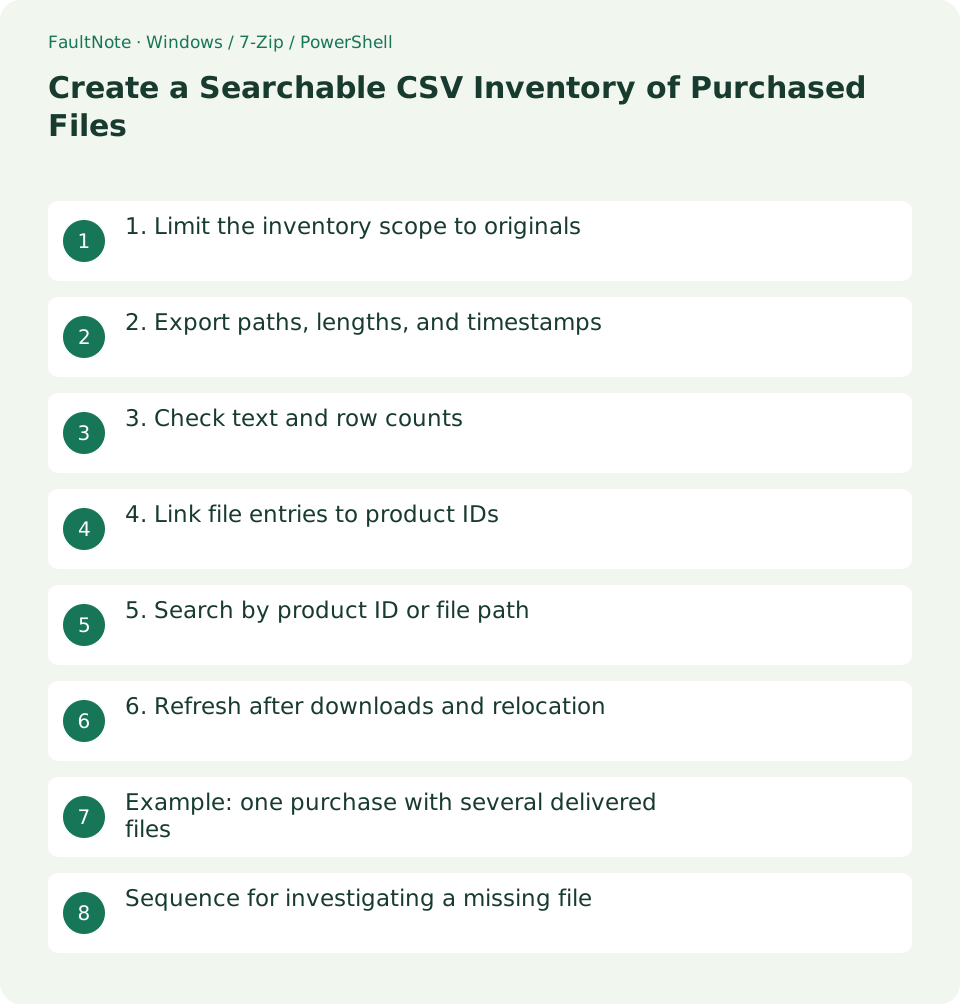
Who this guide is for and what to prepare
- People building a searchable register for many purchased originals
What you need
- Choose the root holding originals and a destination for the inventory
- Have a CSV reader and the purchase history ready
1. Limit the inventory scope to originals
If the library includes thousands of extracted game files, begin with the root containing originals. A file count is not a product count; executable and cache files should not become separate purchases in your register.
Record the included root instead of automatically extending the scan to other drives or shares. Access errors or exclusions mean the export is not a complete inventory, so note them.
2. Export paths, lengths, and timestamps
The example recursively lists files and exports FullName, Length, and LastWriteTime as UTF-8 CSV. Create D:/LibraryReports first and keep it outside the scanned root so the inventory does not list its own output as an original.
The result is a snapshot at scan time. LastWriteTime is a file timestamp rather than a purchase date; keep purchase dates separately. This example does not export file content or hashes.
Get-ChildItem -LiteralPath 'D:\PurchasedOriginals' -Recurse -File -ErrorAction Stop | Select-Object FullName, Length, LastWriteTime | Export-Csv -LiteralPath 'D:\LibraryReports\originals-20261013.csv' -NoTypeInformation -Encoding UTF83. Check text and row counts
Inspect non-ASCII names, spaces, and commas to ensure paths remain in a single cell. In Excel, use data import with UTF-8 when needed. Investigate decoding settings before renaming files based on garbled display text.
Rows excluding the header represent enumerated files. Compare a sample product folder, including volumes and extras, against the export. Empty folders are not included in this file-only list.
4. Link file entries to product IDs
Use a separate register with Store, ProductID, Title, PurchaseDate, Release, and OriginalFolder. Link multiple delivered files to one product entry. Keep IDs as text to preserve their exact characters and leading zeros.
Do not join records by title alone. Identical titles and abbreviated filenames need a purchase ID and path check. Mark unresolved rows explicitly rather than inflating the purchase count with guesses.
5. Search by product ID or file path
Use the register ID or title to find a product, then open its originals folder. Use FullName or extension to find a delivered file. If you need individual extracted tracks, create a separate working-content inventory.
If a copied path no longer opens, check relocation and drive availability. Repair a stale register path using a fresh inventory instead of immediately concluding that the file is lost.
6. Refresh after downloads and relocation
Export again after adding originals or relocating the library. Keep dated prior inventories to compare additions and missing candidates. Record the inventory date separately from purchase dates.
Do not overwrite the manually maintained purchase register with an automated file export. Separate machine-generated file snapshots from ownership details so rescanning does not erase curated titles and dates.
Example: one purchase with several delivered files
Register ITEM-123 as one product with an originals folder. The file export can contain three rows for two volumes and a manual. Count one product and three delivered files instead of treating the differing counts as an error.
An official non-English title and abbreviated filename can remain searchable through their shared originals folder. Preserve the official title in the register and actual names in the file export; renaming originals is unnecessary.
Locate a result by its FullName, then compare the register release. An existing path can still point to the wrong release. Treat timestamps as supporting information rather than the version authority.
When bonus audio arrives later, link its location to the same purchase and refresh the file export. A separately purchased expansion should have its own official ID and a relationship to the base product. Keep sales units and file units distinct.
Sequence for investigating a missing file
Check inventory date and scope first. Rescan after relocation. If an external destination is unavailable, reconnect it and verify access rather than replacing the register with an empty export from an inaccessible root.
Search by product ID or base filename if the old full path fails. Browser suffixes or outer-folder renames may explain it. Compare release and hashes when several candidates appear rather than accepting the first match.
Inspect unreadable paths for access issues, path length, or linked locations. Retain scan errors and inspect the specific location manually. A location excluded from the scan cannot be treated as evidence that its files are absent.
Consult the backup index and relocation map next. If loss is established, restore or check legitimate redownload access. Retain an unresolved-file state and investigation date instead of deleting the purchase row and risking duplicate registration.
Scroll horizontally to see the full table →
| Situation | Next check |
|---|---|
| Purchase register | Product ID, title, purchase date |
| Original-file inventory | Actual path, size, timestamp |
| Restore record | Restored release, date, result |
Limitations and requirements
- A CSV cannot replace originals or restore missing bytes
- Review personal paths before sharing the inventory publicly
Frequently asked questions
Should every inventory include hashes?
Location and counts are useful first. Add hashes to originals needing identity or backup verification.
Why does the file count differ from purchase count?
One purchase can include several volumes or bonuses. Count products in the register and files in the inventory.
My CSV reader converts an ID into a number
Import the ID column as text. If leading zeros were lost, restore the exact ID from the purchase record and compare against the original CSV.
Can I create a register without PowerShell?
Yes. Begin with manually entered IDs and originals locations. Use a separate inventory method for large-scale file checks while retaining the same ownership fields.
Sources and verification date
Sources checked: . These sources support the specifications, procedures or prices discussed here. Check each source for applicable conditions and current information.
Related practical guides
- Organize Purchased Downloads: Originals, Working Copies, and Update Records
- Review Duplicate Purchased Files with SHA-256
- Plan Purchased-Library Names Without Breaking Internal Paths
- Manage Purchased Game Updates in Separate Release Folders
- Back Up Purchased Originals and Verify a Restore
- Check Purchased ZIP and 7z Downloads Before Extraction