Check Purchased ZIP and 7z Downloads Before Extraction
Seeing filenames in an archive does not prove that every file can be extracted. Test the compressed data, extract into a dedicated empty folder, then check the instructions and delivered contents.
Published · Updated · FaultNote editorial policy
Who this guide is for and what to prepare
- People checking purchased archives before extracting them
What you need
- Read the delivery instructions and confirm download completion
- Have official 7-Zip and an empty destination with sufficient free space
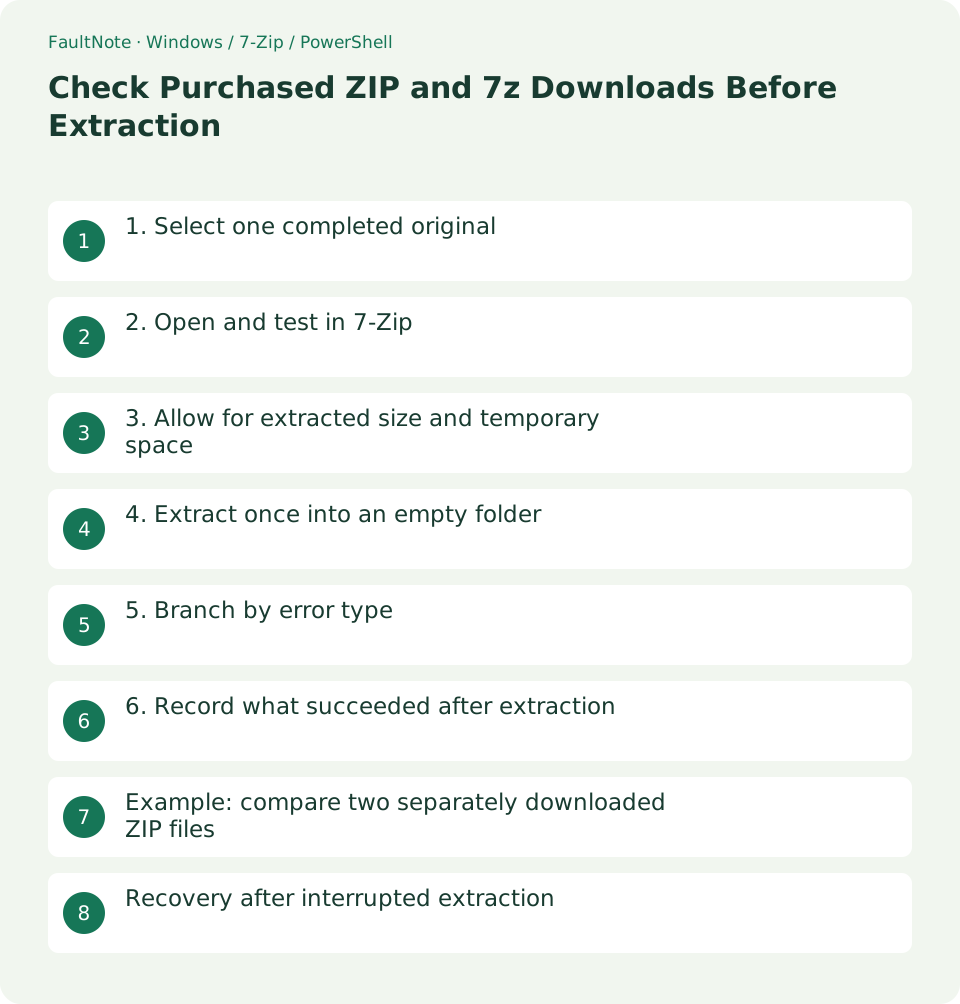
1. Select one completed original
Confirm completion in the browser download list. Changing a .part or .crdownload extension does not complete missing bytes. Compare a published size if available, but a rounded size match alone does not establish integrity.
Check whether the delivery is split before treating it as a single ZIP. Keep the downloaded original unchanged while testing; do not repair or recompress it in place.
2. Open and test in 7-Zip
In 7-Zip File Manager, select the archive and run Test. If encrypted, enter the password supplied through the legitimate delivery instructions and inspect the final result.
CRC or Data Error despite a visible listing means the data check failed. A successful archive test checks compressed data; it does not certify the safety of an executable or prove the seller is authentic.
3. Allow for extracted size and temporary space
Do not estimate required space from compressed size alone. Inspect the uncompressed sizes or publisher requirements and allow for both originals and extracted data. Many tiny files can use more allocated disk space than their combined byte size.
Dragging from 7-Zip to Explorer can use a temporary folder. Use the Extract command with an explicit destination to avoid that extra temporary copy. If the system drive fills during extraction to another drive, review the extraction method.
4. Extract once into an empty folder
Choose an empty folder whose name identifies the product and release. Do not extract over an existing game. Check whether the archive adds another top-level folder and preserve its internal structure until you have read the instructions.
Cancel an overwrite prompt and verify the destination. Reusing a partly populated folder can retain files absent from the new release and create a mixed installation unrelated to archive corruption.
5. Branch by error type
For password or encryption errors, check delivery instructions, input method, and stray spaces. For CRC or Data Error, verify the password and all required volumes, then download a separate new copy for comparison. One error label can have several causes.
An archive that cannot be opened may be incomplete, a different format, or have header problems. Try the current official 7-Zip first. If a fresh download also fails, provide the product ID, filename, and exact error to the seller rather than beginning with binary repair.
6. Record what succeeded after extraction
Check the instructions, main folders, and any separately delivered extras. Record the archive filename, test result, and extraction date; optionally record SHA-256 for later comparison.
Keep the original until backup and redownload options are clear. If extracted content later behaves differently, a fresh extraction into another empty folder helps distinguish local edits from the delivered release.
Example: compare two separately downloaded ZIP files
If the first Game.zip has a CRC error, retain it in a review folder. Download a second copy into another empty folder and confirm completion. Avoid overwriting the first so you can compare outcomes and explain the failure accurately to support.
If only the second copy tests successfully, extract from it into a clean folder. Do not mix in partially extracted files from the first attempt. Record the successful copy and check without claiming that the original cause of the first failure is known.
If both fail at the same point, check delivery requirements, volumes, password, and tool support. Matching hashes are useful evidence that repeated downloads contain the same bytes. A mismatch does not identify the correct copy, so send the specific failure details rather than repeating downloads indefinitely.
If a failed archive still exposes some readable files, keep those separate from a complete delivery. Do not register it as a usable original until the required content is confirmed. Any recovery attempt should operate on a copy.
Recovery after interrupted extraction
For a space-related interruption, retain the error and close 7-Zip. Identify the original and partial output folder. Recalculate space with originals and temporary copies accounted for before choosing another destination.
After verifying the original is retained elsewhere, remove or rename only the partial extraction folder. Do not include sibling originals or old releases. Make the next attempt in a different empty folder.
For files in use, check whether an extracted program was launched before completion. Close the relevant application and avoid extracting over active files. For permission errors, try a user-writable destination before assuming administrator privileges are needed.
After retrying, inspect completion without errors and the included instructions. Verify the successful output on its own instead of filling gaps from the failed attempt. Separate failure and success records help interpret later checks.
Scroll horizontally to see the full table →
| Situation | Next check |
|---|---|
| Test succeeds; destination write fails | Inspect space, access, and files in use |
| CRC/Data Error | Check password, volumes, and a new copy |
| Only the listing is readable | Test complete data readability |
Limitations and requirements
- An archive test is separate from malware scanning
- Check a new original in another empty folder rather than overlaying failed extraction output
Frequently asked questions
Does a CRC error always mean a failed download?
No. Check password requirements, missing volumes, and corruption by comparing a separately downloaded copy.
Is opening the ZIP enough?
The listing and compressed file data are different parts. Testing stored originals or large deliveries can reveal failures before extraction.
Why can extraction run out of space after a successful test?
Testing does not write all extracted files to the destination. Check output and temporary space separately.
Can I use partially extracted content?
Some independent documents may be readable, but the whole product is not verified. Label partial recovery separately from a complete delivery.
Sources and verification date
Sources checked: . These sources support the specifications, procedures or prices discussed here. Check each source for applicable conditions and current information.
Related practical guides
- Extract Split Downloads: Recognize Volumes and Keep the Complete Set
- Review Duplicate Purchased Files with SHA-256
- Back Up Purchased Originals and Verify a Restore
- Organize Purchased Downloads: Originals, Working Copies, and Update Records
- Plan Purchased-Library Names Without Breaking Internal Paths
- Create a Searchable CSV Inventory of Purchased Files