Manage Purchased Game Updates in Separate Release Folders
Full releases and differential patches need different handling. Read the delivery instructions and retain the originals and prior release before applying an update in a separate working location.
Published · Updated · FaultNote editorial policy
Who this guide is for and what to prepare
- People managing update archives for directly delivered games
What you need
- Identify the current release, update instructions, originals, and save location
- Close the game and make a pre-update backup
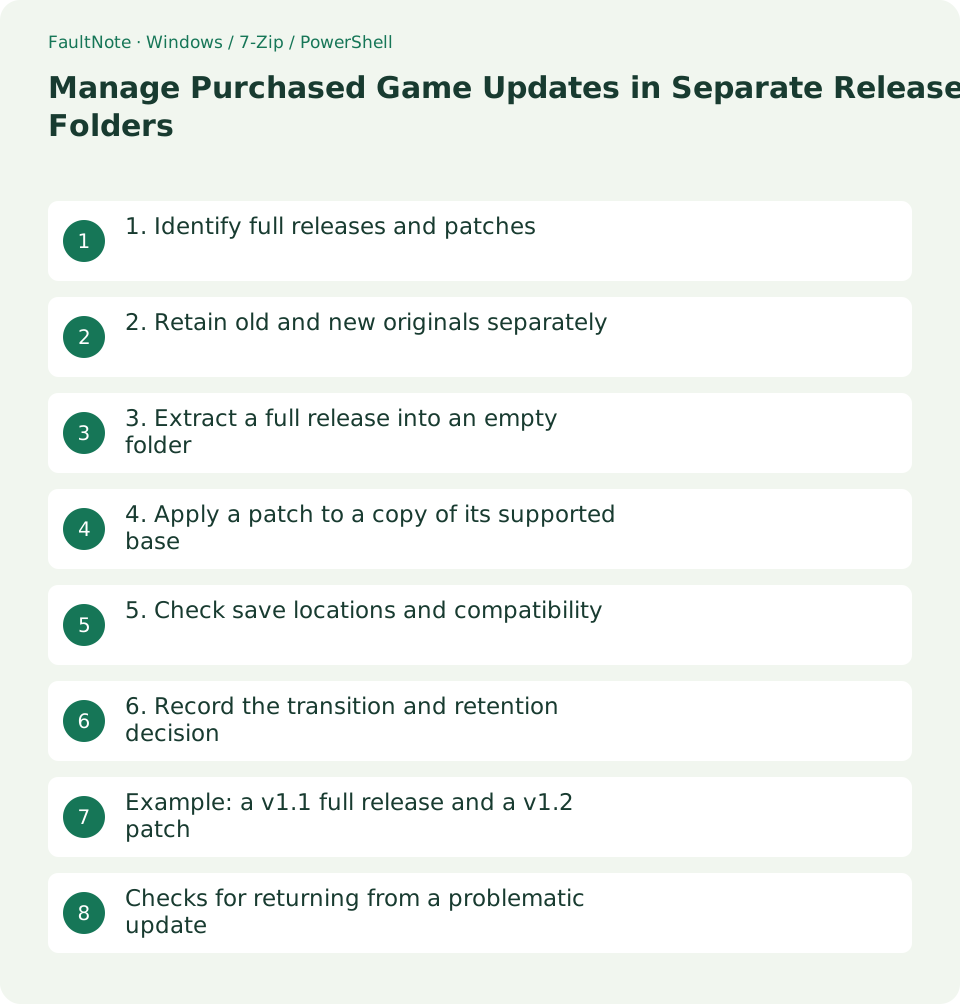
1. Identify full releases and patches
Read labels such as full release, overwrite update, or v1.1 to v1.2 in the delivery instructions. An executable in a ZIP does not establish that it is a complete release. Record an unknown version explicitly if none is supplied.
This guide covers direct-delivery files rather than manually modifying launcher-managed installations. Follow a dedicated updater when the publisher requires one.
2. Retain old and new originals separately
Separate Originals/v1.1 and Originals/v1.2, keeping delivered filenames. Store a differential patch with its instructions in a folder such as Patch_v1.1_to_v1.2 and record the required source release.
Do not identify a release solely by file timestamps. Use the publisher description, included version information, or changelog. Test the new archive before extraction.
3. Extract a full release into an empty folder
For a full release, extract into empty Working/v1.2. Overlaying the old release can retain files removed by the new one. Compare the resulting folder structure with the instructions.
Do not copy old settings or saves yet. Inspect the delivered structure first so local modifications are not mixed into the initial update check.
4. Apply a patch to a copy of its supported base
Copy the supported prior release into a separate working folder and apply the patch as instructed. Do not use a v1.1 patch against v1.0 or omit required intermediate patches. Review both overwrite and deletion instructions.
An executable patcher may select a fixed installation location. Whether it supports a copied folder depends on its design. Use the publisher procedure with a pre-update backup rather than forcing an unsupported target.
5. Check save locations and compatibility
Saves may live outside the game folder. Locate them through the included instructions or developer guidance, back them up separately, and migrate only supported files.
Two release folders may still share one external save location. A new release can change save formats, so separate executable folders alone do not guarantee rollback. Retain an independent save backup from before the new release writes anything.
6. Record the transition and retention decision
Check the displayed release, settings, and required loading behavior on your own system. Record only the actions actually checked, and label shortcuts with the release when both are retained.
If a problem appears, hold the new working folder and review how to restore the old release and pre-update saves. Decide whether to remove the old working copy only after confirming that originals and backups can recreate the needed state.
Example: a v1.1 full release and a v1.2 patch
With a v1.1 full archive and a v1.1-to-v1.2 patch, extract v1.1 into an empty trial folder first. Verify its base release, then apply the patch to that copy. Read whether the instructions require deletion or a patch executable rather than only an extraction order.
A v1.0 base does not meet a v1.1 patch requirement, even if applying it appears to finish. Obtain the supported full base or required intermediate update legitimately instead of assembling uncertain files from other releases.
Migrate only documented settings. Replacing a new settings file wholesale with the old one can discard new fields. Check the unmigrated trial state when diagnosing whether an issue comes from migration or the release itself.
Record that the working release was built from a v1.1 original plus the specified patch. Do not label it as a stored v1.2 full original. A patched state can require a different restore sequence from a complete-release archive.
Checks for returning from a problematic update
Record whether the problem happened before or after loading saves and migrating settings. Check original releases and working folders, confirm the old release was preserved, and retain trial saves separately.
Before using the old release, check whether both versions share a save location. Preserve the current saves separately and plan restoration of the pre-update backup to the documented location so the old release does not overwrite newer data.
Check the needed state using the restored release and saves. Record the point you returned to; newer progress may not be usable in the old version. Do not assume a save conversion exists without developer guidance.
If the issue is settings or patch order, reproduce the supported procedure in a clean trial folder while retaining the fallback. Before removing the failed working folder, check for new user-created files or progress that should be preserved.
Scroll horizontally to see the full table →
| Situation | Next check |
|---|---|
| Full-release ZIP | Extract into an empty folder |
| Base-specific patch | Apply to a supported base copy in order |
| Shared save location | Keep independent pre-update saves |
Limitations and requirements
- Save compatibility varies; separate release folders alone do not guarantee rollback
- Follow the publisher requirements for patch targets and order
Frequently asked questions
Can I copy every old settings file?
Formats and settings can change. Migrate only the documented files and retain the prior settings separately.
Can I overwrite an original with a same-named new ZIP?
Check its release and store it separately first. The same name can represent different bytes or a different patch role.
Is a patched working release an original?
Distinguish it from delivered originals. Retain the full archive and patches and record the sequence used to build the working state.
Can I delete the old release once the new one launches?
Launching alone does not check saves or required behavior. Verify the needed operations and restore route before applying your retention policy.
Sources and verification date
Sources checked: . These sources support the specifications, procedures or prices discussed here. Check each source for applicable conditions and current information.
Related practical guides
- Check Purchased ZIP and 7z Downloads Before Extraction
- Extract Split Downloads: Recognize Volumes and Keep the Complete Set
- Back Up Purchased Originals and Verify a Restore
- Organize Purchased Downloads: Originals, Working Copies, and Update Records
- Plan Purchased-Library Names Without Breaking Internal Paths
- Create a Searchable CSV Inventory of Purchased Files