Record microphone and PC audio on separate tracks with OBS
This is the official method using up to 6 tracks in the free OBS Studio. Typical video players only play one audio track, so assign all audio to track 1, PC audio to track 2, and microphone to track 3.
Published · Updated · FaultNote editorial policy
Who this guide is for and what to prepare
- People who want to adjust the microphone and game sound separately after recording
What you need
- Set the PC audio and microphone to work as separate sources with the audio mixer
Prepare a recording for later voice adjustment
To adjust narration independently later, record microphone and PC sound separately. Determine whether PC sound comes from Desktop Audio or application capture, avoiding duplicate capture. Check that speaking moves the microphone meter and game-only playback moves the PC-sound meter.
Enable the assigned tracks in both Advanced Audio Properties and recording Output settings. Make a short voice-only, game-only and combined test. Solo tracks in the editor and try changing voice level independently of game audio.
Deliver a mixed track for ordinary playback. A microphone-only default would produce a video without game sound. Keep editing media separate from the public export and listen to its beginning, dialogue and ending in a normal player.
Listen to a test including loud speech and strong game effects. Moving meters alone do not prove good levels, and separate tracks cannot guarantee recovery of clipped audio.
Import a test into the intended editor, identify tracks and label them. Avoid playing the mix together with its isolated component tracks, which can double the sound.
- Choose the intended PC-audio source
- Identify inputs using meters
- Configure routing and output selection
- Verify the editing media and delivery export
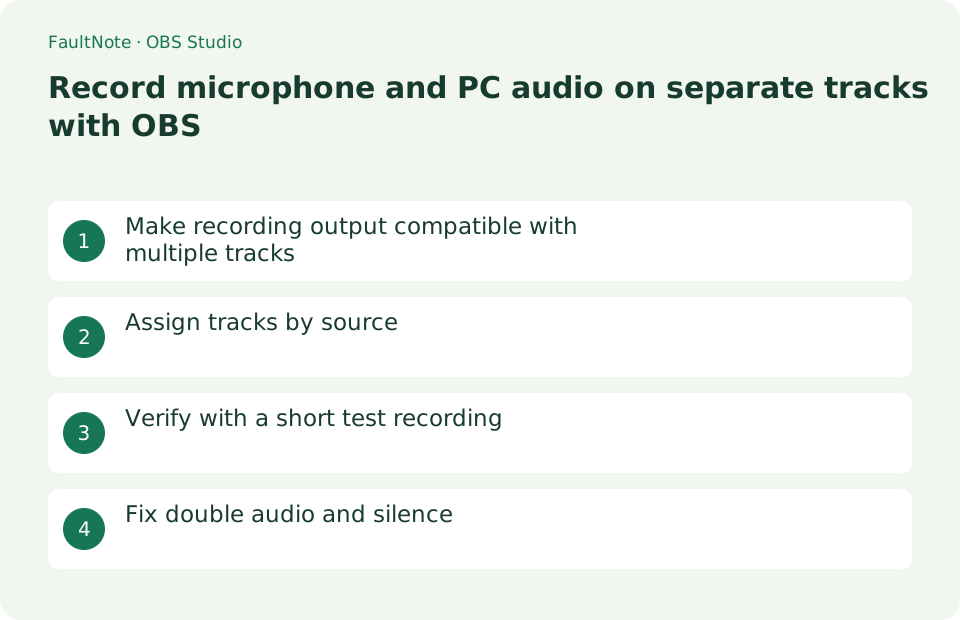
Make recording output compatible with multiple tracks
Set the output mode to Advanced in Settings > Output and turn on audio tracks 1, 2, and 3 in the Recording tab. For the recording format, choose MKV, which supports multiple audio and is resistant to abnormal termination. You can convert it to MP4 later by going to File > Remux Recording.
- Set output mode to Advanced
- Enable recording tracks 1-3
- Change recording format to MKV
Assign tracks by source
Open the Audio Mixer gear > Advanced Audio Properties. Turn on Desktop Audio 1 and 2, Microphone 1 and 3, and turn off the others. Track 1 is the full audio for confirmation, and tracks 2 and 3 are separated audio for editing.
- Open advanced properties
- Assign PC audio to 1 and 2
- Assign microphones to 1 and 3
Verify with a short test recording
While playing music, say "Microphone test" and record for 30 seconds. Confirm that you can hear both from track 1 on a regular player, then import it into an editing software that supports multiple audio and check whether track 2 has only the PC audio and track 3 has only the microphone.
- Play and record both sound sources
- Play track 1 normally
- Check 2 and 3 separately with editing software
Fix double audio and silence
Adding the same device both in Settings > Audio and in the scene's Audio Input/Output Capture is redundant, so disable one or the other. If there is no sound, check the output settings track check and detailed property assignments.
- Check for duplicate sources
- Match track number
- retest
Keep a playback mix alongside isolated tracks
Route both sources to track 1 for playback, desktop audio alone to track 2 and microphone alone to track 3 for editing. Check both Advanced Audio Properties and the recording-track selection in Output settings.
Typical players play one audio track rather than mixing all recorded tracks. If the microphone is missing during playback, check the selected track and the editor import before concluding that recording failed.
- Send both sources to track 1
- Route isolated sources to tracks 2 and 3
- Enable tracks 1 through 3 for recording
Use a short recording to detect routing mistakes
Record desktop sound alone, microphone alone and then both. Solo track 2 in the editor to check for voice, and solo track 3 to check for desktop bleed.
Echo can come from capturing the same application through both desktop and application sources. A microphone can also hear physical speakers, which track routing cannot remove. Retest with headphones when checking acoustic bleed.
- Record the three source combinations
- Solo each isolated track in the editor
- Check duplicate sources and speaker bleed
Choose the next action from the result
Scroll horizontally to see the full table →
| State | Interpretation | Next check |
|---|---|---|
| Player only reproduces voice | An isolated track is selected | Select the mixed track |
| Editor cannot separate voice and game | Both share a track | Review isolated routing and output |
| Game sound enters the voice track | Microphone hears speakers | Retest acoustic bleed using headphones |
Limitations and requirements
- Do not judge separated tracks using only a normal player.
Frequently asked questions
When I play a recording, only the microphone can be heard.
The player is playing only one track. Make sure you have assigned both sound sources to track 1, and check each track in your editing software.
The microphone becomes an echo.
Check if the same microphone is being picked up by both global audio and scene source and disable one.
Do separate tracks guarantee perfect voice removal?
No. Acoustic speaker bleed can remain inside the microphone track. Verify isolation and consider headphones.
Is normal playback sufficient verification?
A typical player may play only one track. Inspect isolated tracks in an editor and separately review the public export.
Sources and verification date
Sources checked: . These sources support the specifications, procedures or prices discussed here. Check each source for applicable conditions and current information.
Related practical guides
- Record game audio only in OBS and test notification exclusion
- How to record your screen for the first time in OBS Studio
- Diagnose OBS recording stutter with rendering and encoding statistics
- Record one game in OBS with a specific Game Capture window
- Control OBS Window Capture matching when application titles change
- Crop and frame a source in OBS without stretching the image