Fix a black or blank OBS Game Capture source
What to do first
Check OBS source selection, layers, active-game rendering, hook conflicts, and capture restrictions. Judge recorded footage and compare Window Capture where appropriate.
This is a general troubleshooting guide, not an announcement of a current outage.
Affected products and symptoms
- Product
- OBS Studio
- Versions and conditions
- OBS Studio on Windows
Symptoms
- Game audio is present but preview is black
- Game Capture cannot hook one particular game
Causes and conditions
Target selection, privilege mismatch, overlay hooks, multiple GPUs, or a game/API restriction are candidates.
Before you start
- Before changes, record and preserve OBS log, Game Capture properties, game display mode, and GPU assignment.
- Change one item at a time and record the original symptom after each stage.
Precautions
- Do not bulk-delete unrelated settings or data.
- Exclude personal data and credentials; share only the necessary parts of OBS log, Game Capture properties, game display mode, and GPU assignment.
Tools and official pages used in this guide
Check the official page for exact setting names, limitations, and updated decision paths.
Official OBS download with OS choices and a link to previous releases.
Step-by-step instructions
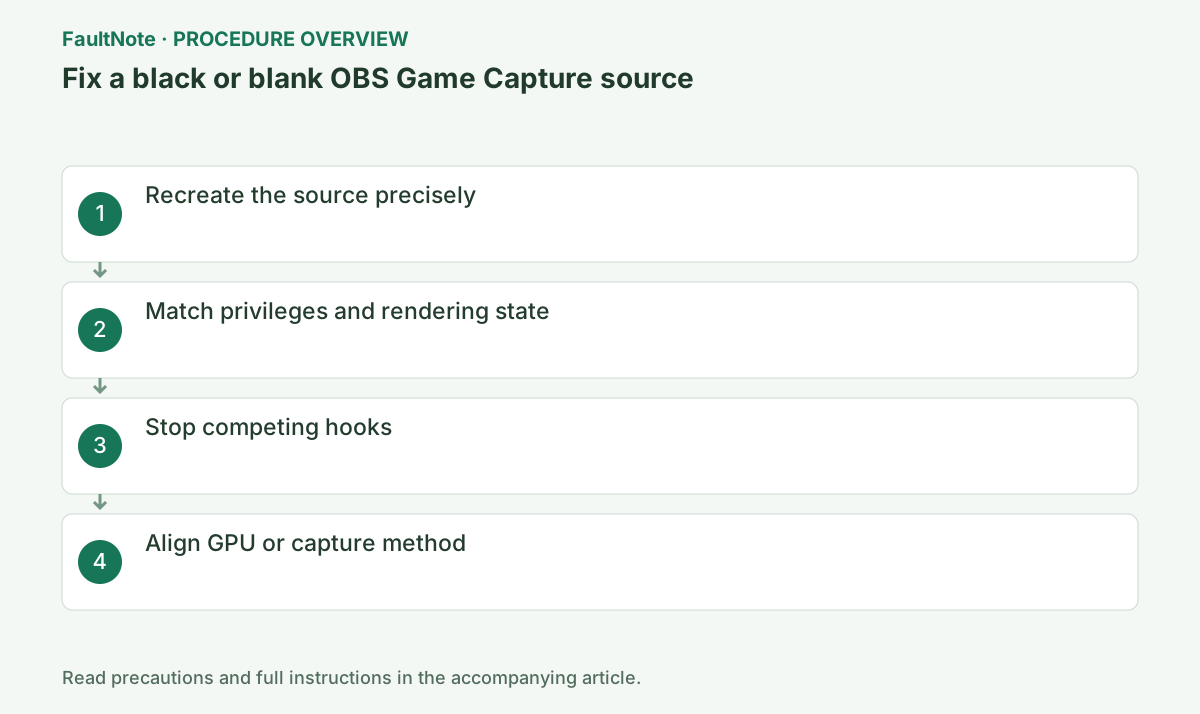
Use Sources > + > Game Capture, normally one source per scene, select Capture specific window, and choose the running game executable.
Check the eye icon, source stacking order, and red transform bounds. A hooked source can be hidden below another source or off canvas.
Select the scene, confirm the eye beside Game Capture is on, then right-click the source > Properties and record Mode, Window, and Hook Rate.
Use a separate minimal scene and select the running game, not its launcher. Keep the existing layout intact to distinguish target selection from layers or filters.
If the game runs elevated, run OBS as administrator. Exclusive fullscreen can stop rendering during Alt+Tab, so judge with a short test recording.
Start the game before choosing Window. Launchers that change executables may need separate lobby and game scenes.
Record game and OBS launch privileges. Some games need administrator mode, but this is not universal. Verify a short recording of an active game in the same display mode, separately from the preview.
Official links for this step
- Official OBS Studio troubleshooting
Check the official page for exact setting names, limitations, and updated decision paths.
- Official OBS Studio troubleshooting
Close RivaTuner/MSI Afterburner, FPS counters, Discord overlays, and other recorders one at a time. Allow OBS through antivirus instead of leaving protection disabled.
Privilege mismatch can block hooking. Compare elevation only for games that require it and confirm the reason in logs.
For overlay conflicts, record settings, stop one candidate, and restart the game so hooks refresh. Revert ineffective changes and identify the conflicting combination rather than leaving every tool disabled.
In Windows Settings > System > Display > Graphics, assign OBS and the game to the same high-performance GPU and restart both. For games that block hooks, use borderless mode plus Window Capture.
On multi-GPU systems set both to High performance and fully restart them; existing processes do not adopt the new assignment.
Official links for this step
- Official OBS Studio download
Official OBS download with OS choices and a link to previous releases.
- Official OBS Studio download
If a fullscreen game goes black only after Alt+Tab, it may stop rendering when inactive. Make a short local recording while returning to the game, then play it back. The OBS preview alone is insufficient to judge failure.
If the source is absent from the preview, also check visibility, layer order, and transform bounds. An opaque image covering Game Capture is different from failure to hook the game.
For a single failing game, consult OBS's known-issues list. Some games prohibit Game Capture; use a windowed or borderless mode with Window Capture. Increasing privileges does not make every game compatible.
Use a minimal scene containing only the capture source, then restore overlays individually once it works. Verify changes in a recording with the game active and record which capture method was used.
Display Capture can include notifications and other windows, so inspect the whole desktop before streaming. If Window Capture shows only the needed game, it offers a narrower workaround.
Check the result
- play a 60-second recording and confirm game video, audio, and frames, not only preview
- Check adjacent basic functions for side effects from the change.
If the problem continues
- use Help > Log Files > Upload Current Log and provide the URL to OBS support
- When continuing with a workaround, preserve original files or account data separately.
Scope of this guide
Troubleshooting guide — Check OBS source selection, layers, active-game rendering, hook conflicts, and capture restrictions. Judge recorded footage and compare Window Capture where appropriate.
Frequently asked questions
Why does it turn black after Alt+Tab?
Exclusive fullscreen games can stop rendering while inactive; inspect a test recording.
Display Capture works. What does that mean?
It narrows the cause to Game Capture hooks, privilege, GPU choice, or game restrictions.
The preview is black, but the recording works.
A fullscreen game can stop rendering after Alt+Tab. Judge an active-game recording or another display rather than diagnosing failure from an inactive preview.
Only Window Capture works.
Hook restrictions or compatibility may explain this. Consult known issues and use windowed or borderless Window Capture. Verify the target and movement instead of repeatedly increasing privileges.
Official sources and dates
Source publication or resolution date: Not specified. Sources checked: 2026-10-13. The check date is not the date the problem first occurred. Interface labels can vary between versions and display languages.