Crop and frame a source in OBS without stretching the image
Cropping removes edges; scaling changes the displayed size of what remains. Establish the useful region before positioning it, then inspect text and controls in the exported video.
Published · Updated · FaultNote editorial policy
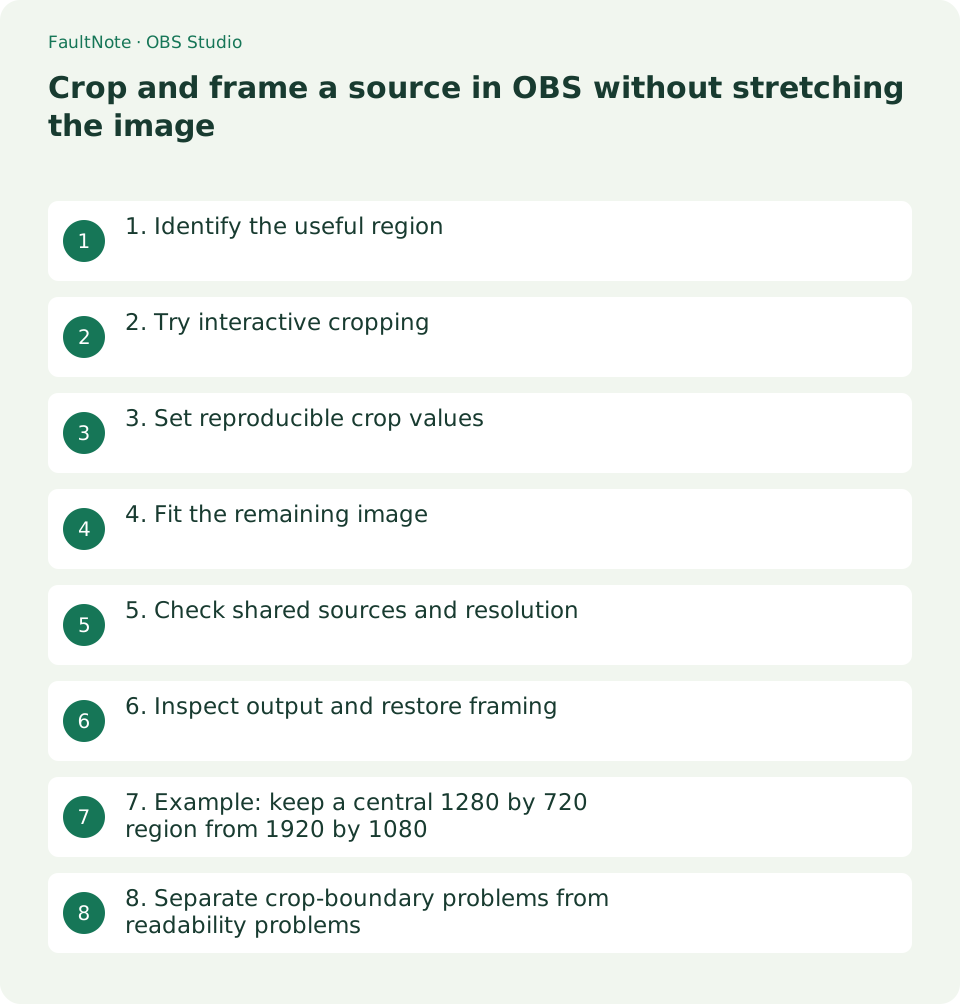
Who this guide is for and what to prepare
- People who want to complete the task and inspect the saved result
What you need
- Duplicate the scene for framing experiments
- Note the source resolution and the controls that must remain visible
1. Identify the useful region
Define a region containing the required menus and click targets. Even if only the left work area matters initially, check whether later menus or completion indicators appear elsewhere.
Do not treat a fixed crop as a general privacy mechanism. Content can become visible later if the application layout or window position changes.
- Locate required edges while menus are open
2. Try interactive cropping
Select the source and hold Alt while dragging an edge inward. OBS marks cropped edges in green. Adjust one edge at a time so resizing is not confused with cropping.
Enlarge the preview if the handles are difficult to select. Record the previous framing so an accidental change can be restored accurately.
- Use edge color to distinguish cropping from resizing
3. Set reproducible crop values
Open Filters for the source and add Crop/Pad under Effect Filters. In relative mode, specify the amount removed from each edge and check that required controls remain.
Inspect both transform cropping and the filter values to avoid unintended double cropping. Choose which mechanism owns the crop before making fine adjustments.
- Record transform and filter crop values
4. Fit the remaining image
Position the remaining region on the canvas. Stretching a wide region into a tall frame distorts text; allow margins or choose a canvas aspect ratio suited to the intended output.
Enlarging small text does not create missing detail. Increase the application zoom and establish a new capture region if the recorded text remains unreadable.
- Choose margins appropriate to the output ratio
5. Check shared sources and resolution
A filter on a reused source also affects other scenes using that source. Inspect those scenes to ensure an experimental crop has not changed a production composition.
Changing the source resolution can change which content the same crop values retain. Changing canvas resolution affects composition and requires repositioning, without itself changing the source Crop/Pad pixel region. Recheck edge controls and captions before locking the source.
- Inspect filter effects in every scene reusing the source
6. Inspect output and restore framing
Record the actual procedure briefly and inspect required content at the beginning, middle, and end. Text readable in the preview can become unreadable after output scaling.
Disable the Crop/Pad filter and reset transform crop values to zero when restoring. If position or size also changed, restore the recorded values or refer to the original scene.
- Verify restoration of all original edges after removal
7. Example: keep a central 1280 by 720 region from 1920 by 1080
For a 1920 by 1080 source, retaining a centered 1280 by 720 region removes 640 pixels horizontally and 360 vertically. The example relative crop is 320 left/right and 180 top/bottom. These are arithmetic example values, not universal application settings.
Enter the values in relative Crop/Pad mode and inspect the remaining content. If an expected central control disappears, check source dimensions and existing transform cropping. Correct arithmetic alone does not prove the intended content remains visible.
The remaining region matches a 1280 by 720 canvas. Filling a 1920 by 1080 canvas scales it up. Both are 16:9, but enlargement creates no new text detail. Check readability at the final viewing size and increase application zoom if needed.
In absolute mode, disable Relative and specify X/Y plus Width/Height. The same example is X320, Y180, Width1280, Height720. Distinguish amounts removed in relative mode from dimensions retained in absolute mode.
If another scene uses the source, inspect that scene after adding the filter. Consider transform cropping when the crop should apply to only one scene. Restore filter and transform changes separately to avoid leaving one crop mechanism active.
8. Separate crop-boundary problems from readability problems
If a required button disappears, calculate remaining dimensions from the original size and crop values. Check horizontal and vertical totals separately. Inspect with menus open so later action areas are not missed by reviewing only an idle workspace.
Blurred text is not automatically fixed by more cropping. Check excessive enlargement and output downscaling. Test application zoom and output resolution separately, comparing results at the actual sharing size.
If another scene changes too, inspect whether the filter belongs to the shared source. Check whether you reused an existing source or created an independent one. Duplicating a scene does not by itself establish filter independence.
If the image stretches along one axis, distinguish crop from stretch. Reposition with preserved aspect ratio and allow margins. Keep before-and-after settings so restoring the filter does not leave unintended transform scaling active.
Limitations and requirements
- Keep the original material until the exported result works in the intended application.
Frequently asked questions
Does cropping always reduce file size?
No. Output resolution and encoder settings also affect size. Cropping a source does not itself mean the encoded frame dimensions changed.
What does a negative crop value mean?
In relative Crop/Pad mode, negative values add padding. To remove a crop, first reset to zero and inspect rather than compensating with arbitrary negative values.
How do I crop only one scene?
A source filter affects every instance. Consider scene-instance transform cropping and inspect the other scenes to verify the scope.
Sources and verification date
Sources checked: . These sources support the specifications, procedures or prices discussed here. Check each source for applicable conditions and current information.
Related practical guides
- Record one game in OBS with a specific Game Capture window
- Control OBS Window Capture matching when application titles change
- Remux an OBS MKV recording to MP4 before importing it into an editor
- Save recent gameplay with the OBS Replay Buffer
- Record game audio only in OBS and test notification exclusion
- Diagnose OBS recording stutter with rendering and encoding statistics