Record game audio only in OBS and test notification exclusion
Choose which application supplies audio before thinking about separate recording tracks. Create a game-specific input, remove whole-desktop capture from the test, and verify both included and excluded sounds.
Published · Updated · FaultNote editorial policy
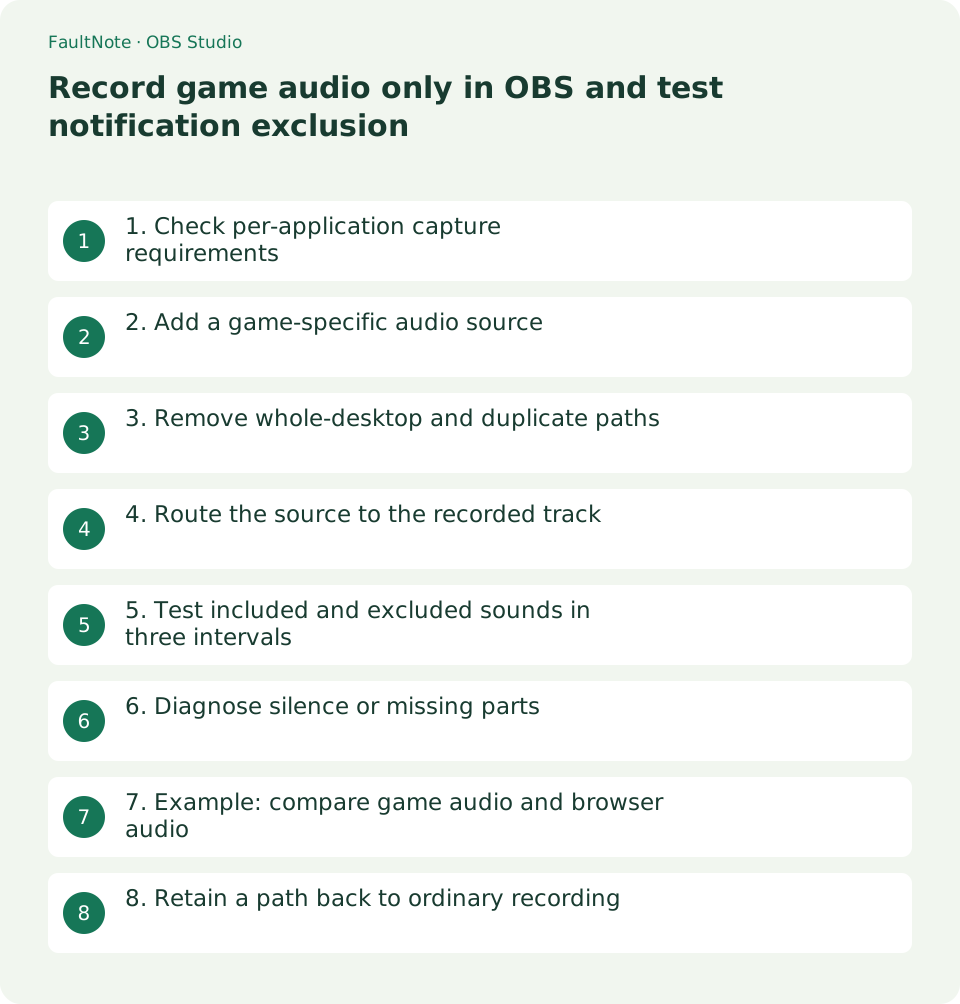
Who this guide is for and what to prepare
- People recording gameplay locally with OBS
What you need
- Keep the existing configuration and create a test scene before changing settings.
- Prepare a short repeatable action and a separate output filename.
1. Check per-application capture requirements
The official guide documents per-application sources from OBS 28 on Windows 10 version 2004 or later and Windows 11. Check OS and OBS versions and the available source list. Do not treat this as the same procedure on macOS or Linux.
From OBS 30.1, Game Capture and Window Capture can include application audio too. Begin with either that option or a separate Application Audio Capture source, rather than both for the same game.
Check the game-specific recording and publication terms. Input selection does not establish publication permission. Use sample screens and notifications without personal information.
2. Add a game-specific audio source
Open the game at a point with audible output. Add Application Audio Capture (BETA) from Sources and give it a clear name such as Game audio test, distinct from the visual source.
Select the game window producing sound rather than its launcher. Check that its mixer meter moves and falls when game audio stops. This helps identify an unintended application selection.
Review matching policy for changing titles. The guide recommends type matching for many applications and executable matching for changing titles. After restarting the game, test whether the source still follows the intended process.
3. Remove whole-desktop and duplicate paths
Disable global Desktop Audio under Settings > Audio to avoid capturing both whole-desktop and application audio. Record the previous device selection because this global change can affect other scenes.
Inspect any Audio Output Capture source too. If Capture Audio is enabled on the game visual source, choose one path so the separate game audio source does not duplicate it.
Mute microphone input for a game-only test. A microphone can capture notification sound from speakers even with correct application selection. Use headphones if needed to distinguish software routing from acoustic pickup.
4. Route the source to the recorded track
Confirm the source is unmuted and assigned to the recorded track in Advanced Audio Properties. Enable the same track in Output settings. A moving meter and a recorded stream are distinct checks.
Begin with one verification track containing only the game. Establish source isolation before introducing separate editing tracks, so source routing and track-selection problems are not confused.
Monitoring is separate from recorded routing. A Monitor Only selection can make a source audible to you while excluding it from output. Record the current mode and verify the saved file rather than changing monitoring without a reason.
5. Test included and excluded sounds in three intervals
Record game audio alone, then harmless sample audio from another application with the game silent, then both together. Avoid real notifications containing personal details and retain the interval order in a note.
Play the saved file separately. The first interval should contain the game, the second should exclude the other application, and the last should retain only the game. Muting notifications in Windows alone does not prove source isolation.
If audio sounds doubled, inspect whether the same sound moves several meters. Mute inputs individually and record short samples to identify the duplication. Remove the duplicate path rather than compensating by lowering volume.
6. Diagnose silence or missing parts
If effects are captured but voice chat is absent, output paths or processes may differ. The official guide notes that some application audio is incompatible with this capture method. Do not assume one window selection captures every category of game audio.
For complete silence, check game output, selected process, mute state, and track routing in order. Also check player track selection. Correct video capture does not establish correct audio capture.
The guide also describes virtual-cable routing. First identify the incompatible audio before adding drivers. If needed, plan per-application output changes separately and retain the existing configuration.
7. Example: compare game audio and browser audio
After selecting the game, prepare harmless browser audio. Alternate the two and inspect whether Game audio test responds only to the game. A response to browser audio suggests whole-desktop capture or an incorrect target.
Compare the three intervals in the saved file. Note times so repeat tests remain comparable. Verify exclusion while the browser is actually producing audio rather than proving only that a closed browser is silent.
If adding a microphone afterward, use headphones and repeat the test. Verify the final game-and-voice mix in output. Treat application isolation and separate editing tracks as different stages to keep failures diagnosable.
8. Retain a path back to ordinary recording
To return to whole-desktop recording, disable the application-specific path and restore the recorded Desktop Audio device. Restoring both paths together can duplicate game audio; recreate the intended original route and verify a sample.
Changing scenes does not restore global audio settings. Check other scenes too and make the active paths explicit if application-only and whole-desktop workflows share a configuration.
Accept a saved result that includes required game audio, excludes the other application during the test, and avoids doubling. Recheck target selection and a sample after game restarts or OBS updates.
Limitations and requirements
- Examples describe a verification procedure, not measured results or a guaranteed improvement.
Frequently asked questions
Do separate tracks remove notifications?
Whole-desktop audio can include notifications. Separate tracks organize output routing; they do not automatically restrict the input to the game.
Can I use the visual source audio option alone?
Supported versions provide Capture Audio on visual sources. Avoid an additional capture of the same game and verify the saved output.
Why is sound doubled with headphones?
Investigate duplicated software routes such as Desktop Audio, application audio, and visual-source audio. Mute each path individually to identify the overlap.
Sources and verification date
Sources checked: . These sources support the specifications, procedures or prices discussed here. Check each source for applicable conditions and current information.
Related practical guides
- Record microphone and PC audio on separate tracks with OBS
- Record one game in OBS with a specific Game Capture window
- Diagnose OBS recording stutter with rendering and encoding statistics
- Control OBS Window Capture matching when application titles change
- Crop and frame a source in OBS without stretching the image
- Remux an OBS MKV recording to MP4 before importing it into an editor