Record one game in OBS with a specific Game Capture window
Create a game-only scene in OBS for Windows and select the intended game window. Inspect a saved sample during gameplay, because a preview after switching away can be misleading.
Published · Updated · FaultNote editorial policy
Who this guide is for and what to prepare
- People who want to complete the task and inspect the saved result
What you need
- Open OBS and the game, and check free space at the recording destination
- Note the game name, display mode, and action to record
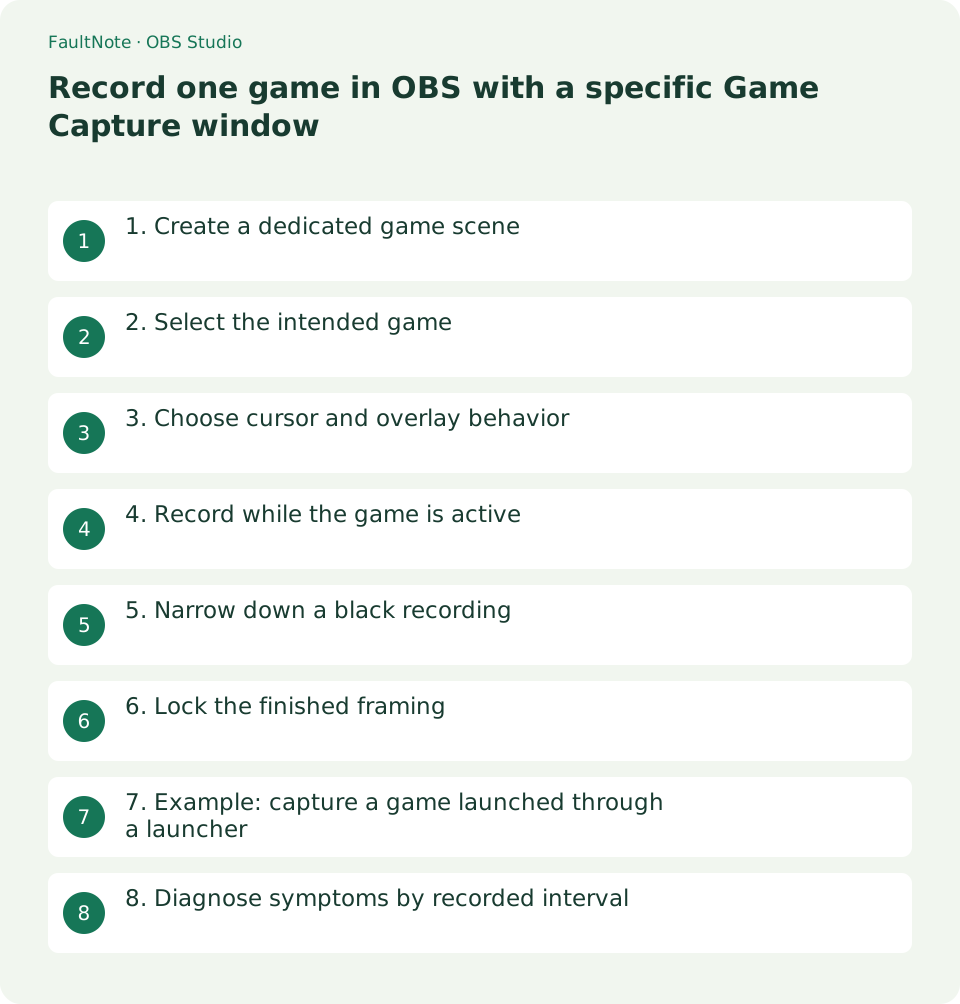
1. Create a dedicated game scene
Add a scene named Game test, then add Game Capture from the Sources plus button. Leave desktop capture out of this scene so the composition has a single intended visual input.
This source targets DirectX/OpenGL games on Windows. Use a separate Window Capture workflow for ordinary applications or browser windows.
- Compare the launcher and game entries in the test scene
2. Select the intended game
In Properties, select Capture specific window and choose the actual game executable and window title. A launcher entry is not necessarily the game render window.
Automatic fullscreen detection is useful when switching games. A fixed window is easier to audit for a single-title recording; review it after the game changes its title or process.
- Include menu, gameplay, and return states in the sample
3. Choose cursor and overlay behavior
Enable Capture Cursor for demonstrations where pointer movement matters. A cursor or crosshair rendered by the game itself can remain visible even when this option is disabled.
Enable third-party overlay capture only when required. Inspect player names and chat inside the game as well as external notifications before recording.
- Check the game crosshair separately from the system pointer
4. Record while the game is active
Start a short recording, return to the game, move around, open a menu, and finish. On a single monitor, switching away from a fullscreen game can stop its rendering and make the OBS preview look blank.
Open the saved file and inspect the interval when you were actually playing. The moment after returning to OBS is not sufficient to determine whether gameplay was captured.
- Compare inactive output with active gameplay
5. Narrow down a black recording
First check that the game is still running and the selection has not reverted to its launcher. Reselect the window and record another sample before changing encoding settings.
Some games do not work with Game Capture. If trying Window Capture in windowed mode, use a separate scene; do not assume disabling protection or anti-cheat is an appropriate fix.
- Use a different sample filename for each single change
6. Lock the finished framing
Fit the source to the canvas and lock it with the padlock. After changing resolution or display mode, inspect the edges again for clipped interface elements or captions.
Accept the setup when the saved file shows continuous gameplay, readable required HUD elements, and the intended visual source.
- Inspect edge HUD elements before locking the source
7. Example: capture a game launched through a launcher
Consider a launcher that starts a separate game process. The goal is to record an in-game setting change and gameplay. Wait for startup to finish, then identify the game process in the window list rather than recording the launcher store.
Include three recognizable states: the settings menu, a few seconds of gameplay, and the menu again. These make it easier to distinguish a frozen image from active capture. A static title screen alone can hide a recording that has stopped updating.
Put the minimize or application-switch test at the end. If gameplay records correctly and only the inactive interval becomes black, investigate inactive rendering separately from a recording that is black throughout. The solution may be to keep gameplay active during capture.
Include an action that triggers the relevant notifications. Decide which HUD, captions, and notices are needed, and reduce unwanted content in the game where possible. Judge cropping during actual play so health indicators or choices are not removed for appearance alone.
Record scene name, game display mode, and output resolution after successful capture. Use a separate scene for another game so an old target does not remain selected unnoticed. Revisit the selection if an update changes the executable name.
8. Diagnose symptoms by recorded interval
For an entirely black result, inspect target selection, source visibility, and source order first. An opaque source above the game can hide a working capture. Check eye icons and order, then compare with a scene containing only the game.
For visible but jerky gameplay, separate target selection from recording load. Compare the same action with and without recording and inspect OBS status. Change encoder, game resolution, or output fps individually so the effect remains attributable.
If only a menu is missing, check whether the game creates a separate window. Launcher settings and game rendering are distinct inputs. Prepare an explicit capture arrangement for required windows and test any target change before the main session.
Reproduce a short identifiable action before investing in a long recording. Note game name, display mode, source mode, and the failing interval for later troubleshooting. Stay within supported capture methods rather than treating protected content as something to bypass.
Limitations and requirements
- Keep the original material until the exported result works in the intended application.
Frequently asked questions
Can I use this for a browser game?
Start with Window Capture for the browser. A source intended for DirectX/OpenGL games does not automatically capture every web application.
The game is missing from the window list.
Confirm that startup has completed and the game itself is visible. A launcher alone does not provide the game render target. Reopen source properties and review the list.
Why is text small only in the recording?
Review in-game UI scale and OBS output resolution separately. Downscaling a high-resolution game can make small text unreadable; judge the exported file.
Sources and verification date
Sources checked: . These sources support the specifications, procedures or prices discussed here. Check each source for applicable conditions and current information.
Related practical guides
- Control OBS Window Capture matching when application titles change
- Crop and frame a source in OBS without stretching the image
- Remux an OBS MKV recording to MP4 before importing it into an editor
- Save recent gameplay with the OBS Replay Buffer
- Record game audio only in OBS and test notification exclusion
- Diagnose OBS recording stutter with rendering and encoding statistics