Control OBS Window Capture matching when application titles change
Window Capture targets a selected window, but its matching policy determines what happens when that window disappears. Test title changes and restarts before relying on the selection.
Published · Updated · FaultNote editorial policy
Who this guide is for and what to prepare
- People who want to complete the task and inspect the saved result
What you need
- Open a sample document for recording
- Open a second window of the same application
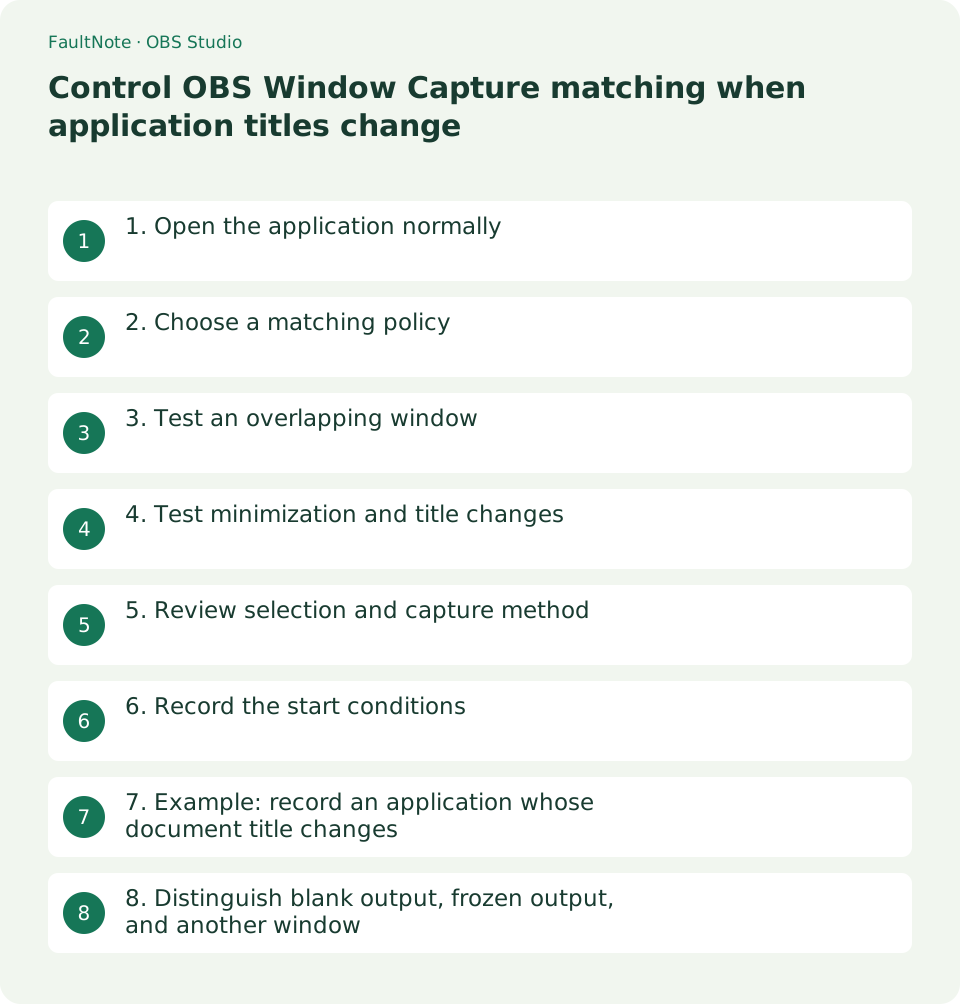
1. Open the application normally
Restore the window and show the intended sample document. Replace sensitive document or account names that appear in its title bar before capture.
Add Window Capture through the Sources plus button and select the intended window. Use the preview to distinguish multiple windows from the same application.
- Show the sample document at its normal size
2. Choose a matching policy
If you want capture to remain blank rather than fall back to another window, consider the policy requiring the window title to match. The official behavior is to wait for the original or an identically titled window.
Applications that change their title when opening documents may become blank under strict matching. Choose the policy based on title stability and the consequence of selecting the wrong window.
- Note the executable and title combination
3. Test an overlapping window
Place another application over the target and inspect whether the selected content remains visible. Window Capture is designed to capture the chosen window rather than the whole desktop composition.
Dialogs and personal data inside the target still need review. If a required settings dialog is a separate window, prepare an explicit source for it rather than assuming it will be included.
- Bring another window forward to test selection
4. Test minimization and title changes
During a short recording, open another document, minimize the target, and restore it. Inspect the saved file for frozen frames, blank output, or selection changes.
If the required workflow interrupts capture, keep the window restored or arrange explicit scene changes for those steps.
- Test renaming and minimization in separate intervals
5. Review selection and capture method
After restarting the application, reopen source properties and reselect its window. Start with Automatic capture method, then test available alternatives individually if that application still fails.
BitBlt can help with certain applications but is less efficient. Compare output and load on the affected source instead of applying it indiscriminately.
- Compare methods using the same short scene
6. Record the start conditions
Name the scene after the application and retain a start checklist: open the sample document, check its title, and inspect the preview. Repeat the sample check after application updates.
If the wrong window was recorded, correct the selection and make a new recording. Review the full timeline rather than relying only on a cropped thumbnail.
- Confirm the target name before starting the recording
7. Example: record an application whose document title changes
Open Sample A and Sample B in the same application and target A. Bring B to the foreground and check that A remains captured. This verifies selected-window capture rather than desktop composition, but changes inside A will still be recorded.
Save A under a different name and observe its title. A blank source under strict matching may mean no window satisfies the selected title, rather than a broken capture engine. Reselect the changed title and verify it before continuing.
Some applications add unsaved-state markers to the title after editing. Test ordinary actions on a sample document. If a required action breaks strict matching, use an explicit scene change or adjust the recording workflow around it.
Settings and file-selection dialogs can be separate windows. When a required dialog is absent, check whether it belongs to the selected window. Before switching to desktop capture, determine whether a dedicated source can capture that dialog explicitly.
Review overlapping windows, renamed documents, and dialogs in sequence. The desired output retains A where intended and includes dialogs only through planned changes. Resolve uncertain capture behavior before recording a long tutorial.
8. Distinguish blank output, frozen output, and another window
When output becomes blank, inspect the target name first. Under strict matching, a changed document name or state marker can invalidate the match. Restore the expected content or reselect it before changing capture methods.
For a frozen image, check whether the target is minimized or the application itself is unresponsive. Restore and operate it, then compare preview updates. A frozen frame alone does not establish that OBS selected another window.
For another document appearing in output, inspect matching policy and same-application fallback. Review closing and restart intervals to identify the trigger. Reduce duplicate titles, reselect deliberately, and retest with distinct sample names.
For a missing pointer, distinguish the capture-cursor setting from application-rendered pointers. A tutorial needs both a visible pointer where appropriate and readable click results. Correct target selection alone does not establish instructional clarity.
Limitations and requirements
- Keep the original material until the exported result works in the intended application.
Frequently asked questions
Does strict matching guarantee privacy?
No. It controls window selection, not the information displayed inside that window. Use sample content and inspect the saved recording.
What if two windows have the same title?
Matching titles are harder to distinguish. Close an unnecessary duplicate or give the sample document a distinct name, then verify the preview and output.
Will an overlaid sticky note be captured?
A separate sticky-note window is not part of the selected application capture. Add an explicit OBS text or other source for annotation and inspect its placement.
Sources and verification date
Sources checked: . These sources support the specifications, procedures or prices discussed here. Check each source for applicable conditions and current information.
Related practical guides
- Record one game in OBS with a specific Game Capture window
- Crop and frame a source in OBS without stretching the image
- Remux an OBS MKV recording to MP4 before importing it into an editor
- Save recent gameplay with the OBS Replay Buffer
- Record game audio only in OBS and test notification exclusion
- Diagnose OBS recording stutter with rendering and encoding statistics