Create zero-padded audio chapter filenames
Generate numbered filenames from tags. Preview naming patterns, avoid multi-disc collisions and check playlist references after renaming.
Published · Updated · FaultNote editorial policy
Who this guide is for and what to prepare
- People organizing downloaded music or spoken audio on a PC
What you need
- Keep originals and work on a separate copy. Menu labels vary by language and version.
- Record the release contents, file count and location, distinguishing alternate editions and extras.
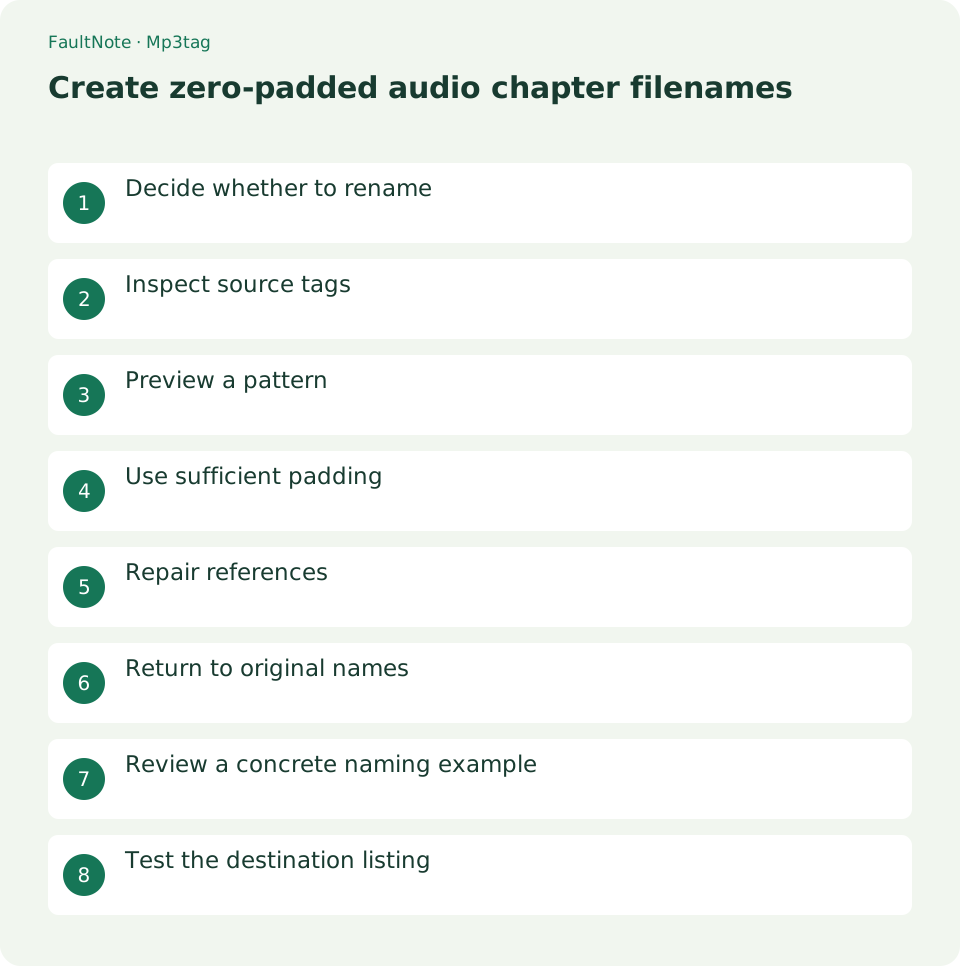
Decide whether to rename
Renaming is optional when tag sorting works. Consider it for devices browsing filenames and experiment on a copy of one release.
First inspect the sort key. Date or size sorting will not respond to numeric prefixes. Consider padding when ascending filename order produces 1, 10, 2. For tag-sorting players, correct Track first. Identify which view has the ordering problem and avoid changing names and tags simultaneously. Record the working-copy names before editing as a recovery reference.
Inspect source tags
Check that Track and Title are populated. Repeated numbers and titles across discs can collide, so retain disc folders or include disc numbers in names.
Inspect the generated preview when Title contains symbols or long text. Preserve meaningful punctuation where possible, replacing only what the destination cannot handle. Identical numbers and titles can indicate alternate takes or separate discs; consult documentation rather than deleting one. A shortened filename can coexist with a complete embedded title. Trial a few copies against destination constraints.
Preview a pattern
Select files and open Convert > Tag - Filename. The pattern $num(%track%,2). %title% produces 01. Intro. Check the preview for empty values and collisions before applying.
Review every selected preview, not only the first. For three tracks, inspect 01. Intro, 02. Chapter One and 10. Ending for consistent padding and separators. Later entries may reveal empty values or collisions. A pattern containing directories can also move files, so this first example generates names only and preserves folder locations. Expand the selection after confirming the small trial.
- 1. Inspect Track and Title on copies
- 2. Open Tag - Filename conversion
- 3. Enter the pattern and inspect all previews
- 4. Apply to a small range and verify opening
Use sufficient padding
Consider three digits for 100 or more chapters. Put the release name in the folder and the sequence number first in filenames. Avoid excessive path lengths and verify files open at the destination.
For more than 100 tracks, use names such as 001, 002, 010 and 100. Avoid mixing padding widths within a release; different widths across unrelated releases are a separate concern. Three digits can also suit a smaller sequence expected to grow. Padding does not shorten long titles. If destination constraints require short names, retain formal titles in tags while using numbers and concise identifiers in filenames.
Repair references
Reload the renamed folder and check count and endings. Rebuild playlists that cannot locate the files. Renaming the playlist itself does not repair internal references.
Open the earlier playlist after renaming. If the app tracks changes successfully, rebuilding is unnecessary. If references break, load the renamed chapters and save a corrected ordered list under another name. Reopen it before replacing the old list. A sync app may treat renamed files as new additions, so check the destination for old and new duplicates while keeping originals untouched.
Return to original names
If ordering still fails on the destination device, set aside the copies and use originals. Add individual tracks to distinguish tag ordering from filename ordering. Do not manually change extensions.
Recover by recreating copies from originals or restoring names from the earlier list. Set aside the edited edition before recreating copies and switch playback references deliberately. When restoring names, retain extensions and verify one track first. If tags are correct and only filenames failed, do not erase tags. Reopen playlists afterward and inspect whether they reference restored or renamed editions.
Scroll horizontally to see the full table →
| Result | Next action | Boundary |
|---|---|---|
| Preview contains missing values | Fix Track and Title first | Stop before applying |
| Several tracks share a target name | Inspect discs and tags | Do not force overwriting |
| Names correct, old playlist fails | Rebuild references using new names | Renaming the playlist is insufficient |
Review a concrete naming example
For Track 1 and Title Intro, expect 01. Intro. Missing Track or Title produces missing name components; fix those fields first. Stop if targets collide and revise disc folders or numbering. Remember that a tag-based player can still display the embedded Title instead of the new filename.
Verify that the generated 01. Intro belongs to Track 1, appears only once and retains its earlier duration. Correct-looking names can still refer to the wrong release if selection was wrong; inspect locations too. A result such as 01. 01 Intro may reflect a title already containing its number. Correct the naming pattern or tag as appropriate instead of editing audio.
Test the destination listing
Copy three tracks first and inspect ordering for 01, 02 and 10. A device sorting by modification date or its own library may ignore filename padding. Review its sorting options and track tags. After copying the full release, compare counts and size with the source.
Choose destination trials from the beginning, a digit boundary and the end. Tracks 01, 09 and 10 reveal more than the first track alone. After full copying, compare counts and look for leftover old-name files. Refresh a destination library if needed. If the list is correct but Next behaves differently, inspect shuffle and repeat before repeatedly renaming files.
Limitations and requirements
- This is guidance rather than a measured result on a particular device. Verify the display and playback in your own setup.
Frequently asked questions
Does renaming re-encode audio?
It is separate from conversion. Check duration and playback afterward.
Why did I get 01. 01 Intro?
Title may already contain a prefix. Decide whether to preserve the tag or adjust the naming pattern, then review the preview.
Why did the playlist stop locating renamed tracks?
It may retain old references. Load the renamed files and save a repaired playlist separately, then reopen it.
Is two-digit padding sufficient for 100 chapters?
Consistent 001, 010 and 100 names make order easier to inspect. Preview the full range and test destination sorting first.
Sources and verification date
Sources checked: . These sources support the specifications, procedures or prices discussed here. Check each source for applicable conditions and current information.
Related practical guides
- Organize audio album and track titles with Mp3tag
- Fix spoken-audio chapter order with track and disc tags
- Diagnose garbled audio tags separately from filenames and ID3 encoding
- Check cover-art format and size before embedding it in audio
- Make a portable relative-path M3U playlist and verify it after moving
- Choose FLAC, WAV or MP3 for downloaded audio