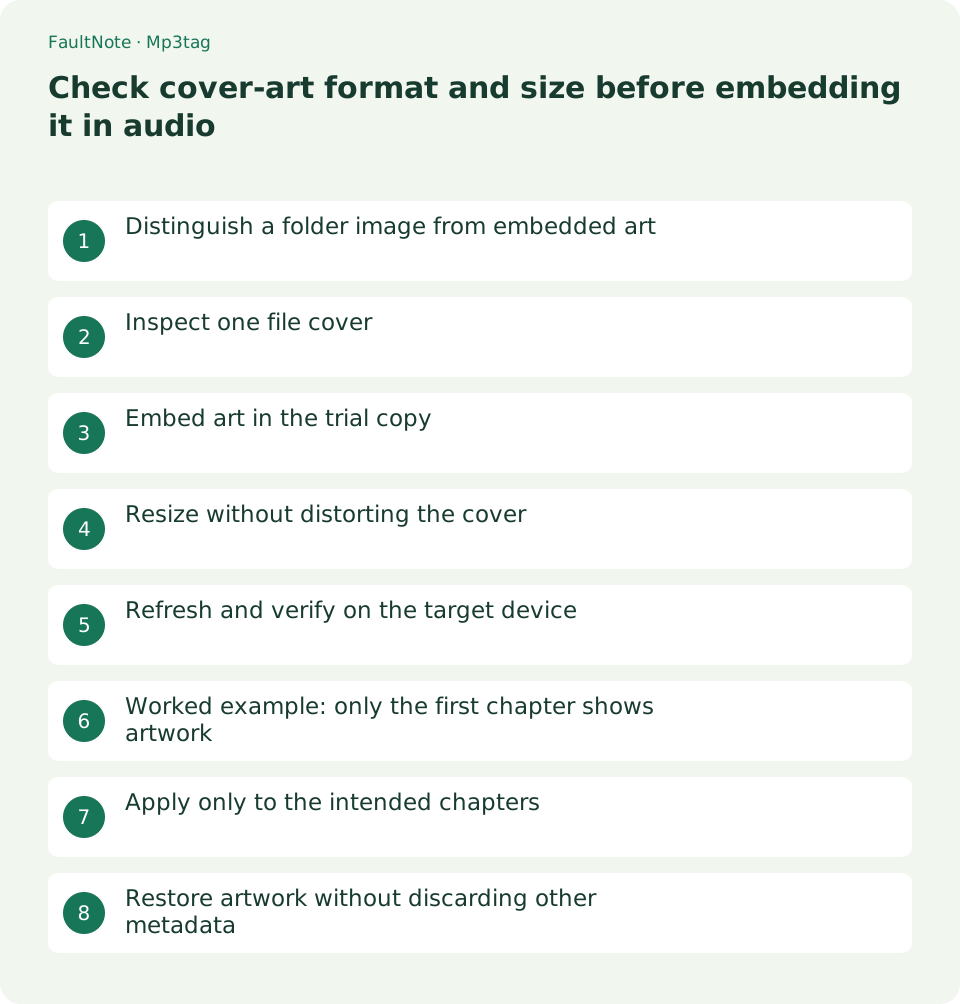
Check cover-art format and size before embedding it in audio
Inspect embedded art in Mp3tag and test a player-compatible format and size on a copy, checking aspect ratio, cover type and chapter coverage. Preserve originals and compare a small trial against playback results before applying the workflow to the whole collection.
Published · Updated · FaultNote editorial policy
Who this guide is for and what to prepare
- Listeners whose portable player fails to show cover art
What you need
- Preserve source audio and companion files and prepare a separate working copy
- Check the target player capabilities and begin with one representative work
Distinguish a folder image from embedded art
A cover.jpg in the folder does not establish that artwork is embedded in audio. Apps using folder images and devices reading embedded tags can behave differently. Check external image presence, Mp3tag cover data and target-player display separately.
Keep the source image and audio and respect their use conditions. Work on a personal-use copy; do not remove the high-resolution source image merely because a smaller embedded image displays correctly.
Inspect one file cover
Inspect one copy with Extended Tags and its artwork. Check type and order when several images exist. Manage Covers distinguishes art present in all selected files from art present only in a subset.
Check device requirements for JPEG or PNG, dimensions, size and embedded versus external images. There is no universal pixel limit for all players. A known-working local file can serve as a controlled compatibility comparison.
Embed art in the trial copy
Use Add cover from the cover context menu, choose the saved image and set Front Cover when appropriate, then save tags. Trial one chapter before applying one picture across a selection.
Adding rather than replacing can leave multiple images. Decide whether to retain the existing artwork and verify order and count after saving. Open the copied audio in another player as well.
- Inspect artwork presence, type and count on one file.
- Check target requirements and trial one condition at a time.
- Reload saved tags and refresh the target library.
- Apply successful settings to intended chapters and verify representative entries.
Resize without distorting the cover
For embedded-art resizing use Actions Quick and Adjust Cover. Select the required format and maximum size and retain aspect ratio with Scale Proportionally. Square scaling distorts proportions and cropping can cut titles or faces.
Compare small lettering after resizing. Reduced resolution or JPEG quality changes the artwork quality. Artwork/tag updates can change audio-file size and hash even without audio re-encoding.
Refresh and verify on the target device
Transfer the new copy and refresh the device library. A distinct trial folder helps avoid confusion with cached old artwork. Extend to other chapters only after the first file displays correctly.
For PC-only success check tag support, format, type, multiple images and cache as well as dimensions. Change one condition at a time to identify the necessary compatibility change.
Worked example: only the first chapter shows artwork
If only chapter one shows artwork, inspect each file independently. Saving to one chapter does not automatically embed art in every chapter. In Manage Covers, inspect subset coverage and apply to all only after confirming the intended work selection.
A stale device picture after correct embedding requires a separate library-refresh check. Exclude bonus files with different artwork. Finally open the first and last chapters individually and confirm their picture and audio match the intended work.
Apply only to the intended chapters
Select only the intended work chapters, excluding bonus files with different artwork. Inspect first and last chapters individually afterward. A subset indicator warrants checking coverage, not forcing unrelated works to share a picture.
Scroll horizontally to see the full table →
| Outcome | Next action |
|---|---|
| Only an external image exists | Check whether the target requires embedded artwork. |
| Only some chapters lack art | Check per-file saving and selection scope. |
| Faces or lettering are cropped | Restore proportional scaling and review cropping. |
Restore artwork without discarding other metadata
Restore the preserved copy when reverting artwork. Removing every tag to remove a picture can also lose titles and track numbers. Keep source and trial folders separate and record the successful compatibility settings.
Limitations and requirements
- Keep native playback speed and avoid overwriting originals. Even metadata-only changes can change the file hash or modification time.
Frequently asked questions
Is JPEG always more compatible?
It depends on the device. Check specifications and a working file.
Does a picture in a multiple-file view prove full coverage?
It can exist only in a subset. Inspect status and individual entries.
Is the edited file identical to the source?
Even without audio re-encoding, changed tags and artwork mean the whole file need not be identical.
Sources and verification date
Sources checked: . These sources support the specifications, procedures or prices discussed here. Check each source for applicable conditions and current information.
Related practical guides
- Organize audio album and track titles with Mp3tag
- Diagnose garbled audio tags separately from filenames and ID3 encoding
- Make a portable relative-path M3U playlist and verify it after moving
- Fix spoken-audio chapter order with track and disc tags
- Create zero-padded audio chapter filenames
- Use ReplayGain for spoken audio while preserving contrasts within a work