Diagnose garbled audio tags separately from filenames and ID3 encoding
Inspect garbled titles in Mp3tag, compare MP3 tag formats with player behavior and correct a copy using readable source information. Preserve originals and compare a small trial against playback results before applying the workflow to the whole collection.
Published · Updated · FaultNote editorial policy
Who this guide is for and what to prepare
- Users whose audio titles become garbled in a particular player
What you need
- Preserve source audio and companion files and prepare a separate working copy
- Check the target player capabilities and begin with one representative work
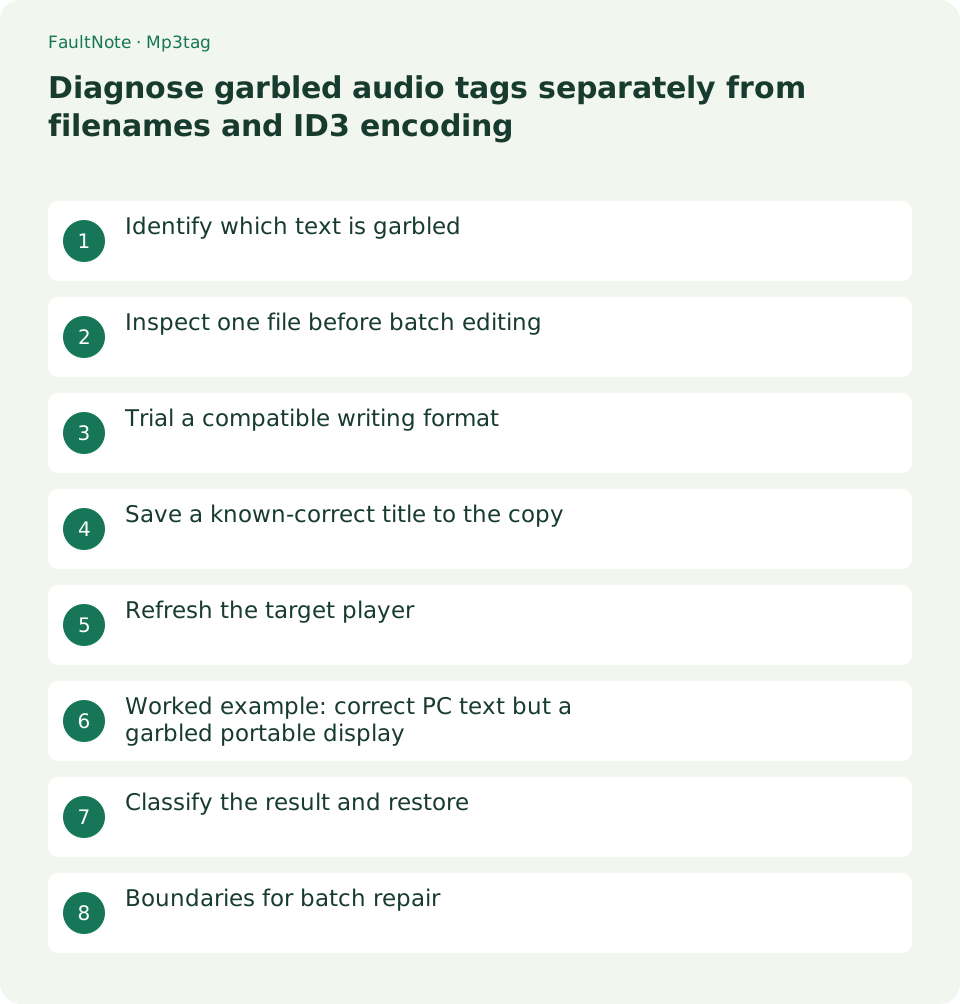
Identify which text is garbled
Compare the Explorer filename, Mp3tag TITLE and player title separately. A healthy filename can coexist with damaged metadata, and the reverse is possible. Establish the affected layer before converting audio or renaming everything.
Preserve correct titles from the archive or supplied documentation. Text already saved as question marks or incorrect characters may not recover merely by changing the output encoding. Use reliable source information instead of guessing.
Inspect one file before batch editing
Load the copied folder and select one file. Inspect TITLE, ALBUM and ARTIST, including Extended Tags with Alt+T. A mixed-value view for multiple files is not evidence that all tags are empty.
For MP3 inspect the Tag column. Different tag types can coexist and applications may choose different ones. Record differing views before changing read or write options.
Trial a compatible writing format
Open File, Options, Tags and Mpeg and record Read, Write and Remove settings. Trial a Unicode ID3v2 format supported by the target, such as ID3v2.3 UTF-16. These settings concern MP3 and should not be imposed on FLAC.
ID3v2.4 UTF-8 and ID3v2.3 UTF-16 are distinct choices. ISO-8859-1 is not a Japanese Unicode format. Choose by device support and limit changes rather than altering all read/write settings at once.
- Record filename, Mp3tag TITLE and target display separately.
- Record Mpeg options and trial a supported Unicode format on one copy.
- Save a correct TITLE and reload it with Ctrl+T and reopening.
- Reload the copy in the target and check display source and cache.
Save a known-correct title to the copy
Enter the correct title in one copied file and save with Ctrl+S, retaining unrelated fields. Applying one TITLE to every selected file would erase chapter distinctions, so keep the first trial to one item.
Reload tags with Ctrl+T and reopen the file to verify saved data rather than the unsaved edit field. Check both readable title and playable audio, including unchanged duration.
Refresh the target player
Load the new copy in the target player and refresh its library if needed. Distinguish the copy by its path because identical titles can hide that the old file is still being displayed.
Healthy Mp3tag values with a faulty target display suggest player compatibility or cache. Garbling everywhere warrants checking the saved values. A filename-based display will not change merely because a tag changed.
Worked example: correct PC text but a garbled portable display
If Japanese TITLE looks correct in Mp3tag and a PC player but garbled on a portable device, verify the actual file and saved tag format. Test a supported ID3 version and encoding on one newly loaded copy before renaming every file. Establish whether the device displays a tag or filename.
After a successful refresh, repair small groups with the same conditions, keeping FLAC and healthy works separate. If one compatibility choice harms another device, use separate device copies. Keeping reliable originals avoids repeatedly rewriting the entire library for competing player requirements.
Classify the result and restore
Restore original options after an ineffective trial and replace the edited copy from the preserved source when needed. Do not indiscriminately remove tags: artwork and custom fields can be lost. Configuration restoration and file restoration are separate tasks.
Scroll horizontally to see the full table →
| Outcome | Next action |
|---|---|
| Only Mp3tag looks correct | Check device tag support and library refresh. |
| Question marks appear after saving | Check writing format and reliable original text. |
| Only the filename is garbled | Investigate the original name separately from metadata. |
Boundaries for batch repair
Repair small groups with the same format and symptom, keeping healthy works outside the selection. Codepage conversion requires understanding the misinterpretation. Avoid repeated guessed conversions; use reliable titles and one verified trial as the reference.
Limitations and requirements
- Keep native playback speed and avoid overwriting originals. Even metadata-only changes can change the file hash or modification time.
Frequently asked questions
Does changing encoding always restore text?
No. Lost information requires a reliable original source.
Should FLAC use ID3v2.3 too?
Mpeg options concern ID3 formats such as MP3. Check the tag system for each format.
Must I re-encode audio to repair text?
A tag issue is normally handled as metadata. Preserve originals and keep audio conversion separate.
Sources and verification date
Sources checked: . These sources support the specifications, procedures or prices discussed here. Check each source for applicable conditions and current information.
Related practical guides
- Organize audio album and track titles with Mp3tag
- Check cover-art format and size before embedding it in audio
- Make a portable relative-path M3U playlist and verify it after moving
- Fix spoken-audio chapter order with track and disc tags
- Create zero-padded audio chapter filenames
- Use ReplayGain for spoken audio while preserving contrasts within a work