Make a portable relative-path M3U playlist and verify it after moving
Create a UTF-8 M3U8 playlist with relative entries in Mp3tag and verify playback after moving the playlist and audio together. Preserve originals and compare a small trial against playback results before applying the workflow to the whole collection.
Published · Updated · FaultNote editorial policy
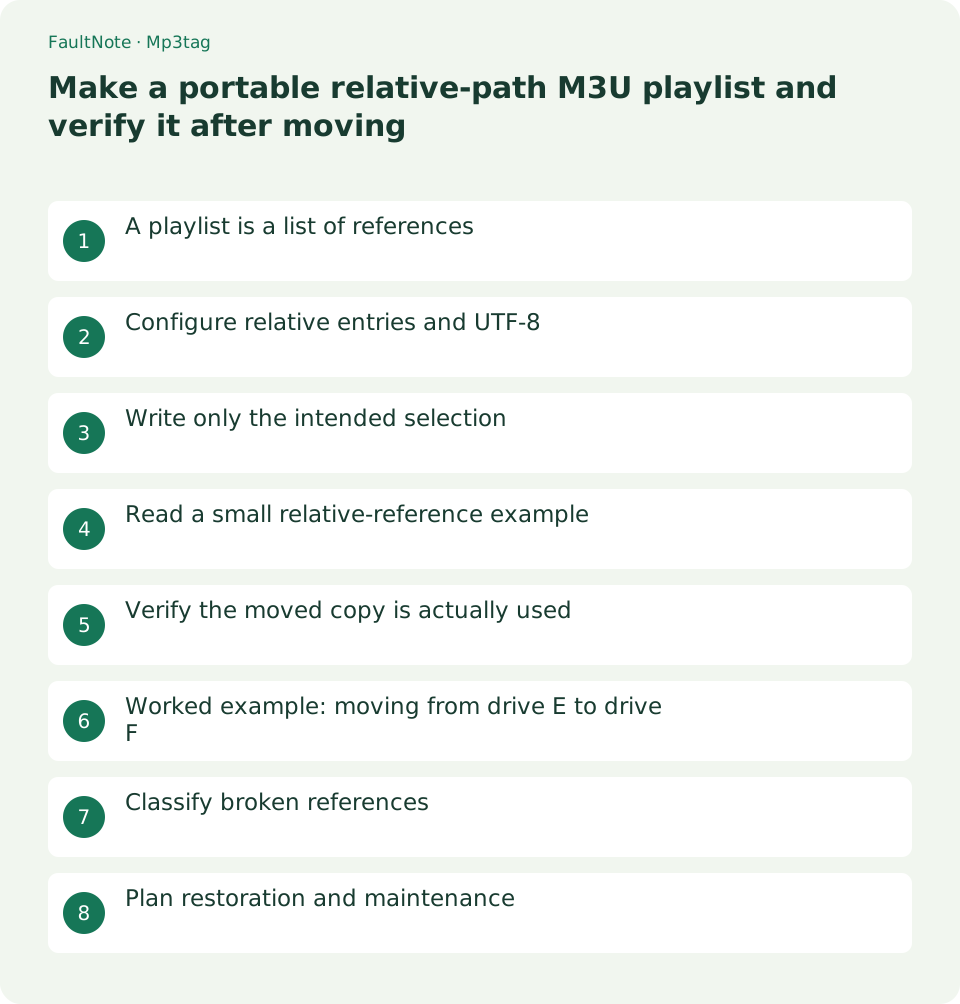
Who this guide is for and what to prepare
- Users whose playlists break after moving to another drive
What you need
- Preserve source audio and companion files and prepare a separate working copy
- Check the target player capabilities and begin with one representative work
A playlist is a list of references
M3U references audio; it does not contain an audio backup. A USB playlist still needs its source files. Absolute paths using a Windows drive letter may fail when that letter differs on another PC.
This workflow checks portability of the folder layout rather than simply creating listening order. Keep the playlist in the work folder and preserve its relative relationship to audio. Retain originals through the relocation trial.
Configure relative entries and UTF-8
Open File, Options and Playlist and enable Entries relative to working directory, recording the previous value. Using a .m3u8 extension makes Mp3tag write UTF-8, useful for a trial with non-ASCII filenames.
Relative entries are used when possible. Keep trial audio together instead of mixing files across drives. UTF-8 naming does not establish universal player support; verify the intended app.
Write only the intended selection
Load the copied work, arrange and select its chapters and use File, Playlist selected files. Save alongside the audio. Playlist all files includes the complete loaded list, so avoid it when unrelated works are present.
Automatic playlist creation is unnecessary for this trial. Confirm filename and location manually, then inspect a copy in a text editor for original-drive references such as C:.
- Keep trial audio together and decide the playlist location first.
- Enable relative entries and save a selected-file .m3u8 playlist.
- Inspect the text for absolute references to the old drive.
- Copy the whole layout and verify actual paths and representative playback.
Read a small relative-reference example
For a playlist in the work folder with audio beneath Audio, entries can look like Audio\01.mp3. Moving only the playlist one level changes the reference base. Its location matters as much as the audio location.
Begin with two real chapters and include a non-ASCII filename if present. A portable device may interpret separators or relative paths differently from Windows, so verify its requirements and actual result.
Verify the moved copy is actually used
Copy the whole work folder to another drive, load its M3U8 into a new playlist and inspect the actual audio path. An absolute reference can appear successful while the original drive is still available.
An authorized trial with the original drive safely disconnected or on another PC helps verify independence. Close file operations and playback before removing a drive. Test non-ASCII and final-chapter entries.
Worked example: moving from drive E to drive F
Suppose a work folder is copied from E to F. A playlist containing E-drive entries can appear healthy while the old files remain accessible. Inspect actual file properties for the F location and verify that relative paths retain the original layout.
After safely closing users of E, retry with only F available, or test F on another PC when disconnection is impractical. Record the verified folder as the migration unit. Include playlist regeneration in future renaming workflows.
Classify broken references
Regenerate the playlist after changing actual filenames, the Audio folder or the playlist level. Changing a metadata title differs from renaming a file and need not invalidate the reference.
Scroll horizontally to see the full table →
| Outcome | Next action |
|---|---|
| Original drive letters remain | Review same-drive layout and relative-path settings. |
| Only non-ASCII names fail | Check UTF-8 M3U8 and device support. |
| Moving only the list breaks it | Restore the relative layout to audio. |
Plan restoration and maintenance
Restore the original list after a failed trial and check layout without deleting audio. Record playlist format, level and generating app. Back up the whole folder and retain source data until the relocated list is verified.
Limitations and requirements
- Keep native playback speed and avoid overwriting originals. Even metadata-only changes can change the file hash or modification time.
Frequently asked questions
Is M3U8 only for internet streaming?
It also works as a UTF-8 local playlist. This workflow references local audio.
Does saving the list save its audio too?
No. Audio remains in separate files that must be preserved.
Must every tag edit regenerate it?
Distinguish file-reference changes from display metadata. Regenerate stale extended playlist information when needed.
Sources and verification date
Sources checked: . These sources support the specifications, procedures or prices discussed here. Check each source for applicable conditions and current information.
Related practical guides
- Build an ordered spoken-audio playlist in foobar2000
- Diagnose garbled audio tags separately from filenames and ID3 encoding
- Check cover-art format and size before embedding it in audio
- Organize audio album and track titles with Mp3tag
- Fix spoken-audio chapter order with track and disc tags
- Create zero-padded audio chapter filenames