Organize audio album and track titles with Mp3tag
Fix unknown album titles through metadata. Separate shared album fields from individual track titles and verify saved changes without overwriting unique names.
Published · Updated · FaultNote editorial policy
Who this guide is for and what to prepare
- People organizing downloaded music or spoken audio on a PC
What you need
- Keep originals and work on a separate copy. Menu labels vary by language and version.
- Record the release contents, file count and location, distinguishing alternate editions and extras.
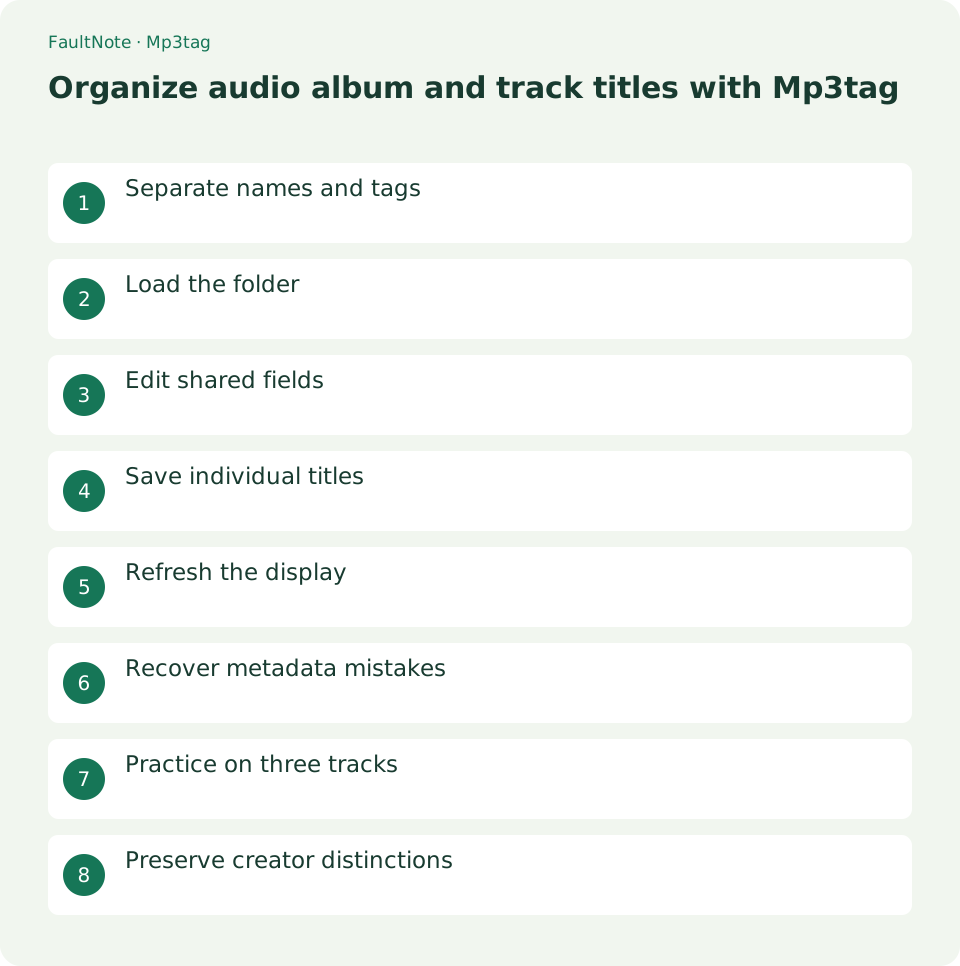
Separate names and tags
If Explorer and your player show different names, inspect embedded tags. Before renaming files, check one track to determine whether Title or Album is wrong.
Record the player display first. If 01 Intro.mp3 appears as Unknown with no album, the target fields are embedded Title and Album; a longer filename is unnecessary. Select one file in Mp3tag and distinguish empty values, garbled text and incorrect release names. Establishing the problem on one track avoids editing unrelated fields unnecessarily.
Load the folder
Load working copies through File > Change directory and select one file. Compare the tag panel with supplied documentation rather than guessing creator names or titles.
If loading subfolders, check that unrelated releases did not enter the list. Inspect locations and album values as well as counts. For a first trial, load a three-track copy without subfolders. Distinguish text entered in the panel from tags saved into files. Save before switching tracks, then reselect the file to confirm the value persisted.
Edit shared fields
Select one release and enter Album. The keep marker preserves differing existing values. Keep Title unchanged instead of replacing every unique track title with one shared name.
When changing Album for multiple files, keep Artist, Title and Track unless a deliberate shared replacement exists. Putting the release name into Title can make every track indistinguishable. Review the panel before saving and identify the single intended field. Do not interpret an empty-looking multi-selection field as permission to delete; distinguish keep from remove. For a large selection, deselect and select only the intended release before saving.
- 1. Select only one release
- 2. Enter its name in Album
- 3. Keep unique fields such as Title
- 4. Save tags and reselect individual files
Save individual titles
Select a single track, edit Title and use File > Save tag. Try one example first and confirm other tracks remain unchanged before continuing.
Use the supplied documentation and decide consistently whether titles include numeric prefixes. A tag-sorting player can use Title Chapter One with Track 1: numbering controls order while the title remains readable. Filename import is an option, but inconsistent naming can shift parsed values. Establish one correct track through individual editing before attempting bulk conversion, retaining already correct information.
Refresh the display
Reopen the track in your player. Refresh its library if the old display remains and compare against saved tags. Treat filename changes as separate work and check playlist references afterward.
If the player still shows the old album, reselect the saved file in Mp3tag. Old values there indicate the edit was not saved; new values there suggest a player refresh issue. Check whether the player references an identically named file in another folder. If removing a library entry, distinguish unregistering it from deleting its file. Do not delete originals merely to force a library refresh.
Recover metadata mistakes
If all titles became identical, recreate working copies from originals. Separate shared and unique fields, then restart with a small selection. Successful playback alone does not prove metadata is correct.
Recover according to the affected field. If only Title was overwritten, restore that field from documentation or originals while retaining the correctly edited Album. If the scope is unclear, set aside the edited copy and recreate it from originals. Keep recovery folders separate so the incorrect edition cannot overwrite your reference. Verify saved values track by track, then inspect the player album and chapter lists.
Scroll horizontally to see the full table →
| Result | Next action | Boundary |
|---|---|---|
| Mp3tag still shows old values | Review selection and saving | Do not confuse entry with saving |
| Tags updated, player display stale | Check file location and refresh | Distinguish identically named copies |
| Every Title became identical | Restore Title from originals | Retain a correct Album |
Practice on three tracks
Practice on Intro, Chapter One and Chapter Two. Select all three to change only Album, keeping Title. Then select Chapter One alone to edit its title. Inspect each file afterward: the album should match while titles remain distinct. Expand to the whole release only after this small trial matches your intent.
Record the three-track result: matching Album, three distinct Titles and Track 1, 2 and 3. Continue with shared fields first, unique fields second and display verification last. Finish tags before moving or renaming files so references remain easy to trace. Review all files by track number for empty titles or suspicious repeated titles, and confirm the count is unchanged.
Preserve creator distinctions
A release with multiple performers can have different Artist values per track. Do not erase speaker distinctions just to group an album. Review the player grouping rules and consider a separate Album Artist field where appropriate. Prefer documented credits instead of inventing roles.
Separate album grouping from preservation of performer credits. For multi-performer releases, check documentation before replacing track-specific Artist values. Choose Album Artist based on supplied information and actual player behavior rather than inventing a representative creator. Trial one track and restore the field if grouping is unsuitable. Preserve correct individual credits instead of erasing them for convenience.
Limitations and requirements
- This is guidance rather than a measured result on a particular device. Verify the display and playback in your own setup.
Frequently asked questions
Does renaming change the displayed title?
A tag-based player may retain its display. Inspect Title.
All tracks now have the same title. What should I restore?
Inspect the overwritten Title scope. Preserve a correct Album and restore only Title from originals or documentation. Recreate copies if the scope is unclear.
What does keep mean in a multiple selection?
It preserves differing existing values. Keep unique titles and performer information unless deliberately replacing them.
Why does the player still display old tags?
Reselect the file in Mp3tag to inspect saved values. If updated there, refresh the player and check its file location for an alternate copy.
Sources and verification date
Sources checked: . These sources support the specifications, procedures or prices discussed here. Check each source for applicable conditions and current information.
Related practical guides
- Fix spoken-audio chapter order with track and disc tags
- Create zero-padded audio chapter filenames
- Diagnose garbled audio tags separately from filenames and ID3 encoding
- Check cover-art format and size before embedding it in audio
- Make a portable relative-path M3U playlist and verify it after moving
- Choose FLAC, WAV or MP3 for downloaded audio