Fix spoken-audio chapter order with track and disc tags
Correct chapter ordering with numeric tags. Separate extras, number each disc carefully and verify continuous playback.
Published · Updated · FaultNote editorial policy
Who this guide is for and what to prepare
- People organizing downloaded music or spoken audio on a PC
What you need
- Keep originals and work on a separate copy. Menu labels vary by language and version.
- Record the release contents, file count and location, distinguishing alternate editions and extras.
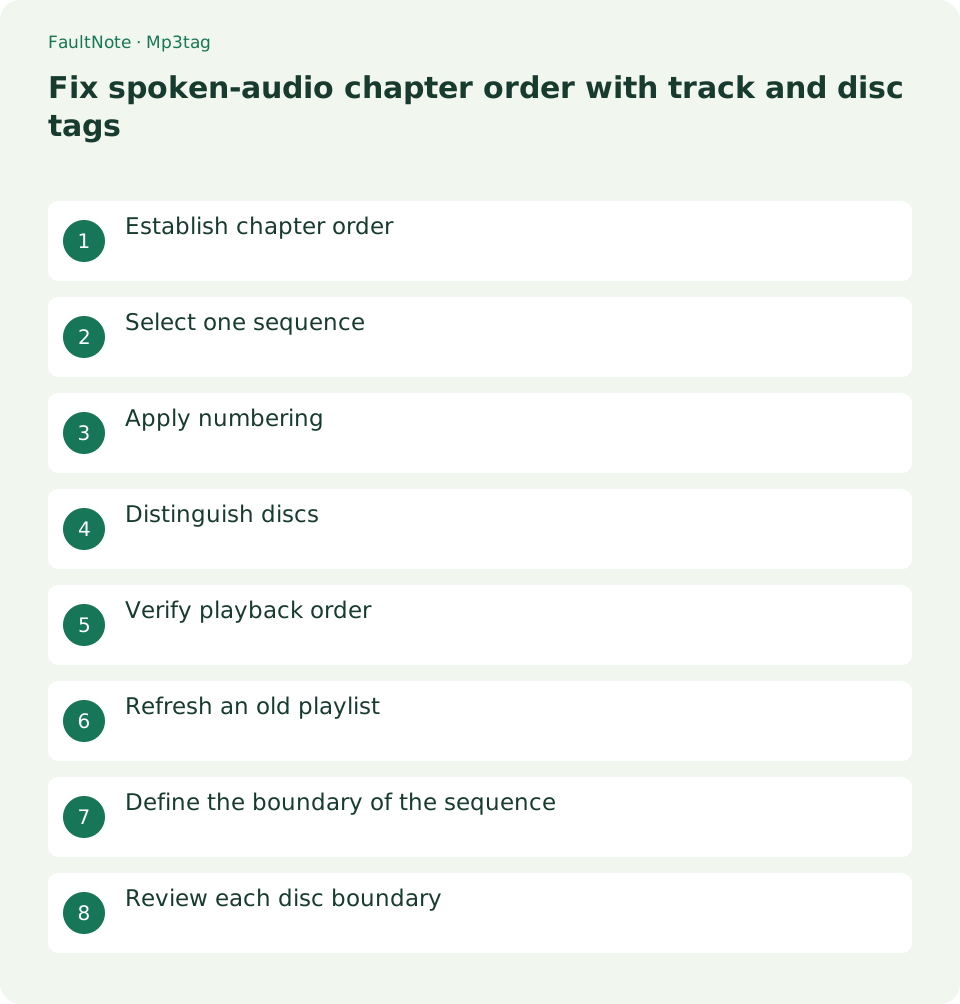
Establish chapter order
Use the supplied contents list. Separate extras and alternate takes from the main sequence; filenames alone are not authoritative. Listen briefly to match numbers with chapter names.
Before editing, make a three-column note of chapter number, title and filename. For Opening, Chapter One, Chapter Two and Ending with a separate Bonus, establish the four main-file matches first. Missing numbers may represent extras or alternate takes rather than missing chapters. Without a contents list, listen briefly and mark uncertain order instead of fixing guesses as fact. Retain the original supplied order for later correction.
Select one sequence
Select the main chapters in a working folder and arrange them in the intended order. Including another release creates an unwanted sequence, so compare the count with the contents list.
Inspect list order before selecting files. If it differs from the contents list, arrange the list or process a smaller disc-specific range. Check for extras before selecting everything, and ensure a 12-chapter selection contains 12 files. A correct starting number does not compensate for incorrect selection order. Try two or three copied tracks first to confirm which file receives each number.
Apply numbering
Open Convert > Auto-numbering wizard or Ctrl+K and start at 1. Save total count if useful, then inspect the first and last Track values.
With start 1 and total 12, some tag formats display 1/12. Keep numeric tagging separate from filename generation rather than copying a slash-containing value directly into a name. Decide whether totals are useful from the player display. Inspect beginning, middle and end to catch accidental multi-release counts, gaps or duplicates. Correct the selection and order before continuing.
- 1. Select main chapters in contents order
- 2. Open auto-numbering with Ctrl+K
- 3. Confirm start and total before applying
- 4. Match numbers and titles at beginning, middle and end
Distinguish discs
Set Discnumber for multi-disc releases. Selecting each disc separately makes restarting Track at 1 easier to review. A player may not infer disc order from folders.
For two discs, select Disc 1 alone, set Discnumber 1 and assign its tracks. Then select Disc 2, set Discnumber 2 and restart Track at 1. Match track totals to each disc if counts differ. Total discs and total tracks are separate; a two-disc release does not have a track total of two. Establish this small manual result before using automated directory-boundary resets.
Verify playback order
Disable shuffle and single-track repeat, then sort by disc and track. Check the first chapter transition and the transition between discs.
Open Chapter One and use Next to verify Chapter Two, then test the disc boundary. When order differs, inspect tag values, sorting columns and shuffle separately. Correct tags can coexist with an old manual playlist order. Compare a new empty playlist containing the same files before removing the earlier list.
Refresh an old playlist
Tags may not reorder an existing manual playlist. Create a fresh tag-sorted list for comparison. Restore originals or reapply numbering in the correct selection order to recover mistakes.
First determine whether only Track is wrong or Title was overwritten too. Reapply numbering in the correct order for track-only errors. If title-to-content matching is unclear, use originals and documentation to review each file. Finish tag repair before renaming files so recovery stays bounded. Record repaired counts and final numbers, and distinguish tracks still awaiting review.
Scroll horizontally to see the full table →
| Result | Next action | Boundary |
|---|---|---|
| Tags mismatch chapter titles | Arrange by contents then renumber | Starting value alone does not fix order |
| Tags correct, manual list wrong | Compare a fresh tag-sorted list | Do not keep changing masters |
| Track repeats across discs | Inspect Disc and Track together | Retain valid multi-disc numbering |
Define the boundary of the sequence
For 12 main chapters and two extras, select only chapters 1 through 12 for the main numbering pass. Extras inserted mid-sequence can interrupt the narrative. If keeping extras in the same album, choose a clear convention such as placing them last. Consult supplied chapter guidance when storefront order differs from narrative order.
Choose a convention for extras: append them, assign a separate disc or use a dedicated playlist. This is a personal organization rule rather than an official replacement for supplied chapter order. Ensure extras do not interrupt main-only listening and alternate takes are not mistaken for continuations. After regrouping, confirm they remain reachable without deleting source files.
Review each disc boundary
For two discs with ten tracks each, verify Disc 1 Track 10 is followed by Disc 2 Track 1. Sorting only by Track can interleave both discs. Display disc numbers or use album, disc and track order. Inspect a few entries around boundaries to catch ordering mistakes quickly.
For a release with Disc 1 tracks 1–10 and Disc 2 tracks 1–8, expect ten first-disc tracks followed by eight second-disc tracks. Repeated Track values are legitimate across discs; inspect the Disc and Track combination. Trial this grouping on another device before copying everything, and retain disc folders if that device handles them more clearly.
Limitations and requirements
- This is guidance rather than a measured result on a particular device. Verify the display and playback in your own setup.
Frequently asked questions
Are 01 and 1 equivalent?
Behavior depends on tag format and display. Numeric tags and padded filenames are separate operations.
Is having two Track 1 entries a duplicate?
It can be correct across discs. Check the Disc and Track combination and sort discs before tracks.
Why is chapter 10 still before chapter 2?
Inspect filename sorting or an old manual list. Compare a new tag-sorted playlist and use filename padding separately if needed.
Should extras be included in total tracks?
Decide whether numbering covers the main sequence or the entire release. Match totals to that range and avoid inserting extras into the narrative.
Sources and verification date
Sources checked: . These sources support the specifications, procedures or prices discussed here. Check each source for applicable conditions and current information.
Related practical guides
- Organize audio album and track titles with Mp3tag
- Create zero-padded audio chapter filenames
- Diagnose garbled audio tags separately from filenames and ID3 encoding
- Check cover-art format and size before embedding it in audio
- Make a portable relative-path M3U playlist and verify it after moving
- Choose FLAC, WAV or MP3 for downloaded audio