Build an ordered spoken-audio playlist in foobar2000
Create a main-chapter playlist and distinguish shuffle from sorting. Check additions, removals and saved order while keeping audio files in stable locations.
Published · Updated · FaultNote editorial policy
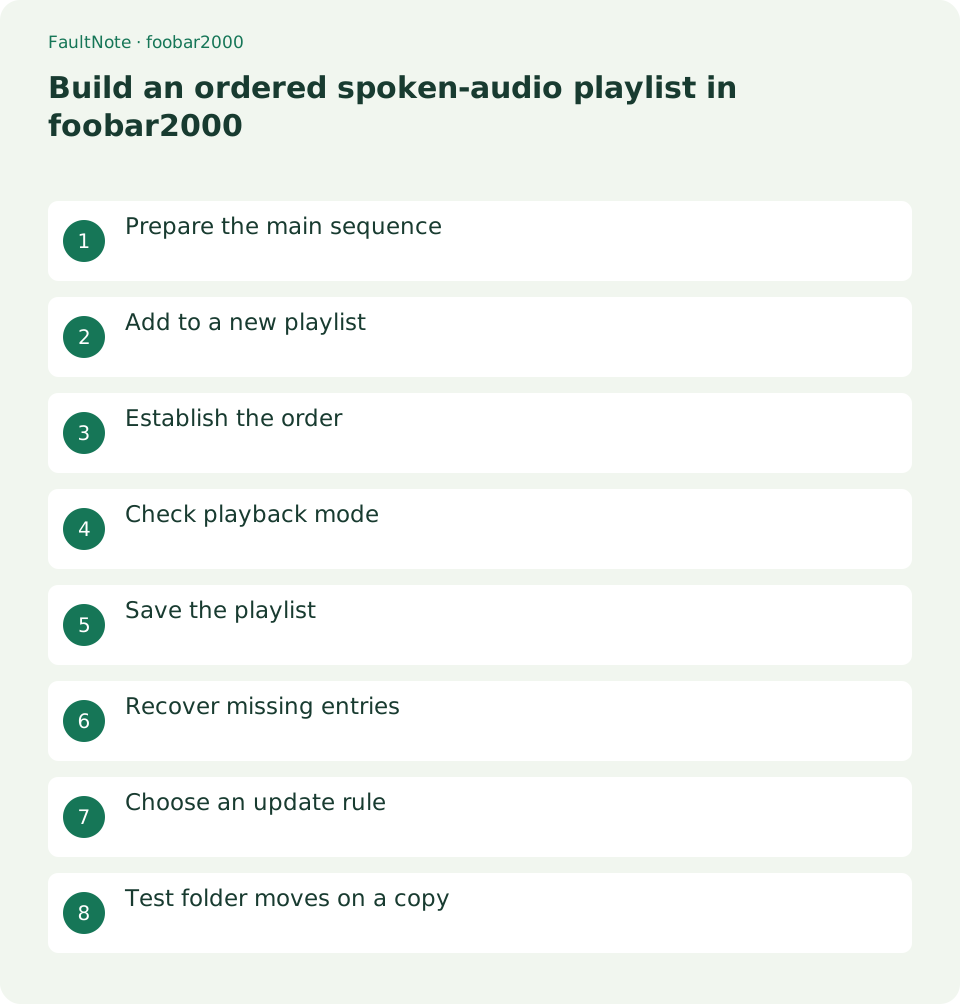
Who this guide is for and what to prepare
- People organizing downloaded music or spoken audio on a PC
What you need
- Keep originals and work on a separate copy. Menu labels vary by language and version.
- Record the release contents, file count and location, distinguishing alternate editions and extras.
Prepare the main sequence
For releases with extras, make the main chapters easy to select. Retain originals and keep listening copies in a stable folder instead of relying on a temporary Downloads location.
An example listening layout uses Main for main chapters and Bonus for extras. This is a copy layout; retain the original distribution structure. Make folder names identify content and check counts before importing. Avoid selecting both MP3 and FLAC editions of the same chapter. Record the backup location separately from the normal playlist source so you can identify which edition is playing.
Add to a new playlist
Create a new playlist and add the intended files. Try two chapters first to ensure they are not being mixed into an existing list. Add the rest and compare the count against the contents list for duplicates.
In the Windows edition, use File > New playlist and give it a descriptive name such as Main. Use File > Add files... to add intended files and inspect the count. Trial Intro and Chapter One first, checking that an existing playlist was not replaced. Add the remainder only after confirming the new list. Overlapping selections can add the same chapter twice, so distinguish duplicate entries from duplicate physical files.
Establish the order
Order by track and disc tags. If tags are absent, compare filenames with the contents list and arrange entries manually. Check that an alphabetical sort has not placed chapter 10 before chapter 2.
For 01 Intro, 02 Chapter One, 03 Chapter Two and 04 Ending, verify Track 1–4 even when titles omit prefixes. Group multiple discs by Disc before Track. Sorting by another column can alter a manually arranged list. Record the intended order before saving so you can compare the reopened list against it rather than relying on appearance alone.
- 1. Compare contents and playlist counts
- 2. Inspect chapter order by Disc then Track
- 3. Separate extras from the main sequence
- 4. Test Next and disc boundaries
Check playback mode
Use normal playback order and disable shuffle and single-track repeat. Correct list order does not override playback mode. Check the first two chapters and confirm Next reaches the intended entry.
Inspect the playing entry and its successor after selecting normal order. Single-track repeat can look like a chapter-order problem, while shuffle ignores sequential expectations. Distinguish manually pressing Next from letting a chapter finish naturally, especially with silent endings. When seeking near the end, verify chapter and filename so a mid-dialogue snippet is not mistaken for another entry.
Save the playlist
Use the File playlist-save command and choose a recognizable name. A playlist normally contains references rather than copies of audio. Close the app, reopen the saved list and check its count, beginning and ending.
Use names such as Release-main and Release-continue. Save through File > Save playlist... and inspect destination and format. Decide whether the list will return to this player or be opened elsewhere before choosing a format. Reopen the saved file to verify count and order. Do not assume it includes audio: back up both the playlist and referenced folders. Test interoperability in the actual destination app.
Recover missing entries
After moving files, reload them from their new location. Distinguish removing playlist entries from deleting files on disk and read confirmation prompts. Save the repaired list and label the old edition clearly.
Remove selected entries from the playlist rather than deleting source files. If a confirmation targets files on disk, cancel and use the intended playlist operation. For moved audio, retain the old list while building one from the new location. Verify every entry is reachable before adopting it as the current version. Finish saving and reopening before further folder renames obscure references.
Scroll horizontally to see the full table →
| Result | Next action | Boundary |
|---|---|---|
| Chapters advance randomly | Inspect shuffle | Do not repeatedly reorder the list |
| One chapter repeats | Inspect single-track repeat | Separate duplicates from mode |
| Entries fail after moving | Rebuild at the new location | Inspect apparent success via original paths |
Choose an update rule
Keep a canonical full-sequence playlist and a separate continuing-listening list for long releases. Remove completed chapters only from the latter. Record chapter and time before quitting instead of relying entirely on automatic position persistence; those notes also permit resuming on another PC.
Before removing completed chapters from the continuing list, record release, chapter and time, such as Chapter Five at 12:30. Time alone is ambiguous across chapters. Automatic position state may not transfer to another PC or player. Manage progress through the list and notes without cutting files or changing playback speed. Resume slightly earlier to restore context.
Test folder moves on a copy
Before moving a library, copy one playlist and its audio to the destination. An absolute reference to the original PC can conceal portability problems while that source remains available. Inspect the destination audio location and create a fresh playlist there if needed. A saved playlist is not an audio backup.
When testing a copied playlist, inspect the playing file location; a successful open may still reference the original folder. Copy audio as well for another PC and reopen the list there. Rebuild the list at the destination if references fail. There is no need to delete the original PC files as a test. Record location, count and boundary titles to distinguish saved versions.
Limitations and requirements
- This is guidance rather than a measured result on a particular device. Verify the display and playback in your own setup.
Frequently asked questions
Will sharing a playlist work on another PC?
The audio and valid references are needed too. Reopen the list at the destination to verify.
Why does Next not follow the correctly ordered list?
Check shuffle and single-track repeat. Compare manual Next with natural end transitions to separate playback mode from silent endings.
Is saving a playlist sufficient as a backup?
It normally stores references, so audio is needed too. Save both and verify reopening at the recovery destination.
Does removing an entry delete its audio?
It depends on the operation. Distinguish playlist removal from disk deletion and inspect any deletion confirmation.
Sources and verification date
Sources checked: . These sources support the specifications, procedures or prices discussed here. Check each source for applicable conditions and current information.
Related practical guides
- Use ReplayGain for spoken audio while preserving contrasts within a work
- Play chapters from a long audio file and CUE sheet
- Convert a lossless source to a separate portable-player copy
- Choose FLAC, WAV or MP3 for downloaded audio
- Organize audio album and track titles with Mp3tag
- Fix spoken-audio chapter order with track and disc tags