Use voice typing in Google Docs
This is a procedure for inputting text from the microphone and using the keyboard to add punctuation and corrections. We will explain in detail the starting position, setting values, completion confirmation, and how to review in case of problems.
Published · Updated · FaultNote editorial policy
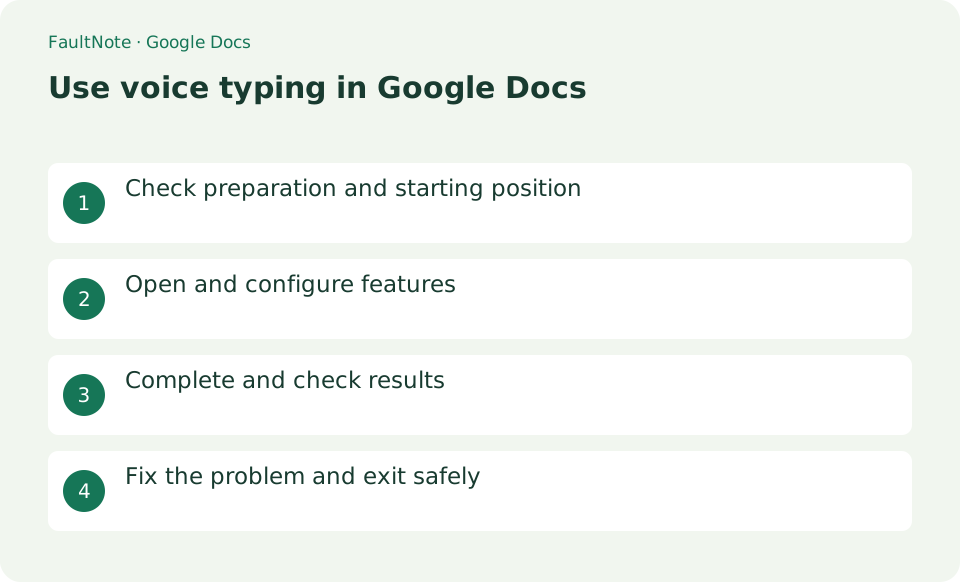
Who this guide is for and what to prepare
- First-time users of Google Docs
- People who want to safely check voice input operations in Google Docs
What you need
- Open a Google document in Chrome and allow the microphone to be used by the OS and browser.
Check the document, insertion point, and microphone
Open a Google document in Chrome and allow the microphone to be used by the OS and browser.
Choose the dictation language and start
In the document, select [Tools] > [Voice typing]. Choose [Japanese] at the top of the microphone panel, then click the microphone icon.
Check the display as you are typing and say clearly, ``I have a meeting at 3:00 pm next Tuesday.'' When finished, press the microphone again to stop.
- Open Voice typing from Tools and choose the language
- Start the microphone, speak one sentence, and stop
Proofread names and numbers and check saving
Read back the input sentence and use the keyboard to correct proper nouns, numbers, punctuation, and line breaks. Give the document a name and confirm that the automatic save is complete.
- Correct names and numbers and check save status
Correct recognition and permission issues
If it doesn't respond, enable the correct microphone using the permissions icon in the address bar and reload the page.
Do not enter conversations around you or confidential information. The response to voice commands differs depending on the language, so be sure to visually correct any mistranslations in Japanese.
- Inspect microphone permissions and the input device
Match the microphone and language with a short draft
Dictate a short sentence into a practice document and compare the words spoken with the result. If they are recognized as a different language, inspect the dictation language; if nothing appears, inspect operating-system and browser microphone permissions. Keep the microphone distance consistent and reduce nearby conversation or television audio. Verify the insertion point and recognition with a short trial before dictating a long confidential document.
For draft meeting notes, dictate one decision per paragraph, stop, and verify its owner and deadline. Correct recognition before the next item. Even accurate dictation still requires editing to distinguish actual decisions from suggestions.
Separate drafting from proofreading
Speak one paragraph at a time, stop input, and correct names, dates, amounts, and negation. A mistaken negative can reverse the meaning even when the sentence looks fluent. Insert punctuation and paragraph breaks with the keyboard when voice commands do not work as expected. Begin with your own dictated draft rather than assuming this feature will accurately transcribe an existing multi-speaker recording.
Check microphone and save status when finished
Stop the microphone when dictation ends and confirm that further conversation is not being inserted. Undo can reverse a recent mistake, but inspect the affected text before undoing a large input block. Review headings, paragraphs, and numbers and check the document save status. If you no longer want the site to have microphone access, review its permission setting separately.
Scroll horizontally to see the full table →
| Observed result | Next action | Success condition |
|---|---|---|
| No text appears | Check OS and browser microphone permissions | A short sentence is inserted |
| Words appear in another language | Review the selected input language | The result matches the spoken language |
| Numbers or names are wrong | Stop and proofread with keyboard corrections | The draft matches the original information |
Limitations and requirements
- Do not enter conversations around you or confidential information. The response to voice commands differs depending on the language, so be sure to visually correct any mistranslations in Japanese.
Frequently asked questions
What if you can't find the item you want in Google Docs?
If it doesn't respond, enable the correct microphone using the permissions icon in the address bar and reload the page.
What should I be especially careful about when using voice input in Google Docs?
Do not enter conversations around you or confidential information. The response to voice commands differs depending on the language, so be sure to visually correct any mistranslations in Japanese.
Can I import an existing recording?
This workflow dictates microphone speech into a document. It is different from importing a recording for transcription. Routing playback through a microphone can introduce recognition errors and other sounds; choose a transcription workflow suited to the recording.
Can voice commands edit the document?
Check supported languages and command requirements in official help. If a command becomes body text, stop input and correct it with the keyboard. Verify dictation results before assuming every editing operation is available through speech.
Sources and verification date
Sources checked: . These sources support the specifications, procedures or prices discussed here. Check each source for applicable conditions and current information.