Use Google Drive files offline
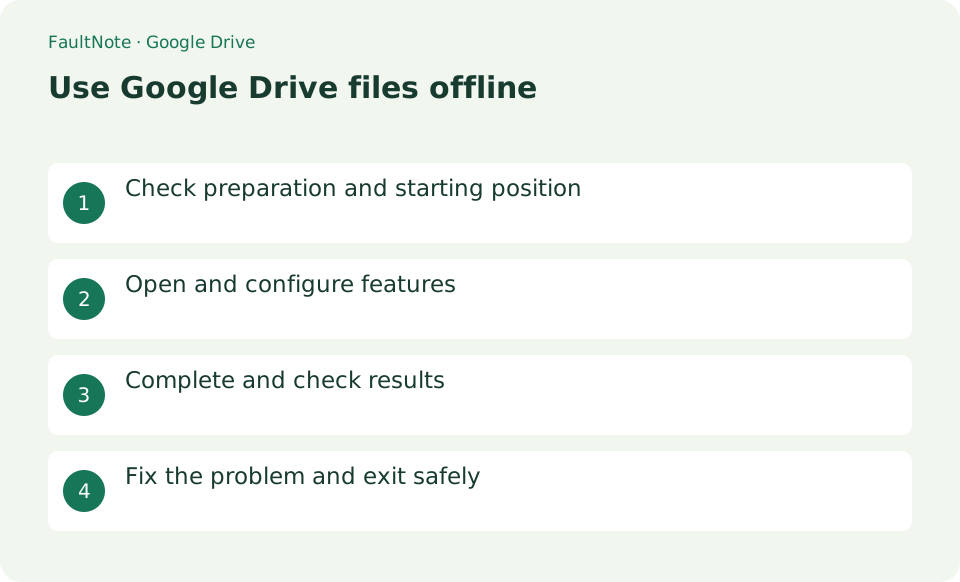
These are the steps to prepare to open Docs, Sheets, and Slides in a compatible browser without communication. We will explain in detail the starting position, setting values, completion confirmation, and how to review in case of problems.
Published · Updated · FaultNote editorial policy
Who this guide is for and what to prepare
- First-time users of Google Drive
- People who want to safely check the operation of using Google Drive files offline
What you need
- Prepare Chrome or Edge, enough free space, and a device that only you will use.
Check the browser and account requirements
Prepare Chrome or Edge, enough free space, and a device that only you will use.
Prepare the required documents for offline use
Go to drive.google.com gear > Settings and turn on Offline. Install the official Google Docs offline extension if asked.
Right-click the Google Doc, Sheet, or Slide you need in the list and turn on [Available offline]. Wait until the ready status icon.
- Enable offline access in Drive settings
- Make the required Google documents available offline
Open the contents during an offline trial
Disconnect from the internet, open the target from drive.google.com, and save a short postscript. After reconnecting, wait for synchronization to complete and check the additions from another terminal.
- Open their contents during a planned offline check
Review synchronization and versions afterward
If the settings do not appear, check the supported browsers, normal windows, conflicts between multiple accounts, and organizational policies.
Offline data remains on the device, so do not enable it on a shared PC. Non-Google formats such as Office documents may require Drive for desktop.
- Inspect edits and save status after reconnecting
Verify the actual files before traveling
While online, make the required documents available offline and inspect their status. A visible title in the file list does not prove that the content is prepared locally. During a planned short offline check, open the document and inspect the pages or sheets you need. Avoid interrupting another network-dependent task, and reconnect afterward to confirm that any changes have been saved.
For travel, prepare only the itinerary, contacts, and presentation material needed. Open each while connected, test offline access, and distinguish viewing from editing. After returning, verify synchronization before removing copies that are no longer needed.
Distinguish Google documents from ordinary files
Separate browser offline support for Docs, Sheets, and Slides from storing PDFs or Office files locally. For ordinary files, consider Drive for desktop offline availability or a download and verify that an appropriate application can open them. Changes to a downloaded copy do not necessarily update the original. Name the copy and choose its location deliberately, then decide which version to retain after reconnecting.
Review synchronization and versions after reconnecting
After reconnecting, open the document and check its save status and edits before shutting down. If collaborators changed it while you were offline, reread the headings, figures, and other areas you touched. Use version history when needed instead of replacing the entire document with an older local copy. On a shared device, review local data retention once offline access is no longer required.
Scroll horizontally to see the full table →
| Observed result | Next action | Success condition |
|---|---|---|
| Only the listing appears | Prepare the content again while connected | Required pages open after disconnection |
| An ordinary file needs editing | Check local storage and a compatible application | Its location and update workflow are known |
| Content differs after reconnecting | Inspect save status and version history | The retained version and edits are understood |
Limitations and requirements
- Offline data remains on the device, so do not enable it on a shared PC. Non-Google formats such as Office documents may require Drive for desktop.
Frequently asked questions
What if you can't find the item you want on Google Drive?
If the settings do not appear, check the supported browsers, normal windows, conflicts between multiple accounts, and organizational policies.
What should I be especially careful about when using Google Drive files offline?
Offline data remains on the device, so do not enable it on a shared PC. Non-Google formats such as Office documents may require Drive for desktop.
Can I use a private browsing window?
Configure browser offline access in a supported normal browsing environment. If private browsing or organization policy prevents it, check whether an approved normal environment is available rather than copying confidential documents to another account.
How early should files be prepared?
Allow enough time to select files, finish synchronization, and test offline opening. Duration depends on storage and connection speed; judge readiness by the verified result rather than a fixed waiting period.
Sources and verification date
Sources checked: . These sources support the specifications, procedures or prices discussed here. Check each source for applicable conditions and current information.
Related practical guides
- OneDrive vs Google Drive: Choosing the Right Workflow
- Google Drive Streaming vs Mirroring: Storage and Offline Access
- Should the second SSD be a Dev Drive? What can only be decided at format time, and what it trades away
- Separate work and personal profiles in Chrome
- Use voice typing in Google Docs
- Create a personal filter view in Google Sheets