Clone your first repository with GitHub Desktop
This is the procedure for replicating a remote repository to a local folder after browser authentication. We will explain in detail the starting position, setting values, completion confirmation, and how to review in case of problems.
Published · Updated · FaultNote editorial policy
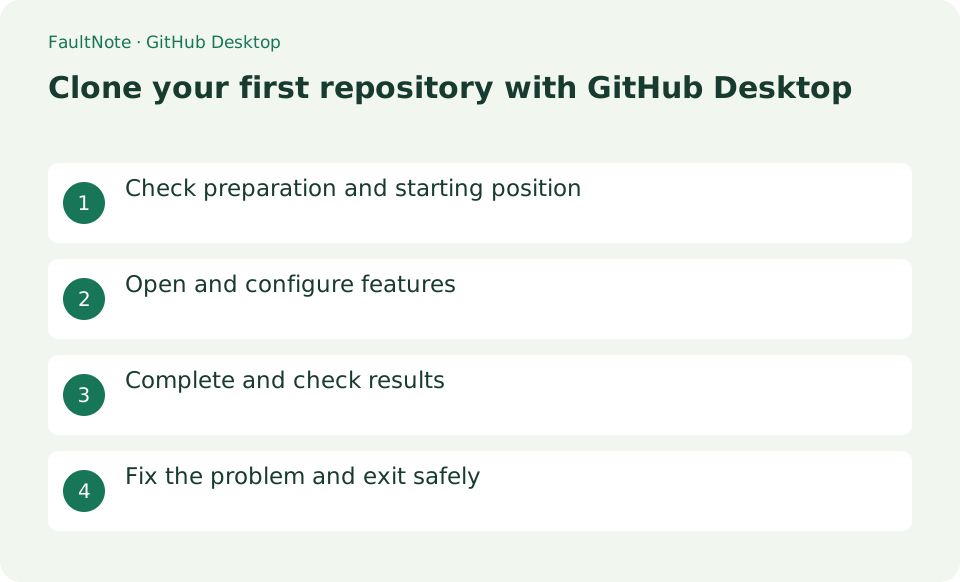
Who this guide is for and what to prepare
- First-time users of GitHub Desktop
- People who want to safely confirm the operation of cloning a repository for the first time on GitHub Desktop
What you need
- Prepare a GitHub account, a repository you have access to, and an empty parent folder.
Check the account and target repository
Prepare a GitHub account, a repository you have access to, and an empty parent folder.
Choose an empty local destination for cloning
Sign in to GitHub.com from File > Options > Accounts on GitHub Desktop and complete browser authentication.
Search for and select the target in [File] > [Clone repository] > [GitHub.com]. Specify the location for the new dedicated folder in [Local path] and press [Clone].
- Choose the owner and repository in Clone
- Select a local destination without existing work
Inspect the README and current branch
Open the file with Repository > Show in Explorer and match the remote name with View on GitHub. Check if the current branch is also the default branch.
- Inspect the README and current branch
Separate access errors from local changes
If it is not listed, check the permissions on GitHub, organization SSO authorization, and login destination. You can also specify the exact URL from the URL tab.
Do not select an existing non-empty folder as the local path. There is no need to press Publish repository immediately after Clone, and secret information will not be committed.
- Compare repository access and the signed-in account
Decide between cloning and forking
Clone creates a local copy for reading or working on your computer. Consider a fork when proposing changes to someone else project requires your own remote copy. Cloning does not create a separate GitHub repository. Check the owner and repository name to avoid a similarly named project, and confirm that the selected account has access when the repository is private.
For reading course material, start by opening its README and assigned files after cloning. Prepare the runtime only when execution is needed. Check the branch before editing and read the diff afterward. Verify retrieval, execution, and submission as separate outcomes.
Inspect the README and current branch after cloning
After cloning, open the folder and read the README and setup requirements. Having the repository locally does not mean the application is ready to run; dependencies or configuration may still be needed. Check the current branch in GitHub Desktop before editing. Inspect external scripts before running them and keep configuration containing secrets out of shared locations.
Verify local changes with a small practice edit
In your own practice repository, add one line to the README and check that only the intended file appears in Changes. Read the diff for unintended settings or generated files. A commit records local history; pushing sends it to the remote in a separate operation. If reverting the practice edit, inspect and revert that specific diff rather than discarding unrelated uncommitted work.
Scroll horizontally to see the full table →
| Observed result | Next action | Success condition |
|---|---|---|
| The repository is not listed | Inspect the account and repository access | The correct owner and name can be selected |
| The destination is unsuitable | Choose a new location without existing work | Cloning preserves unrelated files |
| The application does not run | Inspect README dependencies and setup | Cloning and runtime preparation are distinguished |
Limitations and requirements
- Do not select an existing non-empty folder as the local path. There is no need to press Publish repository immediately after Clone, and secret information will not be committed.
Frequently asked questions
What if you can't find the item you want on GitHub Desktop?
If it is not listed, check the permissions on GitHub, organization SSO authorization, and login destination. You can also specify the exact URL from the URL tab.
What should I be especially careful about when cloning a repository for the first time on GitHub Desktop?
Do not select an existing non-empty folder as the local path. There is no need to press Publish repository immediately after Clone, and secret information will not be committed.
Does cloning automatically publish a repository?
It retrieves a local copy rather than creating a new public repository. Publish, Push, and Fork are distinct operations. For private material, also inspect local-folder sharing and do not use publishing as a test.
What if changes appear immediately after cloning?
Inspect each file and diff for generated settings or line-ending changes. Do not commit everything without understanding it. Separate required edits from generated output and preserve unrelated work when reverting anything.
Sources and verification date
Sources checked: . These sources support the specifications, procedures or prices discussed here. Check each source for applicable conditions and current information.
Related practical guides
- Windows 11: Organize Your Work with Multiple Virtual Desktops
- PowerToys for Windows: Essential Productivity Tools
- Thunderbird: Manage Multiple Email Accounts in One App
- Firefox: Use Containers and Reader View
- Rufus: Create a Bootable USB from an Official ISO
- When Smart App Control blocks an app: there is no per-app exception to find