Fix GitHub Desktop Authentication failed or Bad credentials
What to do first
Classify GitHub Desktop authentication failures from logs, then check browser sign-in, remotes, permissions, and SSH keys. Separate Fetch from Push while retaining local work.
This is a general troubleshooting guide, not an announcement of a current outage.
Affected products and symptoms
- Product
- GitHub Desktop
- Versions and conditions
- GitHub Desktop for Windows and macOS
- Error codes and identifiers
- Bad credentialsempty tokenRepository not found
Symptoms
- Push or clone authentication fails
- Logs show Bad credentials or empty token
Causes and conditions
Reauthenticate in the browser and use logs to distinguish credential failure from repository permission.
Before you start
- Before changes, record and preserve the day’s GitHub Desktop log, remote URL, and browser access result.
- Change one item at a time and record the original symptom after each stage.
Precautions
- Do not bulk-delete unrelated settings or data.
- Exclude personal data and credentials; share only the necessary parts of the day’s GitHub Desktop log, remote URL, and browser access result.
Tools and official pages used in this guide
Check the official page for exact setting names, limitations, and updated decision paths.
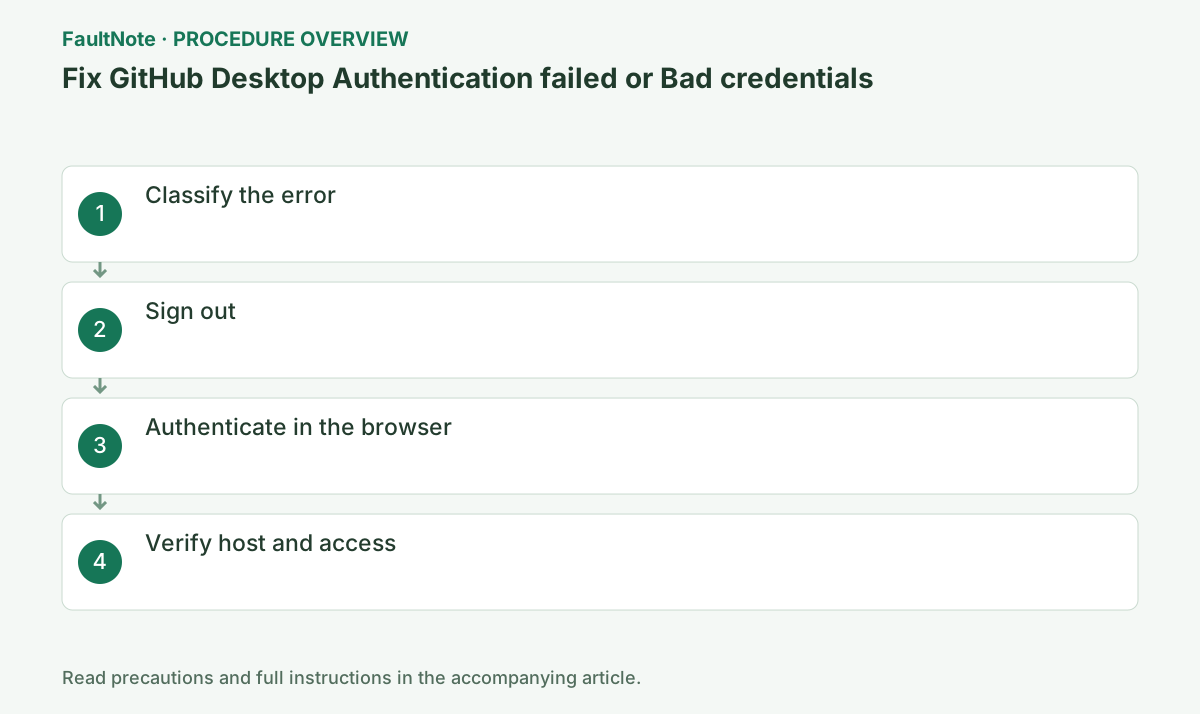
Step-by-step instructions
Open Help > Show Logs in Explorer/Finder and inspect the log for that date.
Repository not found can mean access loss, rename, or deletion rather than damaged credentials.
Bad credentials and empty token justify re-sign-in; repeating it cannot grant permission for Repository not found.
Select the repository, open Repository > Repository settings > Remote and record the URL, then use Help > Show Logs in Explorer/Finder.
Complete sign-out, browser authentication, authorization, and return to Desktop. Verify the browser user; another account can authenticate successfully without access to the needed private repository.
Use File > Options > Accounts on Windows or GitHub Desktop > Settings > Accounts on macOS.
Uncommitted working-tree changes remain, but save work first.
When the browser asks to return to Desktop, verify the legitimate github.com or Enterprise host.
For Enterprise, verify the company server URL and account separately from GitHub.com. Follow organizational requirements and never embed or share passwords and tokens in remote URLs.
Choose Sign Into and Continue With Browser, then finish GitHub sign-in and 2FA.
GitHub Desktop does not support direct username/password authentication.
For SAML SSO organizations, finish organization authorization in the browser; account login alone may not grant repository access.
If Fetch works but Push fails, inspect write permissions and branch rules before clearing credentials. Keep unpushed commits and use an allowed contribution branch where required.
Confirm GitHub.com versus Enterprise and open the repository in the browser.
An SSH remote needs a valid key or a change to HTTPS.
Check Repository > Repository settings > Remote. Desktop HTTPS and SSH-form submodules use different authentication paths.
Official links for this step
- Official GitHub Desktop troubleshooting
Check the official page for exact setting names, limitations, and updated decision paths.
- Official GitHub Desktop troubleshooting
Open the log for the failure date through Help > Show Logs in Explorer. Distinguish Bad credentials, Repository not found, and Permission denied (publickey); a generic failure dialog does not identify stored credentials, permissions, or SSH keys.
Check whether the repository remote uses HTTPS or SSH. Browser sign-in does not prove an SSH key works, and signing into Desktop again may leave an SSH problem unresolved.
For Repository not found, test access in the browser with the same account. A rename, deletion, or permission change can explain the result, so verify the URL and owner before repeatedly replacing credentials.
After browser authentication returns to Desktop, check the account and try Fetch origin. Fetch access does not prove write access; if only pushing fails, read the permission or branch-protection error.
Remove tokens, private repository names, and personal paths before sharing logs. Reauthentication does not require deleting your local repository; retain unpushed commits and working files.
Check the result
- fetch, push a small commit, and confirm Desktop does not prompt again after restart
- Check adjacent basic functions for side effects from the change.
If the problem continues
- ask the owner about Repository not found access, or follow organization key enrollment for SSH publickey errors
- When continuing with a workaround, preserve original files or account data separately.
Scope of this guide
Troubleshooting guide — Classify GitHub Desktop authentication failures from logs, then check browser sign-in, remotes, permissions, and SSH keys. Separate Fetch from Push while retaining local work.
Frequently asked questions
Should I enter a PAT as a Desktop password?
Use Continue With Browser for normal Desktop authentication.
Will re-login fix Repository not found?
Not if access was removed or the repository was renamed; contact its owner.
Does signing in again remove local changes?
Reauthentication does not delete the repository. Check edits and unpushed commits, and avoid unrelated discard operations. Discard Changes or folder deletion is unnecessary.
The browser opens the repository, but Push fails.
Read and write permissions differ. Read branch-rule or organization errors, and distinguish HTTPS from SSH: browser sign-in does not validate SSH keys.
Official sources and dates
Source publication or resolution date: Not specified. Sources checked: 2026-10-13. The check date is not the date the problem first occurred. Interface labels can vary between versions and display languages.