Save selected PDF pages with Microsoft Print to PDF
This is a free method using Windows 11 standard Microsoft Print to PDF. Open the PDF in a printable app and output a range like 3,5-7 to a new PDF. Since this method reprints the appearance, document functionality is not retained.
Published · Updated · FaultNote editorial policy
Who this guide is for and what to prepare
- People who want to create excerpt PDFs for viewing without additional software
What you need
- Keep the original PDF and check the physical page number you want to extract
Extract three required submission pages
For pages 3 through 5 of a ten-page document, record the heading on physical page 3 and the last item on page 5. Select the PDF printer, enter the range and confirm its first preview page. Check that All pages is not still selected.
Save under a different name and location. Verify three output pages in the intended order, including landscape orientation and page edges. For noncontiguous ranges, verify both supported syntax and actual output order in preview.
If the recipient needs fields or signatures, assess the output against those requirements. Decide whether a reading excerpt is sufficient or whether an extraction method preserving required functionality is needed.
Confirm you selected a PDF output device rather than a physical printer. If no save dialog appears, inspect the selected device and result before repeating the operation.
Name multiple excerpts using the source and range. Before attaching them, verify page counts so a complete source document is not mistaken for the requested excerpt.
- Record the headings at both endpoints
- Confirm the selected range in preview
- Save under a new name
- Check count, order and orientation
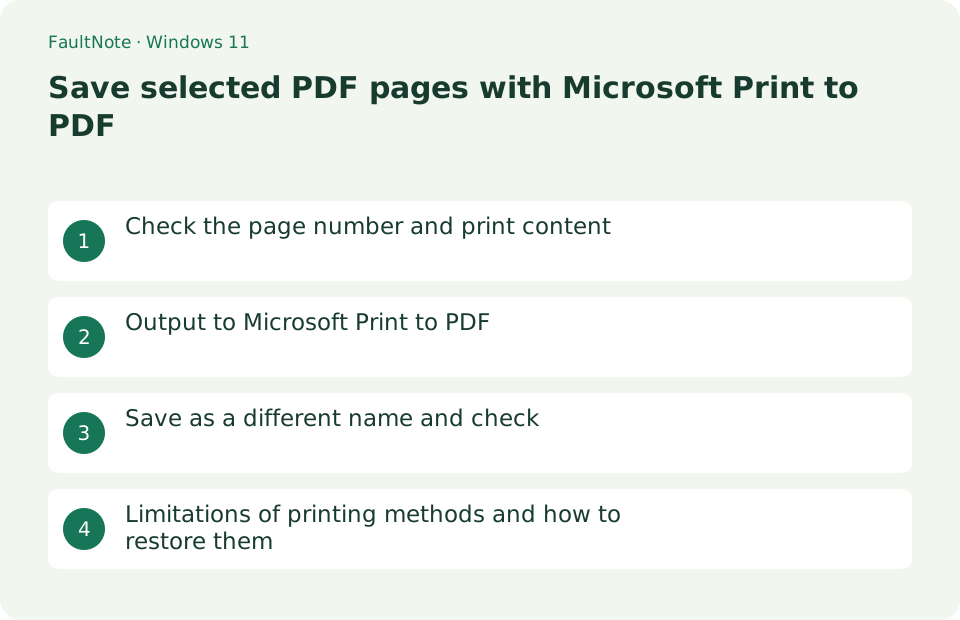
Check the page number and print content
Open the PDF in Edge or Adobe Acrobat Reader and check the thumbnails and print preview to see which pages you need. Since the booklet display number and the physical page number on the PDF may be different, record it as pages 3, 5 to 7 of the PDF as an example.
- Open PDF
- Check required pages with thumbnails
- Open print preview
Output to Microsoft Print to PDF
Press Ctrl+P, select [Microsoft Print to PDF] for the printer. Enter "3,5-7" in the page field, check that the preview is 4 pages long, check that the paper size and orientation are as intended, and then press [Print].
- Choose Microsoft Print to PDF
- Enter 3,5-7
- Print after previewing
Save as a different name and check
Specify the destination and name, such as extract-pages-3-5-7.pdf. Open the completed PDF and check if the order is equivalent to 3, 5, 6, 7 on page 4, and if any text or images are missing. The original PDF remains unchanged.
- Save with a different name than the original PDF
- Open completed PDF
- Match page numbers and order
Limitations of printing methods and how to restore them
This method prints the page appearance to a new PDF. Accessibility information such as annotations, fillable forms, digital signatures, attachments, bookmarks, tags, and reading order are not saved. If you need these, keep the original PDF and use the page extraction function of compatible PDF editing software. Close and delete the failed work and start over from the original PDF.
- Determine whether the necessary functions remain
- Switch to a dedicated extraction function if necessary
- Rerun from original PDF
Match printed labels to physical page positions
A PDF with a cover or Roman-numbered introduction can place printed page 1 at the third physical page. Use thumbnails and the print preview to identify the range. Applications can interpret page labels differently, so verify with a one-page output.
For physical pages 3 through 5, check that the resulting PDF has three pages and the intended first and last content. Include the range in the output name to distinguish it from the original.
- Find physical positions using thumbnails
- Try a one-page output
- Check the result count and endpoints
Decide whether printing is sufficient
Printing may not preserve bookmarks, interactive fields or signatures in their original form. It can suit a reading excerpt, but a form or signed submission needs a method compatible with the recipient requirements.
If text shrinks, check for multiple pages per sheet and match the paper size and orientation. Inspect readability and selectable text in the new PDF; page selection alone does not guarantee unchanged sizing.
- Check whether forms or signatures are required
- Inspect pages-per-sheet settings
- Review text and layout in the new PDF
Choose the next action from the result
Scroll horizontally to see the full table →
| State | Interpretation | Next check |
|---|---|---|
| Same page count as the original | All pages may have been selected | Recheck range and preview |
| Requested page is off by one | Printed labels differ from positions | Count physical positions in thumbnails |
| Landscape page is clipped | Paper or orientation mismatch | Check orientation and edges in preview |
Limitations and requirements
- It cannot be used to maintain the validity of electronic signatures, form input, annotations, or accessibility structures.
- Check if sensitive pages are included in preview or output
Frequently asked questions
Microsoft Print to PDF is not listed.
Check whether Microsoft Print to PDF is enabled in Windows Settings > System > Optional Features or Windows features.
Even if you enter 3,5-7, it will return all pages.
Enter the page number in the app-specific [Page] or [Custom] field and check the number of pages displayed before printing.
Can I overwrite the source PDF?
Keep the original and save the excerpt separately; a partial output cannot reconstruct the complete source.
The excerpt has no bookmarks
Printing may not preserve original bookmarks. If bookmarks matter, use an extraction workflow that supports the required functions.
Sources and verification date
Sources checked: . These sources support the specifications, procedures or prices discussed here. Check each source for applicable conditions and current information.
Related practical guides
- Windows 11 Home vs Pro: When Is the Upgrade Worth It?
- Will your old printer work on Windows 11? Microsoft's printer-driver end-of-servicing dates, and what the IPP class driver covers
- Back Up Files with Windows 11 File History and Test a Restore
- Move Files to a New Windows PC with an External Drive
- Copy Large Folders with Robocopy: Preview, Resume and Check Results
- Set default players for MP3, FLAC and WAV in Windows 11