Windows 11: Work Faster with Essential Keyboard Shortcuts
Memorize Windows shortcuts for different purposes to speed up operations. First, try Win+E (Explorer), Win+I (Settings), Win+A (Quick Settings), and Win+N (Notifications/Calendar) one by one. For text input, try Win+V (clipboard history), Win+. (emoji, etc.), and Win+H (Voice typing) in the corresponding input field.
Published · Updated · FaultNote editorial policy
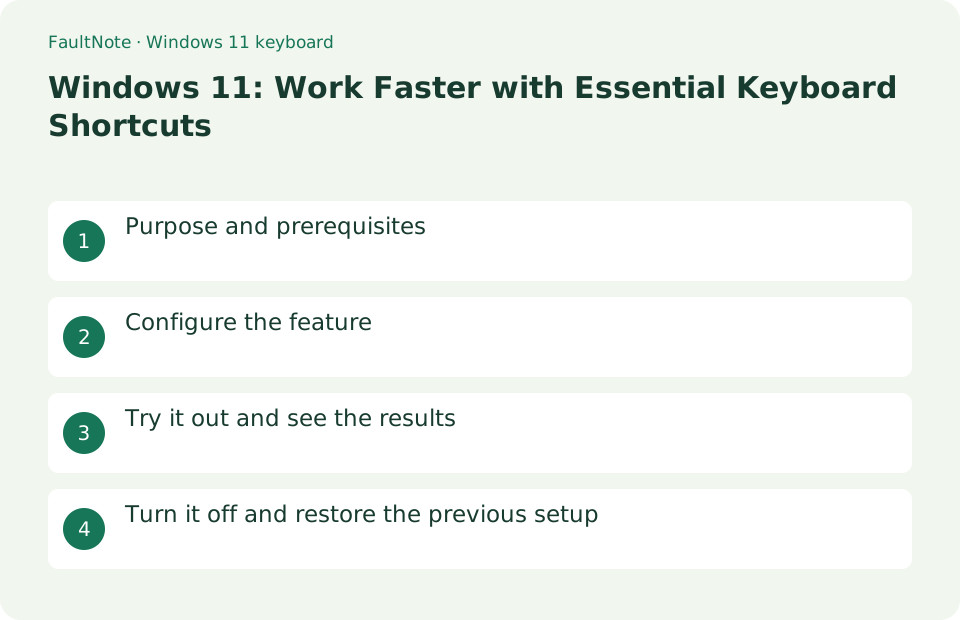
Who this guide is for and what to prepare
- Users who want to streamline daily operations with Windows 11
- Users who want to try out the feature in a way that allows them to restore the settings.
What you need
- Save the file you are working on and try it with test data that does not include personal information.
- The official list includes U.S. layout standards, and operations may differ depending on keyboard layout and app. Do not try Alt+F4 or delete keys on unsaved work.
Choose a practical workflow
Practice a small everyday sequence with the keyboard. Start with Windows window actions before application-specific keys. Do not include closing unsaved documents or deleting files in the exercise. If a key seems ineffective, inspect the active window before retrying. The focused field and application can change its meaning, so observe each result before continuing.
Configure the feature
- First, try Win+E (Explorer), Win+I (Settings), Win+A (Quick Settings), and Win+N (Notifications/Calendar) one by one.
Worked example: open a reference, return to editing and lock
- Save practice text in Notepad and open File Explorer with Win+E. Navigate to the saved folder and inspect the filename.
- Hold Alt and press Tab to show window choices. Advance to Notepad with Tab and release Alt to return to editing.
- Use Win+D to show the desktop and press it again to return. Confirm the windows were not quit.
- Before leaving, confirm the save and press Win+L. Sign in normally when returning and continue in the existing document.
Try it out and see the results
For window operations, use Win+Z (snap), Win+Tab (task view), Alt+Tab (switch), and Win+D (desktop display), and check the return behavior. For text input, try Win+V (clipboard history), Win+. (emoji, etc.), and Win+H (Voice typing) in the corresponding input field.
At first, incorporate just three things into your daily operations: Win+E, Win+I, and Alt+Tab. Alt+Tab: Hold down Alt and press Tab to send candidates, then release Alt in the desired window to switch. Win+D will display the desktop, and pressing it again will return you to the original window display. When using Ctrl+C or Ctrl+V in an input field, check the selected character and cursor position before executing it.
Practice three daily actions and release timing
Use Win+E for folders, Alt+Tab for switching applications and Win+L when leaving your seat. Repeat them in the same task context for several days instead of memorizing an entire list. Avoid practicing keys that close unsaved work.
Practice both pressing order and release timing. In Alt+Tab, hold Alt while advancing with Tab and release at the intended window. Releasing both repeatedly can switch only between recent windows instead of progressing through choices. Inspect names and previews and verify the destination document before typing.
Review layout, application and remote-session differences
Try it in Notepad or on the desktop to see whether only one application is affected. Check application help for custom key assignments. If several Windows-key shortcuts fail together, review keyboard features such as gaming mode.
Symbol-key positions vary by layout; compare official notation with the physical keyboard. Laptop function keys can require Fn. Do not repeatedly press an ineffective key without checking focus and hardware settings. During remote access, also inspect whether shortcuts are sent to the local PC or remote session.
Add shortcuts by purpose and learn reversal actions
Check Esc for dismissing a selection or menu and Ctrl+Z for undoing edits in a supporting app. Ctrl+Z is not a guarantee that every action is reversible. Before deletion or overwriting, verify the target name and saved state even when the shortcut is familiar.
Add shortcuts gradually by purpose: copy and paste for editing, Snap for arrangement and Win+I for settings. Attach expected results and reversal actions to a personal reference list. Faster operation also makes mistakes happen faster, so retain checks of recipients and filenames before sending, deleting or overwriting.
Check ineffective keys in order
Scroll horizontally to see the full table →
| Observed result | First check | Next action |
|---|---|---|
| Only one application is affected | Review its help | Inspect custom assignments and the focused field. |
| Several Windows-key operations fail | Inspect keyboard settings | Check gaming mode or key-disable settings. |
| Text enters the wrong window | Select the target again with Alt+Tab | Check the foreground window and cursor before typing again. |
Turn it off and restore the previous setup
Use Esc to close functions and Alt+F4 to close windows. If possible, undo any incorrect file edits with Ctrl+Z and check the contents before saving.
Limitations and requirements
- The official list includes U.S. layout standards, and operations may differ depending on keyboard layout and app. Do not try Alt+F4 or delete keys on unsaved work.
- If the settings are fixed on an organization-managed PC, check with the administrator instead of using unofficial methods to circumvent the policy.
Frequently asked questions
How to choose Alt+Tab suggestions?
Hold Alt and Tab repeatedly to send your selection, then release Alt in the desired window.
Can windows closed with Win+D be restored?
Win+D normally displays the desktop without closing the app. Press Win+D again to restore the display.
Is Alt+F4 the same cancel action as Esc?
No. Esc can dismiss menus or certain operations, while Alt+F4 normally closes the foreground app or window. Do not trial it on unsaved work without checking what will close.
Does Ctrl+Z guarantee recovery from deletion or overwriting?
Undo availability varies by app and action. It is not a universal recovery guarantee. Check targets before destructive edits and maintain backups for important files.
Sources and verification date
Sources checked: . These sources support the specifications, procedures or prices discussed here. Check each source for applicable conditions and current information.
Related practical guides
- When Smart App Control blocks an app: there is no per-app exception to find
- Windows has three startup modes: what Fast Startup actually loads
- Is quick machine recovery enabled on your PC? The defaults, and the network it actually needs
- Windows now drives the keyboard backlight: native control and autobrightness in 25H2
- Why Device encryption is missing from Settings, answered by System Information
- Point-in-time restore and the 200 GB OS volume: a new line in the storage capacity decision