Windows 11: Use Clipboard History to Manage Multiple Copied Items
Use multiple copies of the contents in the clipboard history. Turn on [Clipboard history] in [Settings] > [System] > [Clipboard]. Win+V displays recently copied text and images, and pastes only the item you select at the current cursor position.
Published · Updated · FaultNote editorial policy
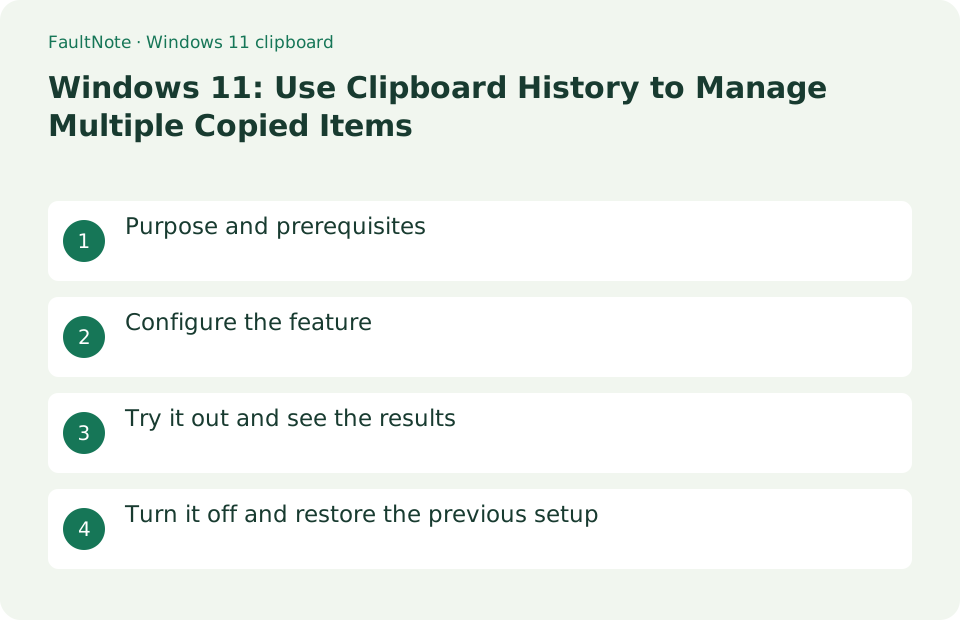
Who this guide is for and what to prepare
- Users who want to streamline daily operations with Windows 11
- Users who want to try out the feature in a way that allows them to restore the settings.
What you need
- Save the file you are working on and try it with test data that does not include personal information.
- The history can be up to 25 items, each item 4MB, and supports text, HTML, and bitmaps. Don't pin sensitive information
Choose a practical workflow
Consider a reply that uses the same greeting and signature repeatedly. Prepare three separate lines: "Thank you for contacting us", "We will check and reply" and "Contact: Sample". Use no personal information in this exercise. The goal is to assemble text in a different order from the copying order. Decide whether the destination is a subject field or message body before opening history.
Configure the feature
- Turn on Clipboard History in Settings > System > Clipboard
Worked example: assemble a reply from three fragments
- Open Win+V and enable history if necessary. Select each of the three lines separately and press Ctrl+C, then check that history contains three entries.
- Click an empty line in a new Notepad document. Select the greeting in Win+V, press Enter for a new line, then select the response and signature in the same way.
- Pin the signature from its menu. Copy another short piece of text, reopen history and check that the signature remains selectable.
- After the exercise, unpin the signature and delete the practice entries. Clearing history does not remove text already pasted into a document; edit that document separately if needed.
Try it out and see the results
Open the history with Win+V and select the item you want to paste. For items you want to keep, select [Pin] from the three-dot menu. Win+V displays recently copied text and images, and pastes only the item you select at the current cursor position.
Copy "A" and "B" one after another in Notepad, select the old A with Win+V, and paste it. Pin A and check if only A remains after [Clear All]. After looking at the difference between regular items and pinned items, remove the pin of A and delete it.
Click on the location where you want to paste from the history before pressing Win+V. For example, if you select the email body and then click A in the history, A will be inserted at that position. Ctrl+V continues to paste the previous copy. Enabling history does not retroactively restore previously copied content.
Manage template sources and formatting
Copy a greeting, recipient name and signature separately, then focus the destination and choose entries in the required order. Pin only a reusable signature to keep it easy to find. History is not document storage; keep a durable template in a separate file.
Keep source templates so a missing history entry is recoverable. Store a signature in a maintained source document and pin only the short version used often. When contact details change, update the source first, copy the new version and remove the old pin. Treat pinned entries as part of the update process so obsolete contact details are not reused.
Separate missing entries from paste failures
Unpinned history disappearing after a restart is expected. Copy fresh short text and check whether it appears. If it does not, check that history is enabled and the format is supported. If it appears but will not paste, try Notepad to isolate the destination application.
Use Notepad and the destination app to distinguish content from formatting. If web text becomes bold or colored in email, paste into Notepad first to verify the words. If the words are correct but styling is unwanted, check the destination app plain-text paste option. Selecting another history entry and removing formatting are different operations; reread the final message.
Review synchronization and sensitive-data retention
Local history and synchronization across devices are separate settings. You do not need synchronization for one PC. On a shared PC, remove pins from sensitive entries, delete those entries and reopen Win+V to check what remains.
Deleting history does not remove sensitive information from every place where it was stored. Check pasted documents, chat drafts and cloud synchronization separately. On shared devices, retain only public templates rather than authentication information. Use sample text instead of real passwords when learning retention and deletion behavior.
Interpret a mismatch between history and pasted text
Scroll horizontally to see the full table →
| Observed result | First check | Next action |
|---|---|---|
| An entry is missing | Copy fresh short text | Check restart behavior, entry eviction and format or size limits. Copying a file is not equivalent to a text entry. |
| Pasting works in Notepad | Focus the intended destination field again | Inspect application restrictions and cursor placement. Repeatedly clearing history is unnecessary. |
| An entry survives Clear all | Check whether it is pinned | Decide whether it is a needed template; otherwise unpin and delete it. |
Turn it off and restore the previous setup
Turn off the same setting and use [Clear Clipboard Data] or [Clear All] in Win+V. Unpin pinned items individually.
Limitations and requirements
- The history can be up to 25 items, each item 4MB, and supports text, HTML, and bitmaps. Don't pin sensitive information
- If the settings are fixed on an organization-managed PC, check with the administrator instead of using unofficial methods to circumvent the policy.
Frequently asked questions
What is the difference between Win+V and Ctrl+V?
Ctrl+V pastes the previous copy. Win+V selects and pastes items from your saved history.
Why are some items left even after I clear everything?
Pinned items are not eligible for bulk deletion. Unpin it in the item's menu, then delete it.
Does clearing history remove text already pasted into email?
No. Clearing history manages the copied-entry list. Text already pasted into a document or email remains in that application and must be edited there if it should be removed.
Can I recover copies from before history was enabled?
History does not retroactively save every previous copy. Copy required text again from its source if available. Do not use clipboard history as the only storage location for important data.
Sources and verification date
Sources checked: . These sources support the specifications, procedures or prices discussed here. Check each source for applicable conditions and current information.
Related practical guides
- Windows 11: Customize Taskbar Pins and System Icons
- When Smart App Control blocks an app: there is no per-app exception to find
- Windows has three startup modes: what Fast Startup actually loads
- Is quick machine recovery enabled on your PC? The defaults, and the network it actually needs
- Windows now drives the keyboard backlight: native control and autobrightness in 25H2
- Why Device encryption is missing from Settings, answered by System Information