Import UTF-8 CSV in Excel without garbled characters
These are the steps using Power Query for the Windows desktop version of Excel. Double-clicking a UTF-8 CSV without BOM may result in garbled characters, so check the encoding with [From Text or CSV].
Published · Updated · FaultNote editorial policy
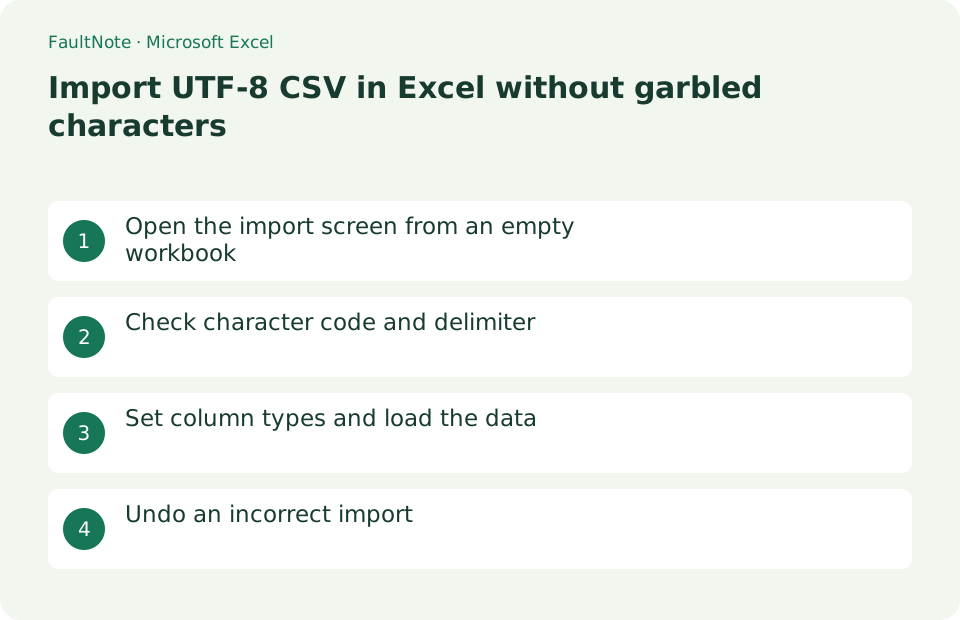
Who this guide is for and what to prepare
- People whose Japanese CSV has garbled characters
What you need
- Prepare a copy without changing the original CSV
- Identify the delimiter and the columns whose leading zeros must be preserved
Use reference records to choose import settings
Before importing, identify four reference cases in the source: a leading-zero ID, a name containing a comma, non-ASCII text and a date-like code. Reuse those examples after each settings change. Readable names do not compensate for converted identifiers.
Verify columns and headers in preview, correct automatic typing and load the data. Inspect formula-bar content as well as displayed cells. Applying a zero-padded number format afterward is not equivalent to preserving the original identifier as text.
Keep an editable .xlsx separately from the outgoing CSV, which cannot retain formulas and styling as a workbook. Reimport the deliverable and check the same reference records, its column count, filename, location and modification time.
For repeat imports, preserve necessary transformations in the import workflow rather than making only manual fixes that refresh may overwrite. Back up the workbook before replacing its source.
Recheck headers and column counts when the source layout changes. Do not infer missing source information or assume an old transformation still maps every field correctly.
- Record four reference values from the CSV
- Check delimiters and column count
- Assign types and load the data
- Reimport the deliverable and compare the same values
Open the import screen from an empty workbook
Instead of double-clicking the CSV, open a blank workbook in Excel, select [Data] > [Get Data] > [From File] > [From Text or CSV] and specify sample.csv. The official article covers the Windows version of Microsoft 365, 2024/2021/2019/2016.
- Open a blank workbook
- Open Get Data
- Select the CSV
Check character code and delimiter
In the preview, choose "65001: Unicode (UTF-8)" under File Origin and set Delimiter to Comma. In the practice CSV, confirm that "the employee-ID, name and department headers" (Employee ID, Name, Department) becomes three columns and that the Japanese headings and "the sample name value" (Sample A) display correctly.
- Choose UTF-8 in File Origin
- Set the delimiter to Comma
- Check the Japanese text and column split
Set column types and load the data
If the employee ID "00123" is automatically converted to a number, its leading zero is removed. Select [Transform Data]. If Power Query created a [Changed Type] step under [Applied Steps] on the right, delete that step to restore the original text value. Select the target column, set its data type to [Text], and then choose [Close & Load]. Converting 123 back to text after it has become a number will not restore the lost zero.
If [Do not detect data types] is available in the preview's data type detection setting, select it before importing to treat every column as text. When the sample employee IDs remain five digits—00123, 00124, and 00125—and the Japanese sample names display correctly, you can apply the same import settings to the actual data.
- Open Power Query Editor with [Transform Data]
- Delete the automatically added [Changed Type] step and confirm that 00123 is restored
- Set the employee ID column to [Text] and select [Close & Load]
Undo an incorrect import
Delete only the newly created import sheet for practice and re-import it with the correct character code and column type. Do not delete existing sheets that contain other tables or calculation formulas. The original CSV will not be changed just by importing it. If you no longer need the connection, go to [Data] > [Queries and Connections], right-click the target query, and then [Delete].
- Delete the import sheet
- Remove unnecessary queries
- Re-import from original CSV
Protect identifiers as well as text
Identifiers such as 00123 and 000045 can lose leading zeroes when imported as numbers. In Transform Data, set these columns to Text and inspect any earlier automatic type-change step. If digits were already lost, reimport from the original CSV with the corrected typing.
Also check date-like codes and long identifiers. Compare representative source rows in a text editor with the imported cells, including leading zeroes, digit counts and delimiter positions. Readable names alone do not prove a correct import.
- Set identifier columns to Text
- Inspect the automatic type-change step
- Compare identifiers and digit counts with the source
Diagnose shifted columns
A comma inside a CSV field needs appropriate quoting. Check the preview for split addresses or notes. Encoding and delimiters are separate decisions; choosing UTF-8 alone cannot fix a shifted-column problem.
First save the imported workbook under a new .xlsx name. CSV cannot preserve multiple sheets or workbook formatting. If a recipient needs CSV, export the required sheet and reimport that output to check its columns and identifiers.
- Preview a row containing a comma in its notes
- Select the correct delimiter
- Save .xlsx and recheck any exported CSV
Choose the next action from the result
Scroll horizontally to see the full table →
| State | Interpretation | Next check |
|---|---|---|
| Names are garbled | Review encoding | Match the actual source encoding |
| A name splits across columns | Review delimiters and quoting | Keep quoted commas inside one field |
| Leading zeroes disappear | Review type conversion | Reimport the original as text |
A FaultNote tool for this task
Before importing, check the row and column counts, rows whose column count does not match, leading zeros and values that a spreadsheet may read as a formula. The file stays in your browser, and the values you checked can be saved back as UTF-8 CSV.
Limitations and requirements
- If you overwrite and save CSV, you may lose formatting and leading zeros.
Frequently asked questions
Even if you select UTF-8, it will remain in one column.
Change the delimiter to a comma. For tab delimited, select tabs.
Is the screen the same in the web version of Excel?
This article is for Windows desktop versions. Since the web version has different functions, open it on the desktop app and import it.
Does UTF-8 guarantee a correct import?
No. Delimiters, quoting and column typing also matter. Check representative names, identifiers and date-like codes.
My CSV changed after saving from Excel
Keep the .xlsx working copy and reimport the outgoing CSV. If zeroes were lost, return to the original rather than repairing only the display format.
Sources and verification date
Sources checked: . These sources support the specifications, procedures or prices discussed here. Check each source for applicable conditions and current information.
Related practical guides
- Export One Excel Sheet to PDF with All Columns on One Page Width
- Convert an Excel data range to a table
- Delete duplicate rows based on specified columns in Excel
- Create a dropdown list in Excel with data validation
- Freeze header row and leftmost column at the same time in Excel
- Garbled text in an older Japanese game: inspect legacy system locale and UTF-8 settings