Delete duplicate rows based on specified columns in Excel
This is a feature that can be used in Microsoft 365, the desktop version of Excel 2024/2021/2019/2016, and Excel for the web. Decide on a match column and try it on the copy to keep the first matching row and delete subsequent rows.
Published · Updated · FaultNote editorial policy
Who this guide is for and what to prepare
- People who want to organize duplicate lines in rosters and order lists
- Someone who can decide which columns should match to be considered duplicates.
What you need
- Copy the original sheet and prepare a table containing name, email, and department as an example.
- Sort by update date, etc. so that the row you want to keep is at the top.
Define one record in an order list
Consider an order list containing order ID, email, product and update date. Two purchases by the same person remain separate orders even if their emails match. Choose the key from the purpose: order ID for orders, email for a contact list, or email plus product for that particular grouping. Build a separate contact sheet rather than deleting order history.
To retain the latest revision of an order, sort the entire table by update date descending, keeping all fields together. Record the initial row count and a few expected duplicate IDs. After removal, verify retained field contents as well as the reported count.
Missing emails cannot reliably identify people. Review blank-key rows separately and process records with known identifiers. Do not fill missing addresses based only on matching names. Keep the original and result sheets when you need to reconcile removed records by ID.
Leave a note identifying the matching columns and the unit counted, such as unique order IDs. A bare “duplicates removed” label cannot tell another operator whether the result represents people or orders.
Normalize suspicious whitespace in a review column on a copy. Inspect representative changes before replacing originals, changing one comparison condition at a time.
- Define whether a record means an order, person or product
- Review blank keys separately
- Sort the complete table by descending update date
- Record representative IDs and row counts
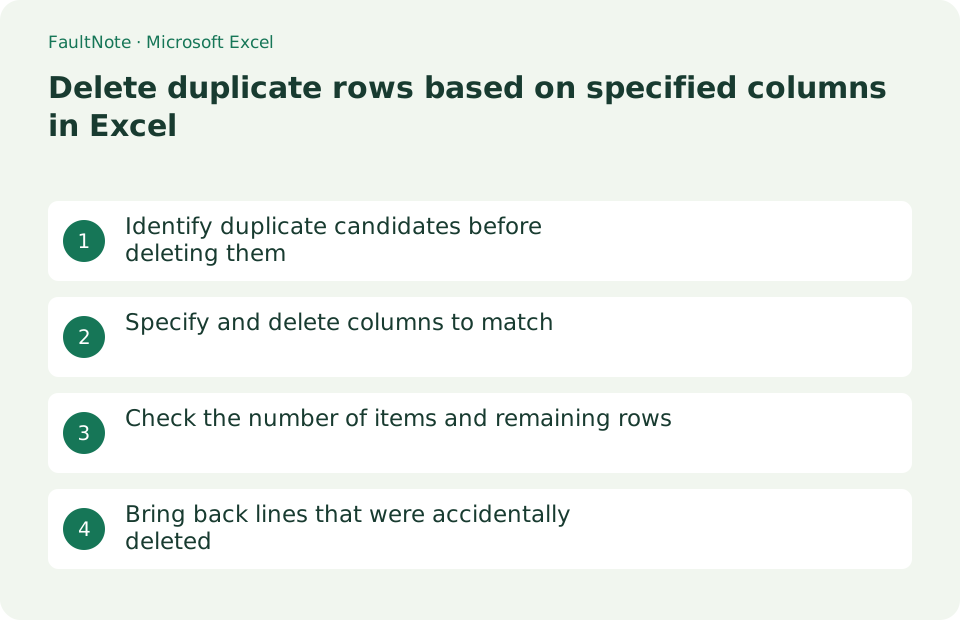
Identify duplicate candidates before deleting them
Select a data cell in the email column you want to check, excluding the header. Choose [Home] > [Conditional Formatting] > [Highlight Cells Rules] > [Duplicate Values]. For example, if two rows contain [email protected], both cells are highlighted. This only marks duplicates; it does not delete them.
- Select data cells in email column excluding headings
- Color duplicate values
- Check if the line to leave is the first
Specify and delete columns to match
Select the entire table and open Data > Remove Duplicates. If the first row is a heading, turn on the corresponding item, then [Deselect All], check only "Mail", and press [OK]. If the selected columns are the same, the entire row will be deleted, including the unselected department columns.
- Select entire table
- Open Remove Duplicates from Data
- Check only the matching column and press OK
Check the number of items and remaining rows
Record a result such as "1 duplicate value was found and removed, leaving 4 unique values." Verify in the filter that the coloring has disappeared and the intended first row of [email protected] remains. Whitespace or extra whitespace characters may produce different results.
- Check the number of result dialogs
- Filter by matching value
- Check if the necessary information in other columns remains
Bring back lines that were accidentally deleted
Use [Undo] or Ctrl+Z before closing the workbook. Undo history will not be deleted just by saving it. If you close the workbook and lose your undo history, restore it from the previously copied sheet. Since duplicate deletion cannot be performed in a range where there are outlines or subtotals, paste the values into the copy without destroying the original structure.
- Cancel with Ctrl+Z before closing the workbook
- See copy after closing
- Correct the collation columns and rerun
Compare a single column with a composite key
Create two rows with the same email but different departments. Matching email alone should leave one row; matching email and department should retain both. If your result differs, inspect the selected columns and range.
Removal does not merge information. If one row contains a phone number and another an address, decide which values to keep before deleting either row. Use a review sheet for these conflicts.
- Record the email-only result on a copy
- Undo and test email plus department
- Resolve other-column conflicts before the final removal
Check adjacent data and displayed formats
If a separate table sits beside your list, select only the intended table. Data outside the selected range does not move with the removal. Reconcile related records by an ID rather than their row positions.
Displayed date formats can affect duplicate comparisons even when underlying dates match. Compare on a consistently formatted copy and inspect representative IDs, not only the total count.
- Confirm the table boundaries
- Retest with consistent date formats
- Check adjacent records by their IDs
Choose the next action from the result
Scroll horizontally to see the full table →
| State | Interpretation | Next check |
|---|---|---|
| Same email, different order IDs | Keep both when matching order ID | Do not use email alone to deduplicate orders |
| Same order ID, different update dates | Keep the first after newest-first sorting | Verify other fields remain aligned |
| Several blank email keys | Identity is unknown | Review separately before removal |
Limitations and requirements
- Removing duplicates is data deletion, not hiding.
- Columns that are not selected will also be removed from rows that are determined to be duplicates.
Frequently asked questions
How can I avoid deleting someone with the same name?
In addition to names, email and employee numbers are also used as matching columns, and only rows with matching combinations are considered duplicates.
Are full-width/half-width characters and trailing spaces treated the same?
Even if the display is similar, the value may be different due to blank spaces, etc. Make a judgment after creating a confirmation column formatted with TRIM etc.
Can I keep only the latest row for each email?
Sort the whole table newest first, then match email to keep its first occurrence. First confirm that removing separate orders is appropriate for your task.
What should I record?
Keep the original, selected range, matching columns, sort order and before/after counts. Also record representative retained IDs and required fields.
Sources and verification date
Sources checked: . These sources support the specifications, procedures or prices discussed here. Check each source for applicable conditions and current information.
Related practical guides
- Export One Excel Sheet to PDF with All Columns on One Page Width
- Convert an Excel data range to a table
- Create a dropdown list in Excel with data validation
- Freeze header row and leftmost column at the same time in Excel
- Import UTF-8 CSV in Excel without garbled characters
- After buying an HDR monitor: the Windows HDR Calibration requirements, and the separate tool for built-in screens