Create a dropdown list in Excel with data validation
Compatible with Microsoft 365, Excel 2024/2021/2019/2016 Windows/Mac and web versions. Prepare a table of candidates, set the cell input rule to [List], and try selective input.
Published · Updated · FaultNote editorial policy
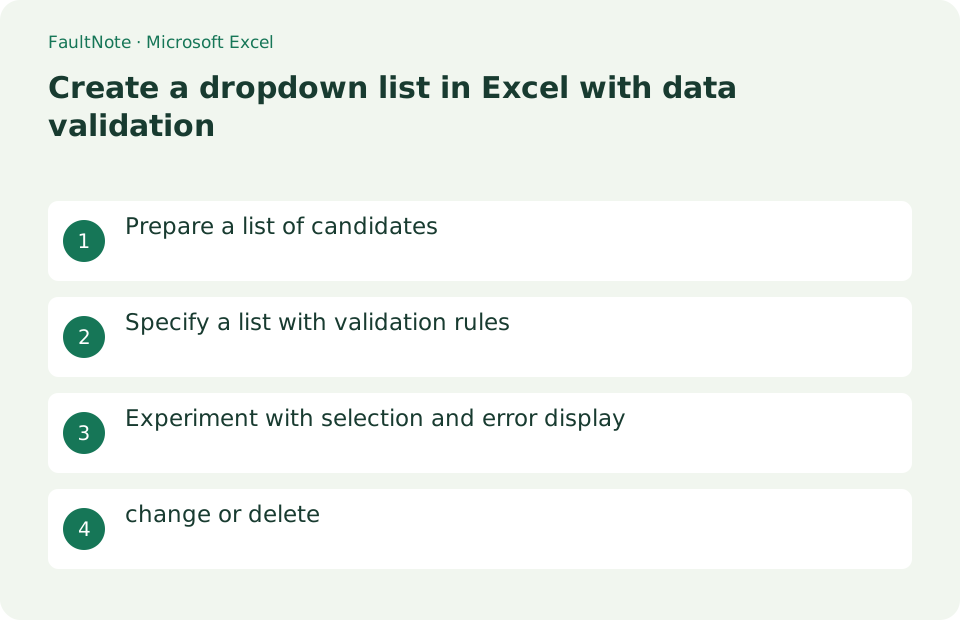
Who this guide is for and what to prepare
- People who want to unify the notation of status and person in charge
What you need
- Enter “Not started,” “Working on,” and “Completed” in A2:A4 on a separate sheet.
Separate status entries from their source list
For a progress sheet with status in column D, place three choices on a separate source sheet. Configure D2 first. Exclude headers and unused cells from the source. If direct cross-sheet entry is unsuitable for the dialog, consider a named source range.
Once D2 works, apply the same validation to subsequent rows. When using paste operations, choose validation-only where appropriate to avoid replacing borders and colors. Inspect the final row and a newly added row, not just the first cell.
Renaming Complete to Resolved requires reviewing existing entries separately from editing the source list. Otherwise summaries can split old and new labels. Filter for the old value, confirm the affected count and limit replacement to the status column. Decide who maintains shared source choices.
Give choices distinct meanings and document when to use each. Put free-form explanations in a separate notes column rather than allowing ambiguous status labels.
For workflows involving pasted data, review existing values as well as validation settings. Filter for unlisted values and blanks, deciding whether blank status is permitted.
- Prepare a source range without the heading
- Test the first destination cell
- Apply validation to the required range
- Check new rows and retired-choice counts
Prepare a list of candidates
Set A1 on the "candidate" sheet as status, set A2:A4 as unstarted/in progress/completed, select A1:A4, and select Ctrl+T. Arrange them in the order you want them displayed without any spaces.
- Enter suggestions in one column
- Create a table including headings
Specify a list with validation rules
Select the destination range B2:B20 and open [Data] > [Data Validation]. On [Settings], set [Allow] to [List], set [Source] to the candidate-data range, select [In-cell dropdown], and choose [OK].
- Select input destination
- Select list by input rules
- Specify candidate range excluding headings
Experiment with selection and error display
Select "In progress" from the arrow in B2 and confirm that only those characters are included. If the [Error Message] input rule is set to [Stop], if you directly enter "Hold", it will be rejected. If necessary, set a unique message such as "Please select from suggestions."
- Select one candidate
- Confirm rejection by entering a non-suggested word
change or delete
If you correct the value in the candidate table, it will be reflected in the reference destination. To remove only the validation rules, select the target cell and use [Data] > [Data Validation Rules] > [Clear All] > [OK]. Delete the cell contents separately if necessary.
- Modify the candidate table
- Clear all to remove input rules
Test a new choice and existing entries
For a list such as Not started, In progress and Complete, add On hold on a copy and check the dropdown. Extend a fixed source range if necessary. An Excel table makes maintaining the source choices easier.
Removing In progress from the source should not be treated as a migration of existing entries. Filter the destination column for that old value and decide whether to update those records or restore the choice.
- Add one choice and inspect the destination cell
- Check the end of the source range
- Review rows containing retired choices
Choose the error alert deliberately
Choose a Stop error alert when typing an unlisted value should be rejected. Warning and Information alerts allow different behavior. Test by typing a value that is absent from the list.
If the arrow is missing, check that the affected cell has List validation and that the in-cell dropdown is enabled. After applying validation to the full range, inspect its beginning, middle and end.
- Test the alert with an unlisted typed value
- Inspect validation on one cell
- Open the dropdown at three points in the range
Choose the next action from the result
Scroll horizontally to see the full table →
| State | Interpretation | Next check |
|---|---|---|
| New choice is absent | It was added outside a fixed range | Inspect the source-range endpoint |
| Some cells allow free entry | Validation is missing there | Compare beginning, middle and end cells |
| Old choice remains in summaries | Existing entries were not migrated | Filter and update the status column |
Limitations and requirements
- Validation rules cannot be changed on protected sheets or in some sharing states
Frequently asked questions
I don't see any arrows.
Check that the input rule "Select from drop-down list" is selected and that the cell is editable.
Even if you add a candidate, it will not be reflected.
It may refer to a fixed range. Add suggestions to the next row in the table or expand the range of original values.
Does hiding the source sheet prevent edits?
Hiding mainly reduces visibility. Consider sheet protection for accidental-edit prevention and define who maintains the choices.
Does sorting choices change existing statuses?
Choice order and stored cell values are separate. If other formulas encode meanings by position, inspect those formulas before sorting.
Sources and verification date
Sources checked: . These sources support the specifications, procedures or prices discussed here. Check each source for applicable conditions and current information.
Related practical guides
- Export One Excel Sheet to PDF with All Columns on One Page Width
- Convert an Excel data range to a table
- Delete duplicate rows based on specified columns in Excel
- Freeze header row and leftmost column at the same time in Excel
- Import UTF-8 CSV in Excel without garbled characters
- The recovery drive to make on day one: what it holds, what it does not, and which USB stick to use