Freeze header row and leftmost column at the same time in Excel
Freeze the row and left column above the selected cell in Microsoft 365, Excel 2024/2021/2019/2016. It is also available in the web version from [View], but the display name may change with updates.
Published · Updated · FaultNote editorial policy
Who this guide is for and what to prepare
- People who lose track of headings in large lists
What you need
- Open a horizontally and vertically long table with a heading in the first row and an ID in column A.
Work through a two-row, two-column layout
Consider grouped headings in row 1, column labels in row 2, employee ID in A and name in B. C3 retains both heading rows and both identity columns. If labels extend to row 3, choose a lower anchor. Count the final retained row and column before selecting the next cell below and right.
Scroll down roughly fifty rows, then right, and finally select a value in the lower-right area. Confirm you can identify its person and month using the retained headings. A divider alone does not establish that the layout is useful.
To change the anchor, unfreeze first and select the replacement cell on the correct sheet. Large title and introduction areas can consume excessive frozen space; reorganizing the heading area may work better. Review on the display size normally used by readers.
Retain enough identifying information to distinguish duplicate names, but avoid freezing empty explanatory columns. Verify that the scrollable area still shows useful monthly data.
After copying a table to another workbook, recheck the anchor against its new layout. Inspect the first scrollable data cells and review both directions at normal zoom.
- Count the last heading row and identity column
- Freeze from the next cell below and right
- Identify distant values using headings and names
- Review at the normal display size
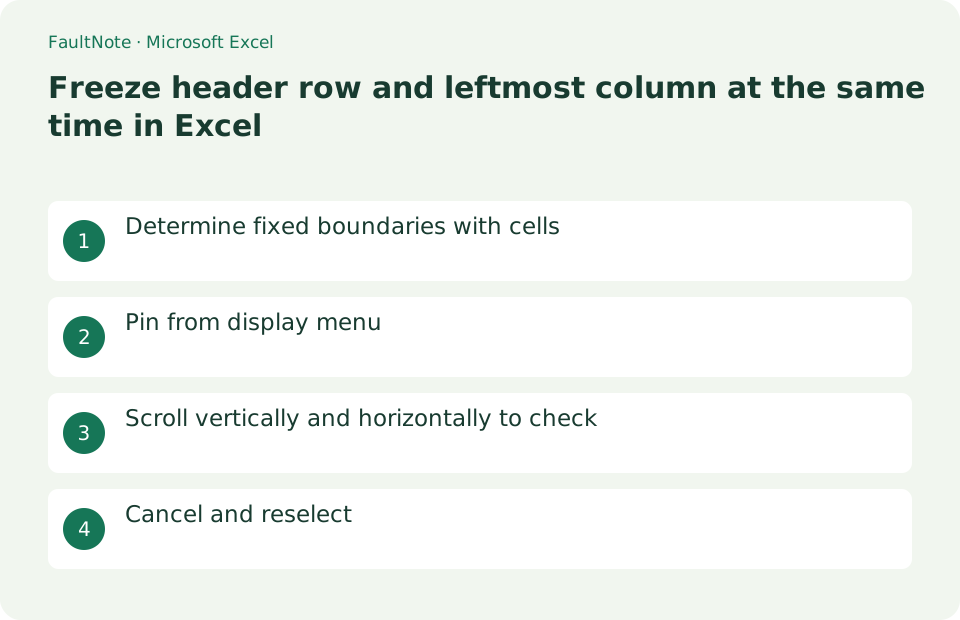
Determine fixed boundaries with cells
If you want to fix the first row and column A, select B2 directly below and to the right. If you want to fix up to the second row and column A, use B3. The key is to select the first cell at the bottom right of the range you want to fix, not the fixing target itself.
- Check the last line you want to fix
- Check the last column you want to fix
- Select the lower right cell
Pin from display menu
With B2 selected, choose [View] > [Freeze Panes] > [Freeze Panes]. [Freeze Top Row] alone does not freeze column A.
- Select B2
- Open display tab
- Freeze window frames
Scroll vertically and horizontally to check
If you move it down to the 50th row and the 1st row remains, and move it to the right and leave column A, it will be successful. A thick border appears on the left of column B and above the second row. If it is different from what you expected, release it once without guessing the fixed position.
- scroll down
- scroll right
- Check if row and column headings remain
Cancel and reselect
Select [View] > [Freeze Panes] > [Unfreeze Panes], select B2 again, and reapply [Freeze Panes]. Unfreezing does not change data or formatting. Split panes are a separate feature.
- Unpin
- Re-select border cells
- re-pin
Calculate the anchor cell
Select C3 to retain the first two rows and first two columns. Freeze Panes uses rows above and columns left of the selected cell. B2 would retain only one row and one column.
Scroll vertically, horizontally and then in both directions. Check that the column headings and identifying numbers remain visible together. This verifies the chosen anchor rather than merely the presence of a divider.
- Decide how many rows and columns to retain
- Select the cell below and to their right
- Verify the headings while scrolling both ways
Recover from an oversized frozen area
On a small display, a large frozen area leaves little room for data. Unfreeze Panes and rebuild the setting around essential headings, excluding introductory text. Zooming out alone can hide the underlying layout problem.
Freezing controls on-screen scrolling. Repeating headings on later PDF pages requires a separate print-title setting. Confirm the actual print preview rather than assuming the visible frozen heading will repeat.
- Unfreeze and retain only necessary headings
- Check the data area at your normal zoom
- Inspect PDF headings separately in print preview
Choose the next action from the result
Scroll horizontally to see the full table →
| State | Interpretation | Next check |
|---|---|---|
| First row and column A | Select B2 | Both remain while scrolling |
| First two rows and columns A/B | Select C3 | Row 2 and column B remain |
| First three rows and column A | Select B4 | Row 3 headings remain |
Limitations and requirements
- The top and left side of the selected cell are fixed.
Frequently asked questions
What if I want to fix only the first line?
Select View > Freeze Panes > Freeze First Row.
Will there be a heading on each printed page?
Frame fixation is only for screen display. For printing, specify the title line using the print title in [Page Layout].
Will the same anchor suit every sheet?
Review each sheet. Different layouts need anchors based on their own heading positions.
How do I avoid printing the freeze divider?
The screen divider differs from cell borders. If lines appear in print preview, inspect cell borders and printed gridline settings.
Sources and verification date
Sources checked: . These sources support the specifications, procedures or prices discussed here. Check each source for applicable conditions and current information.
Related practical guides
- Export One Excel Sheet to PDF with All Columns on One Page Width
- Convert an Excel data range to a table
- Delete duplicate rows based on specified columns in Excel
- Create a dropdown list in Excel with data validation
- Import UTF-8 CSV in Excel without garbled characters
- Create a personal filter view in Google Sheets