Send a DRM-free EPUB to a USB reading device
Verify one transfer on both computer and reader. Check official format and DRM conditions, then open the book after ejection rather than relying solely on completed sending.
Published · Updated · FaultNote editorial policy
Who this guide is for and what to prepare
- Readers managing books on computers and reading devices
- People who want to distinguish originals from working results
What you need
- Keep an entitled original and a backup before changing settings
- Identify the application build, destination and one trial book
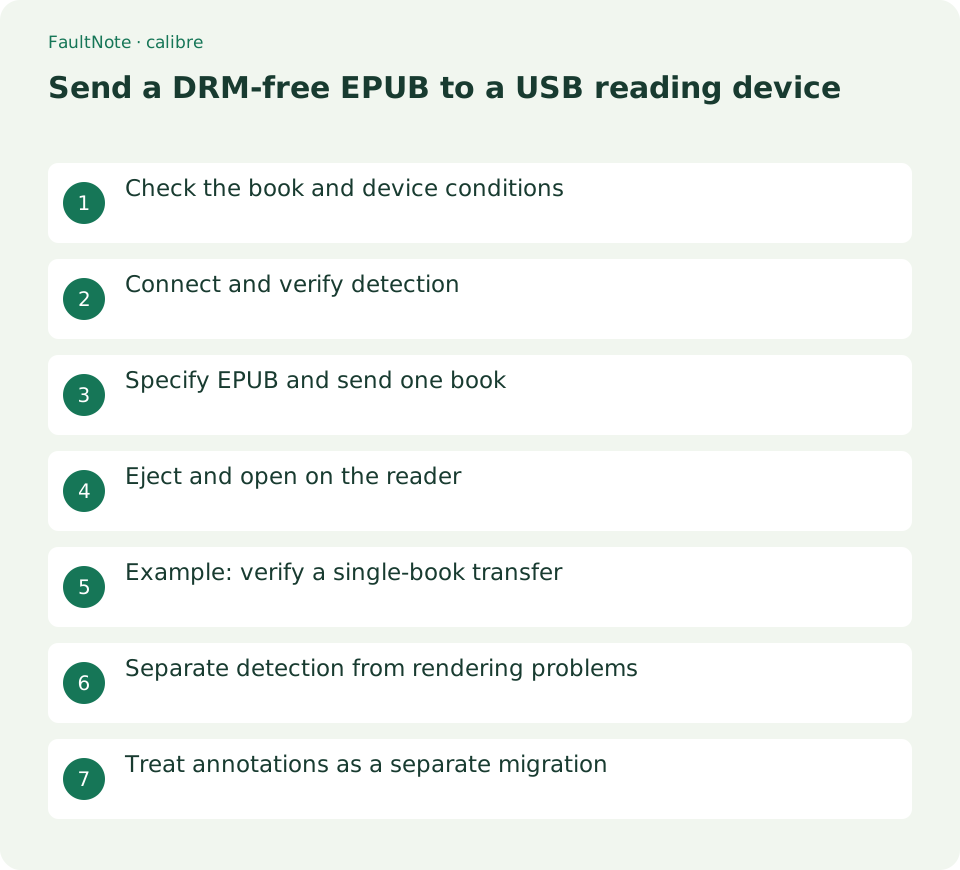
Check the book and device conditions
Use an entitled, DRM-free EPUB and verify its provider's conditions rather than assuming the extension proves it is unprotected. Check the reader manufacturer's USB and format guidance. Kobo documents non-protected PDF/ePub import; this is not a universal condition for every reader.
Open the book on the PC and inspect cover, contents and an illustrated page as comparison points. PC readability does not prove identical device behavior. Confirm the intended EPUB when multiple formats exist and retain the library original.
Connect and verify detection
Connect a powered-on reader directly with a data-capable USB cable. Kobo documents tapping Connect on Computer detected. If only charging occurs, inspect confirmation and cable capability, then compare a direct connection without a hub. Begin with these checks rather than system-wide changes.
Check for calibre's device controls separately from an OS-visible drive. Start with one book, verify space and avoid another transfer program at the same time. Converting books does not fix a device that has not been detected.
- Check official unprotected EPUB and USB conditions
- Connect using a data cable and confirm Connect on the reader
- Verify calibre device detection
- Send one EPUB through Send specific format to
- Eject after the job finishes
- Wait for import and inspect prose and contents on the reader
Specify EPUB and send one book
Select one library book and inspect Send to device variants. Use Send specific format to for an existing EPUB and destination. Ordinary sending can involve conversion, so align the operation with your intent and verify the selected format.
Do not choose Send and delete from library when retaining the source. Watch job status and leave the cable connected during transfer. A PC-side list does not establish completed on-device import; move to ejection after the computer job finishes.
Eject and open on the reader
Use calibre Eject device or OS safe removal before unplugging as directed. Kobo documents Importing content afterward and opening the title in My Books. Wait for import and check cover or author for similarly named books.
On the reader inspect cover, contents, opening and a middle illustration. A small screen may expose clipped tables or other differences. Diagnose the actual passage before changing formats; successful copying alone is not the completion criterion.
Scroll horizontally to see the full table →
| Observed state | Check | Action |
|---|---|---|
| OS cannot detect | Cable and connection confirmation | Compare direct connection |
| Only OS detects it | calibre and model support | Consult device integration FAQ |
| Copied title will not open | Format and protection | Compare official conditions and source |
| Missing from other devices | USB import scope | Separate from cloud sync |
Example: verify a single-book transfer
For a short unprotected guide on Kobo, inspect chapter two and an illustration on the PC. Connect USB, tap Connect, wait for calibre detection and send the existing EPUB for one selected title. Eject after the job and wait for reader import.
Open it in My Books and compare the noted chapter and image before expanding to more books. Kobo states this imported content appears on that device, not automatically on other readers or apps through sync. Distinguish device transfer from account-wide cloud storage and retain PC originals.
Separate detection from rendering problems
If no Device appears, first test OS detection. For no drive, inspect cable, Connect confirmation and direct connection. If the OS sees it but calibre does not, consult device integration and model compatibility guidance. Change one connection condition at a time and record the failing stage.
For a copied but unreadable book, check format conditions, protection and file identity. Distorted prose suggests rendering or conversion rather than USB detection. Verify the correct title before removing duplicates; diagnose one book instead of deleting the whole collection.
Treat annotations as a separate migration
PC bookmarks and highlights may not transfer identically; file copying and application annotation formats are separate. Keep important notes by title, edition, chapter and phrase and locate the return point on the reader after ejection.
For multiple devices, define each transfer method and the source location. Do not make the USB copy your only preservation; retain the PC library. Resetting the reader is unnecessary for this workflow. Record verified connection, sending, ejection and reading conditions for next time.
Limitations and requirements
- Compare the documented controls with your installed build.
- Retain originals and verify one book before widening the operation.
Frequently asked questions
Can every reader open any EPUB?
Check model-specific format and protection conditions. Do not generalize the Kobo example to every reader.
Should I remove the PC source after sending?
Do not rely on the device as the only copy. Avoid Send and delete from library and keep a separate backup.
Will USB books appear in the mobile app after sync?
Kobo describes imported books as device-local. Distinguish USB transfer from account synchronization.
Sources and verification date
Sources checked: . These sources support the specifications, procedures or prices discussed here. Check each source for applicable conditions and current information.
Related practical guides
- Test ebook conversion on a copy before adopting the layout
- Set EPUB text size and reading layout in calibre
- Use calibre bookmarks and Reference mode for reading notes
- Export calibre highlights and annotations to a separate file
- Move a complete calibre library to another drive
- Track purchase source and edition with calibre custom columns