Track purchase source and edition with calibre custom columns
Separate source and edition so queries can combine them. Test entry and search on a few books before expanding and avoid duplicating the same information in multiple fields.
Published · Updated · FaultNote editorial policy
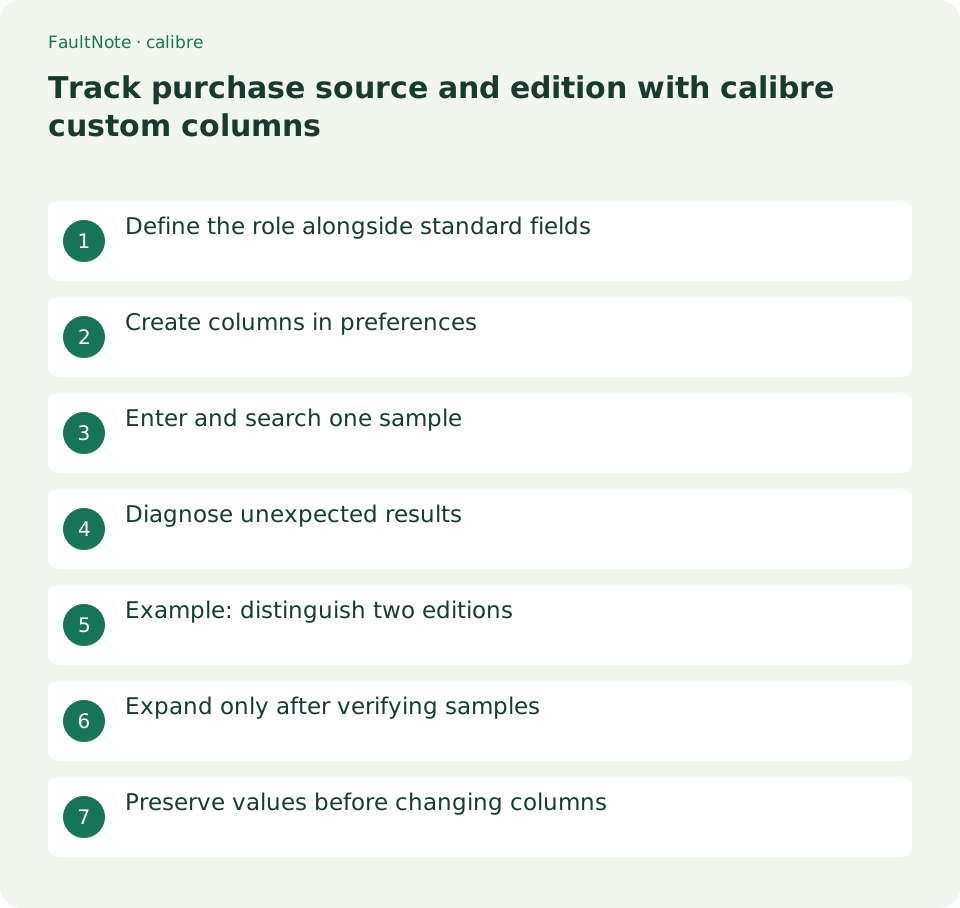
Who this guide is for and what to prepare
- Readers managing books on computers and reading devices
- People who want to distinguish originals from working results
What you need
- Keep an entitled original and a backup before changing settings
- Identify the application build, destination and one trial book
Define the role alongside standard fields
Do not replace publisher with the store you used: they describe different things. Edition also differs from format; owning EPUB and PDF does not necessarily mean two editions. Define one example value for each field.
A record containing multiple formats has shared metadata. Different source purchases or contents may not fit one value. Decide whether distinct editions need separate records or explanatory notes before merging similarly titled entries.
Create columns in preferences
Open Preferences, Interface, Add your own columns and add a custom column. A simple text field is a practical starting point for source. Use a visible heading and a short lookup name such as source, following the dialog's requirements.
Create edition separately and choose its type using realistic values; an integer alone cannot retain labels such as "revised edition." Restart if requested. Hover over the resulting header to confirm the actual search name rather than guessing it.
- Open Preferences, Interface, Add your own columns
- Create separate text columns for source and edition
- Save and restart if requested
- Hover headers to verify lookup names
- Enter verified values for one book
- Test each field search and clearing it
Enter and search one sample
Edit one book's custom cell. Enter an edition verified from the book or publisher and leave unknown information unresolved. Switch away and return to verify persistence before bulk editing.
If the actual lookup name is #source, try #source:StoreA with your own value replacing the illustrative StoreA. Check inclusion of the intended book and exclusion of another source. Clear the query to restore the full list; filtering is not deletion.
Diagnose unexpected results
For no matches, verify the lookup name rather than the visible heading, then inspect spaces and spelling in values. A source entered both as StoreA and Store A may not match one query as intended; choose a consistent convention.
Test source and edition filters separately before combining them with and. Broad conditions can include unintended editions. Inspect official presence-search behavior and column type before using empty-value searches.
Scroll horizontally to see the full table →
| Observed state | Check | Action |
|---|---|---|
| Zero matches | Lookup name and value | Compare one known cell |
| Other editions included | Condition breadth | Test each filter separately |
| Columns missing after move | Books-only copy | Inspect the complete library |
Example: distinguish two editions
Keep a first and revised edition as separate records while testing. Assign illustrative source and edition labels, filter each field and open the book to compare the recorded edition with its imprint.
Clear filters to compare both. Multiple formats in the revised record still require content checks. Source labels do not establish licensing or proof of purchase; retain receipts and terms separately and treat columns as an index.
Expand only after verifying samples
Expand after several books persist and search correctly after restart. Select only books that genuinely share a value. A shared store does not imply one edition, so do not overwrite both columns indiscriminately. Leave uncertain records unresolved.
If tags already hold the information, decide the transition policy and verify both before deleting old values. Custom columns belong to library management; copying book files alone does not guarantee the same columns elsewhere. Back up the whole library.
Preserve values before changing columns
Before redesigning, preserve values and back up the library. Test a new column rather than assuming a type change retains every label. Deleting a column differs from hiding it; verify whether entered data is still needed.
Resolve inconsistent source names before proliferating columns. Choose types by task, such as dates for purchase dates and text for free edition descriptions. Completion means finding the right books, not merely improving the table's appearance.
Limitations and requirements
- Compare the documented controls with your installed build.
- Retain originals and verify one book before widening the operation.
Frequently asked questions
Can I put the store in Publisher?
They have different roles. Use a separate source column without replacing publisher data.
Should identical titles be merged?
Distinguish editions and contents first. Merging by title alone can hide differences.
Are custom values proof of purchase?
They are self-entered metadata. Verify proof and usage rights through receipts and official terms.
Sources and verification date
Sources checked: . These sources support the specifications, procedures or prices discussed here. Check each source for applicable conditions and current information.
Related practical guides
- Set EPUB text size and reading layout in calibre
- Use calibre bookmarks and Reference mode for reading notes
- Check voice and reading order for calibre read-aloud
- Export calibre highlights and annotations to a separate file
- Move a complete calibre library to another drive
- Send a DRM-free EPUB to a USB reading device